

- Settings
- Processing
- Result
Remove Background Noise from a Video, Free & Online
Clean up your video's audio in seconds — no software, free online trial.
Your file is kept — processing resumes automatically.
This limit resets tomorrow. Go Pro to never hit it again, on every tool.
Drop to upload
We'll take it from here
Drop your file here
or browse your files
MP4, MOV, AVI, MKV, WebM, MP3, WAV
Your Hashtags Are Ready!
Hashtags copied to clipboard — paste them in your post!
Drop to upload
Drop your file here
or browse your files
Convert to:
Translate to:
Conversion Complete!
Preview below. Download your file whenever you like.
Translation Complete!
Preview below. Download your file whenever you like. Timecodes are preserved.
Platform
Duration
Free account required to use this tool. Sign up in seconds!
Your Video Script
Quota is based on full video duration. Queued and running tasks are included; the exact balance is checked before transfer.
COMPATIBLE PLATFORMS
The language is detected automatically — nothing to select. Over 100 languages are recognised (Wolof is not supported yet).
Helps the AI spell rare names or brands correctly.
Identify speakers
Detects who speaks when (ideal for interviews and podcasts)
Number of speakers
About 1–3 minutes. Face tracking keeps the subject in frame.
Keep this tab open, processing continues.
Klipa is preparing your preview
Your best clip is being cut and auto-reframed (face tracking). This preparation happens only once — about 30 seconds.
Upgrade to generate your clips with this style, or continue free with the Minimal style.
Burning in the captions…
Klipa is burning your captions into this clip, in the style you chose — identical to the preview. This takes a moment, keep the page open.
The burn failed — nothing was lost, you can retry.
File expired
For your privacy, files are deleted automatically after a while. Re-run the compression to get a new link.
Before
After
Quality preserved: your video stays sharp and plays everywhere, with no watermark.
Compress heavier files, as many times as you want
What's next?
What's next?
Your reframed video is ready
Free download stays available — your video will carry the logo.
Unlock often? See ProWhat's next?
The free version carries the Klipa logo in the center and bottom of the video.
One-time payment, this video only.
Or Pro: all your videos logo-free, unlimited →What's next?
Longer videos and larger files with Pro.
Your original video is still available. Try another tool:
What changes in the audio, and what doesn't
Upload the video, and Klipa's AI isolates the voice from everything around it — fan hum, traffic, wind, hiss — then removes the rest. The output is the same video, same picture, with a cleaner voice track, ready in a browser tab with no separate audio editor.
Quick note: this cleans audio noise. If what you actually want to remove is what's visually behind you instead — a messy room, a plain wall — that's a separate tool: remove a video's background.
Which background noise disappears — and which is harder
Steady, constant sound goes cleanly: fan hum, air conditioning, computer noise, traffic, wind, mic hiss, the low buzz of a room. The AI isolates your voice as one track and drops the rest, so diffuse background noise leaves along with it.
Two cases stay harder: a second person talking at the same time, or background music with singing, since the model separates "a voice" rather than a chosen speaker. Room echo and a call app's own echo are harder too, for a different reason: that reverberation sits stamped onto the voice's own waveform, not next to it as a separate sound, so isolating the voice keeps most of it along for the ride. The earliest fix is often prevention — mic closer to the mouth, fans off, a softer room, a closed window — before a noisy take needs rescuing at all.
What to check once it's done
Listen back to the quietest moments first — a whispered aside, the start of a sentence — since that is where any leftover noise or a processing artefact would show up most. A phone voice memo recorded alongside the camera, as a backup audio source, is worth running through the same cleanup if the camera's own mic struggled more than the phone did. Because the cleaned voice is remuxed onto the exact same footage rather than a re-cut one, it's also worth a quick check that the words still line up with the lips, even though drift isn't expected.
Cleaning the audio first also helps whatever comes next: automatic transcription and silence or filler-word detection all read the same audio track, and they have less noise to work around once it's already gone.
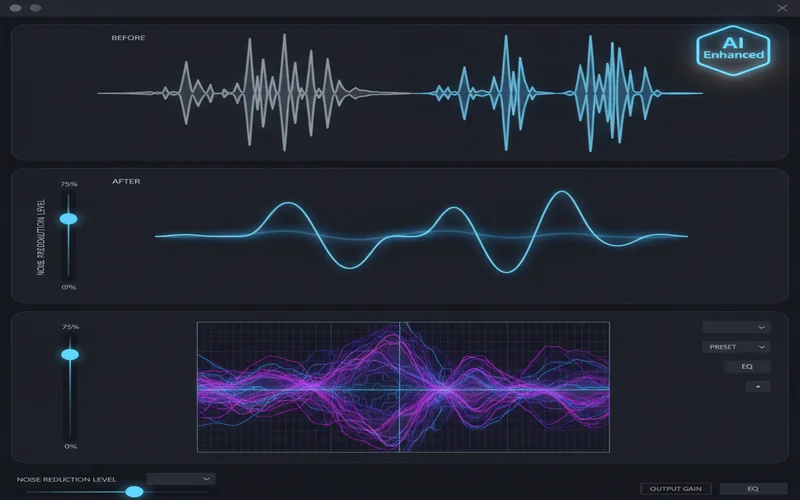
How to remove background noise from a video
Upload the noisy clip
Drop in the video or audio file — no need to pull the audio out yourself first.
Let the AI isolate the voice
A neural network separates speech from everything behind it and discards the rest.
Download the clean result
Get back the same video, same picture, with a clear voice track.
Why clean background noise with Klipa
AI voice isolation
The voice is isolated first, then kept — the rest is discarded, instead of a filter clamped over the whole mix.
No separate audio editor
Upload the video directly; there's no exporting the audio, cleaning it elsewhere, then re-syncing it back.
Video or audio, either way
Works on a full video file or on a plain audio recording — the same cleanup, either input.
Picture untouched
Only the audio track is processed; the video quality you filmed is what you get back.
When to remove background noise
An interview filmed outdoors
Traffic, wind and passers-by bury the answers, especially on a clip shot on a phone. Cleaning the audio brings the conversation back to the front.
A video call or webinar recording
A laptop fan or an air conditioner humming through the call clears from the recording. Room echo or a speakerphone's own echo sits on the voice itself, so it fades less than a separate, steady sound would — the call is still far easier to sit through once the hum is gone.
A lecture filmed in a noisy room
Ventilation hum clears from the recording; the room's natural echo is stamped onto the voice itself and only fades a little, but the explanation still comes through far more clearly than in the noisy original.
A podcast or voice-over recorded on a phone
Mic hiss and handling noise fade once the background is gone, without re-recording the take from scratch.
An old recording you can't reshoot
A wedding speech, an interview that won't happen twice: cleaning the audio saves the only take you actually have.
Related Tools
Removing background noise — frequently asked questions
What Creators Say
Learn More About Klipa AI
The voice, without the noise
Removing background noise from a video no longer needs a sound engineer or a separate audio timeline. The AI isolates the voice, the rest is dropped, and the footage you already have becomes the clean take you wish you'd recorded. Once the noise is gone, the next fix is usually silence or filler words — Klipa's silence remover and filler word remover pick up from here, and automatic transcription turns the cleaned audio into captions.
