

How to Reframe a Video for TikTok and Shorts
The Klipa editorial team · figures checked on October 14, 2026 You can turn an existing horizontal video into a vertical composition without changing the original…
Good to know before creating your Shorts and Reels
Verified July 29, 2026Figures read on the official Instagram, YouTube, TikTok and Facebook help pages on July 29, 2026 · Klipa 30-day measurements.
To reframe a horizontal video into a vertical one, upload the file, pick a vertical format such as 9:16, and Klipa's AI crops the frame around whoever is speaking instead of cutting the sides at random. The result is a full-frame vertical video, ready for TikTok, Reels or Shorts, with no black bars and no fixed crop that loses the subject the moment they move.
A video shot in 16:9 doesn't become vertical by simply keeping the middle third of the frame: as soon as the speaker turns, gestures, or a second person enters the shot, a fixed crop cuts off a head or leaves someone half out of frame. Klipa's AI detects the face or subject in every shot and moves the crop to keep them in view, smoothing the motion so the frame pans instead of jumping.
Not every platform wants the same shape. From a single horizontal video, Klipa reframes to 9:16 for TikTok, Reels and Shorts, to 4:5 for the Instagram feed, to 1:1 for a square post, or to 2:3 for Pinterest. Pick the format and the AI recalculates the crop and the tracking for that exact ratio — no need to do five separate exports by hand.
The reverse conversion works the same way. A video filmed vertically on a phone can be reframed to a horizontal 16:9 for YouTube, a slide deck or a desktop screen, with the same subject tracking applied in reverse — useful whenever footage shot for a phone needs to land on a wider screen instead.
Most creators reframe to vertical before adding subtitles: crop to 9:16 first, then burn captions sized for the new frame, or cut the reframed video into shorter clips afterwards. Doing it in that order keeps captions centred on the new frame, instead of captions placed for a 16:9 video ending up off to one side once it becomes vertical.
The reframed video downloads immediately, so you can judge the real crop and tracking on your own footage — not a generic preview. A Pass or a Pro plan delivers the video without the Klipa logo.

Drop the 16:9 video you want to reframe: MP4, MOV, AVI, MKV or WebM, up to 2 GB.
9:16 for TikTok, Reels and Shorts, 4:5 for the Instagram feed, 1:1 or 2:3 for square and Pinterest, or 16:9 to go from vertical to horizontal.
The AI tracks the subject through the whole video and gives you a full-frame file in the chosen format — a Pass or a Pro plan delivers the video without the Klipa logo.
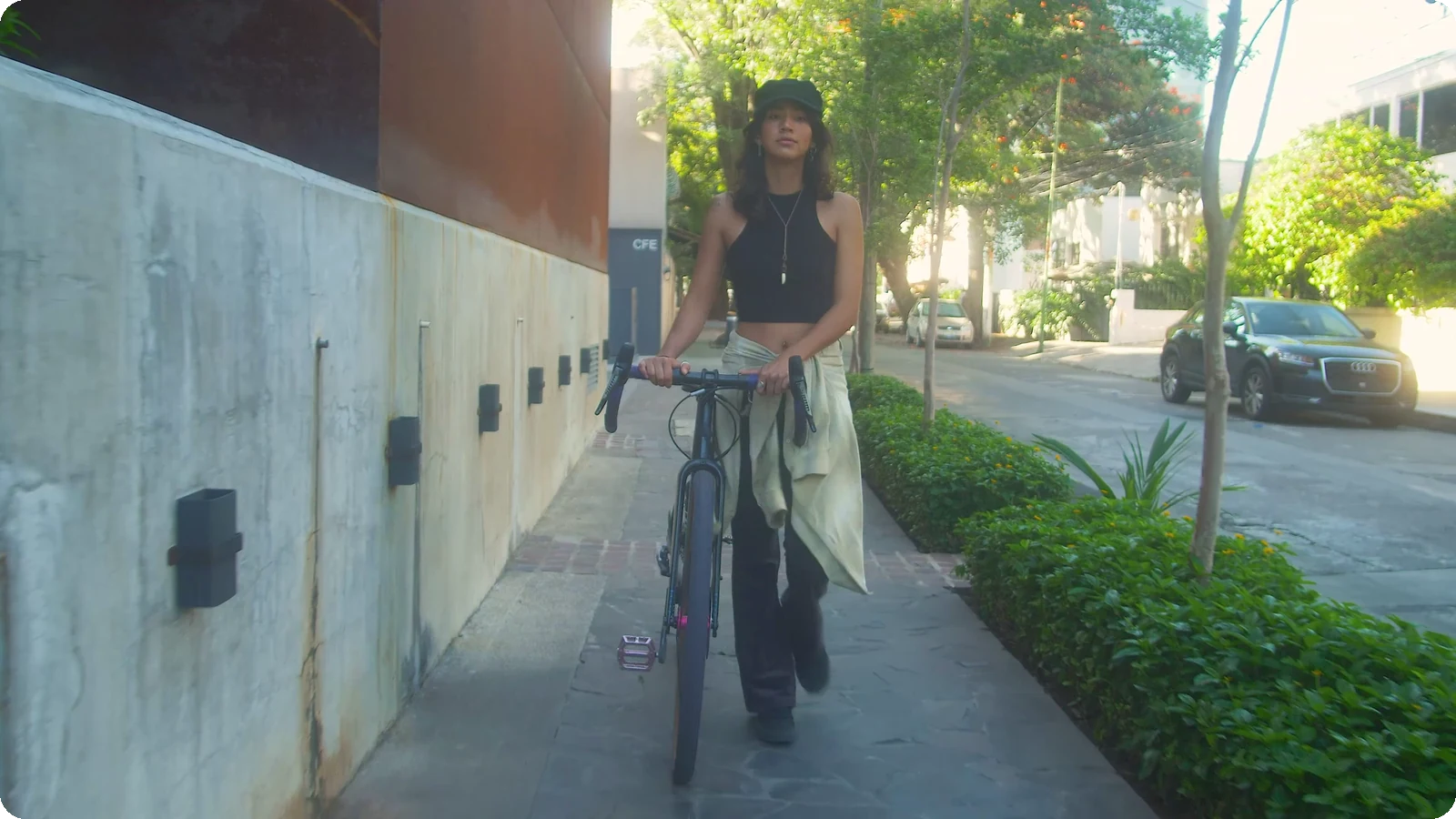
The AI follows whoever is speaking shot after shot, moving the frame instead of leaving a crop that runs off the subject the moment they step aside.
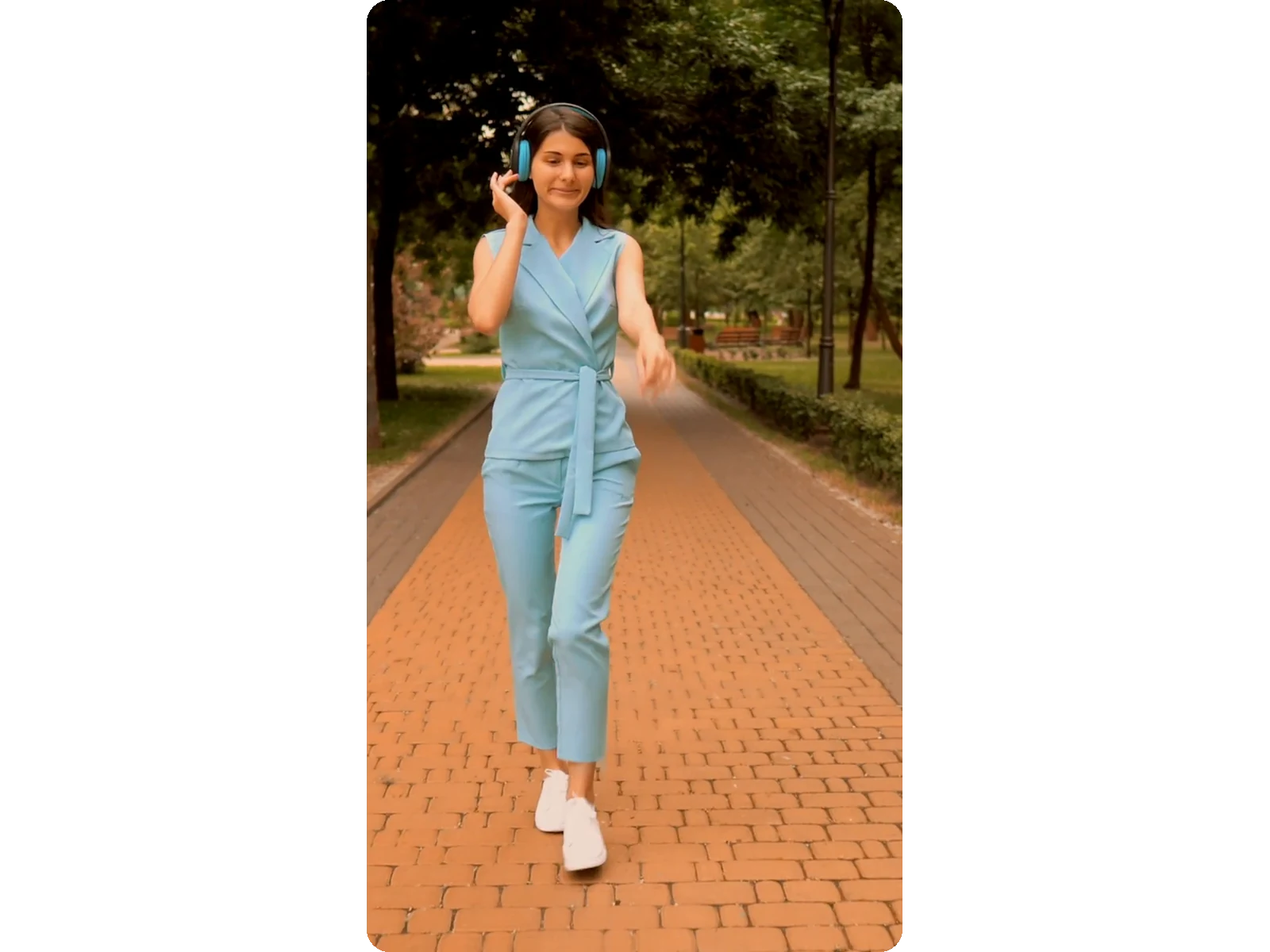
The output is a genuine full-frame crop at the target ratio, not the original video shrunk and pasted on a black or blurred background.
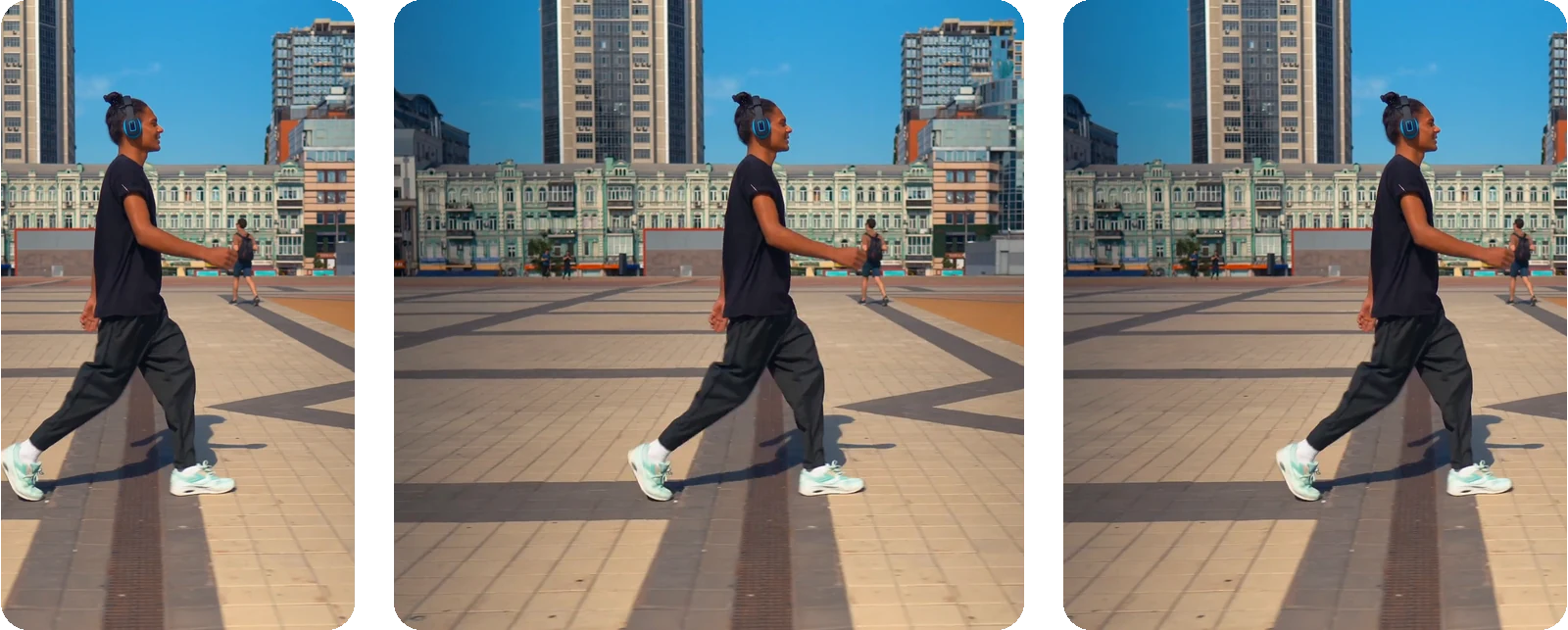
9:16, 4:5, 1:1, 2:3 and 16:9 — pick the shape TikTok, Instagram, Pinterest or YouTube expects, and reframe the same video again for another platform without re-uploading.
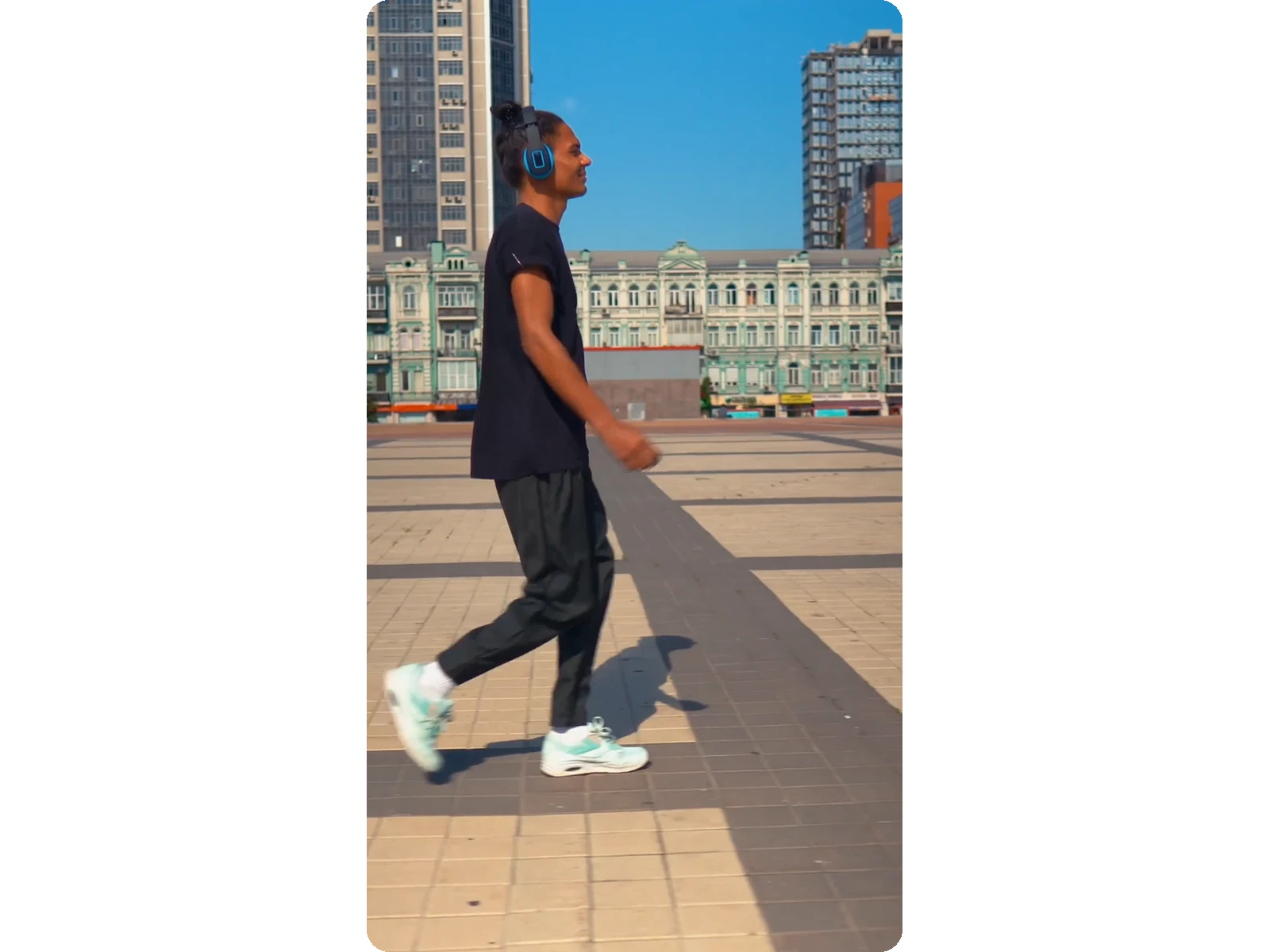
The reframed video is ready to watch immediately, logo included; you only decide whether to remove it once you've judged the actual crop, not a preview.
Long videos are usually shot in 16:9. Reframe them to 9:16 to repost the same footage as Shorts, Reels or TikToks, without filming anything again.
A podcast or interview shot in landscape becomes a vertical clip where whoever is talking stays centred, camera cut after camera cut.
A gameplay recording with a webcam facecam, or a livestream highlight, gets reframed to 9:16 around the streamer's face, so their reactions stay visible instead of getting cropped out.
A video filmed vertically on a phone reframes to 16:9 for YouTube, a slide presentation or a desktop screen, with the same subject tracking working in reverse.
The same source video reframes separately to 9:16 for Stories, 4:5 for the Instagram feed, and 1:1 or 2:3 for a square or Pinterest post, without re-uploading each time.
Upload the horizontal video, choose 9:16, and the AI crops around the speaker's face instead of trimming the sides. The 20 free credits let you try the tool. A Pass or a Pro plan delivers the result without the logo.
No. Going from horizontal to vertical is a genuine full-frame crop, not a shrink-and-pad: the picture fills the whole screen at the target ratio, with no black bars and no blurred background pasted behind a smaller video like some converters produce.
Yes. It detects the face or person in every shot and moves the crop to follow them as they walk or turn, smoothing the motion so the frame doesn't jump from side to side, rather than a fixed centred crop that loses the subject the moment they move.
Yes. Pick the 16:9 format and the same subject tracking runs in reverse: a video filmed vertically on a phone gets reframed to landscape for YouTube, a slide presentation or a desktop screen, without simply stretching the sides to fill the frame.
9:16 for TikTok, Reels and Shorts, 4:5 for the Instagram feed, 1:1 for a square post, 2:3 for Pinterest, and 16:9 to go back from vertical to landscape. You can reframe the same uploaded video into another format at any time, without uploading it again.
No. The area that's kept stays as sharp as it was in the source: it is rendered in the format each platform expects. Quality goes up to Full HD (1080p) with Pro and 4K Ultra HD (2160p) with Studio, if the source video allows it.
No. Everything happens online in the browser: upload the horizontal video, pick the output format, and download the reframed vertical video afterwards. There's no timeline to learn, no manual keyframing of the crop, and nothing to install on your computer.
The AI tracks the clearest face or subject in the frame, such as a webcam facecam over gameplay or a single presenter talking to camera. With several people on screen or fast-moving action, review the result before publishing: the crop may follow a different subject than you expected.
The reframed file stays available for a few days before it's cleared automatically; Studio keeps it for up to 90 days. Keep a copy if you need it longer.

The Klipa editorial team · figures checked on October 14, 2026 You can turn an existing horizontal video into a vertical composition without changing the original…

At the end of this guide, long footage will be a vertical short clip with tight timing, 9:16 framing, and readable captions—ready to upload to TikTok, Reels, or…

You’re about to upload a Reel that fills the screen perfectly, with every pixel sharp, no awkward crops, and a file size ready to post. Your video will look exactly…
AI vertical reframing with face tracking — 9:16, 4:5, 1:1 or 16:9.
No credit card required
