

Skip to content

Get your video ready to pin

Reshape a video into a vertical Pin, full-screen 9:16 or the classic 2:3, in a few clicks.

This tool is being improved

Explore other tools

Daily limit reached

Drop your file here

Browse
or

MP4, MOV, AVI, MKV, WebM

0 / 1000

Drop your subtitle file here

Browse

SRT, VTT, ASS, SSA

AI
0 / 1000
Examples:

Platform

Duration

Audience & tone Optional
AI is writing your script…

Free account required to use this tool. Sign up in seconds!

Video duration
Minutes required
Minutes used / limit
Minutes remaining
Estimated balance after (min)
This video deserves better than a blurry copy. Much better quality is available — unlock it after your free download.

Source language
Target language

Pick two different languages to start dubbing.

Voice

The sample plays in the target language so you can compare before starting.

Keep original voice underneath

Low volume, behind the translated voice.

Duration :

Tap the person to keep in frame

Preview

Target format

Want a smaller video file?

Custom size (pixels)

× px

Framing

Person to follow

Background

More settings

Fixed frame

The camera doesn't move within a shot

Stabilize the picture

Reduces shaking — visible on the final video

Keep the black bars

By default, they are removed automatically

Stretch to fill

Nothing is cut, the picture is stretched

Split screen when two people talk

Each one gets half of the screen, top and bottom. Off: a single frame follows whoever is speaking.

Resolution

Automatic: the best quality your plan allows

Uploading background…

Transparent export (ProRes .mov with alpha). Reserved for the Pass or a Pro plan; the preview shows on a checkerboard.

Drag · resize · rotate
Placement
Text
Logo / Image
Common settings
→
optional

Length of the final edit

What you are looking for

Optional

If you write it, this takes precedence over the general criteria.

Optional

Guides passage selection. Your brief remains the priority.

Output Format

Split screen when two people talk

Each one gets half of the screen, top and bottom. Off: a single frame follows whoever is speaking.

Subtitles included

Subtitle style

Extracting the speech… the subtitle preview will be ready in a few seconds.

No speech detected in this video: there are no subtitles to preview.

Preview is currently unavailable. You can generate clips with subtitles enabled; any failure will be reported.

Subtitle preview is temporarily unavailable: its daily allowance has been reached. You can still generate clips at the usual analysis price.

Sign in to your free account to preview subtitles.

Cut intensity

What to do with silences

Transition

Also

Remove hesitations too

The “um”, “uh” and false starts

Clean up background noise

Hiss, air conditioning, street noise

Keywords (optional)

Rotate or mirror the video to enable.

Choose the output format

MP4 plays everywhere. Change it to fit your need.

Get an email the moment it's ready.

Video on its way

It will appear here as soon as it's ready.

Hashtags copied to clipboard — paste them in your post!

Was Klipa useful? Give us 30 seconds back — leave a review on Trustpilot.

Was Klipa useful? Give us 30 seconds back — leave a review on Trustpilot.


Was Klipa useful? Give us 30 seconds back — leave a review on Trustpilot.

Before After

Format Length Size Quality Saved Time removed Cuts ✓ Logo-free unlocked for this video

Subscribers get priority.

Get an email the moment it's ready.

Cancel now? The work already done will be lost and the file will have to be uploaded again.

This is your video exactly as it will be downloaded.

What is wrong with it?

Still too dark?

We start again from your original video and brighten it further. No credits used.

Want a sharper picture?

Free trial on 10 seconds of your video. You only pay if you like the result.

Was Klipa useful? Give us 30 seconds back — leave a review on Trustpilot.

Preparing your logo-free video… The download will start on its own.

Subtitles (.srt) separate file

Free Google 1-click No credit card
Understand first

Pinterest rewards tall videos: reshape yours before you pin it

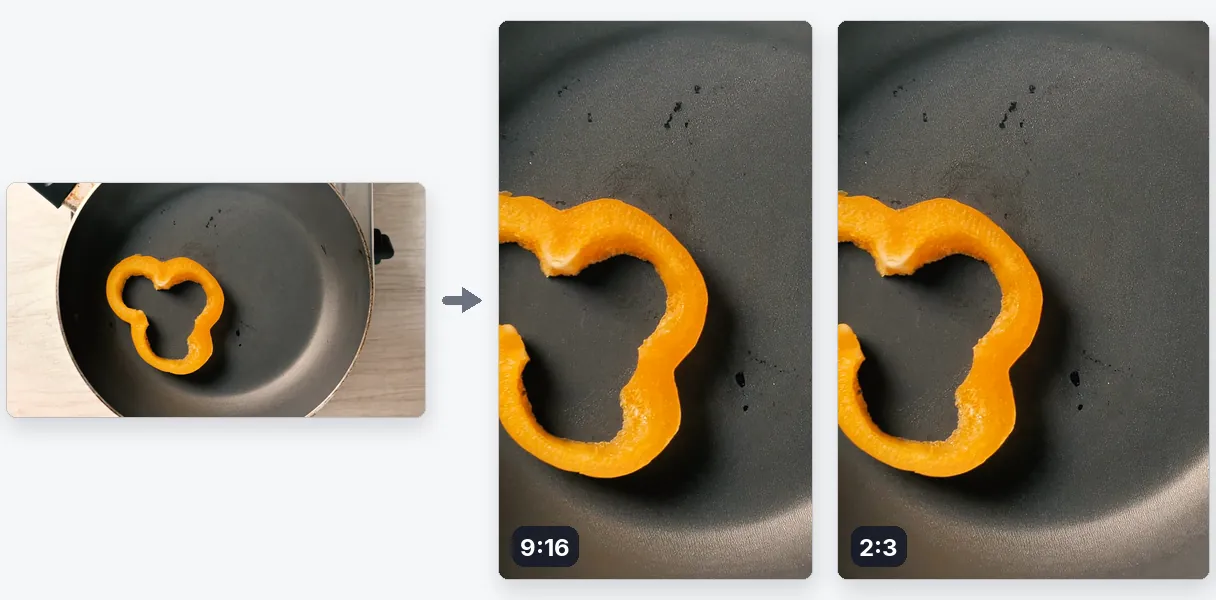
Pinterest is a vertical place. People scroll through columns of tall Pins, and a wide video dropped among them looks thin and easy to skip. Resizing a video for Pinterest means turning it into a tall shape before you publish, so it takes as much room in the feed as the images around it. This page opens on 9:16, the full-screen vertical shape, and lets you type a custom size when you want something else.

What Pinterest's own help recommends

Pinterest's help page on Pin specs recommends a 9:16 ratio, or 1080 by 1920 pixels, for full-screen videos, and lists other ratios that work: 1:2, 2:3, 3:4, 4:5 and 1:1. The same page says video Pins run from 4 seconds to 5 minutes, and that the web accepts MP4 and M4V while the mobile apps also accept MOV (source: help.pinterest.com/en/article/review-pin-specs). Those figures can change, so read that page before a big campaign. A video from this page leaves as an MP4, one of the accepted types.

Getting the classic 2:3 Pin

The format buttons offer 16:9, 9:16, 1:1 and 4:5. The 2:3 shape that standard Pins use is not a button, but the custom size covers it: enter a width and a height in pixels, for example 1000 by 1500, and the video is brought to that exact frame. Each side is rounded to an even number, as video encoding requires, so tiny differences are normal.

Whole picture, or cropped to the frame

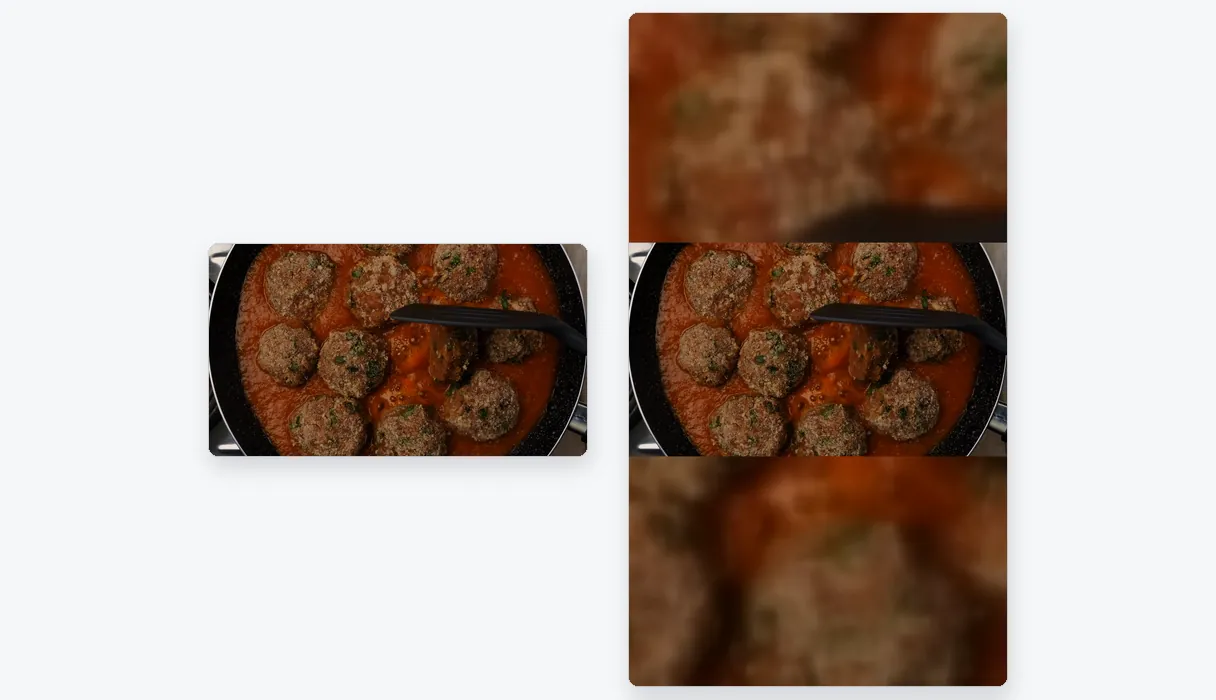
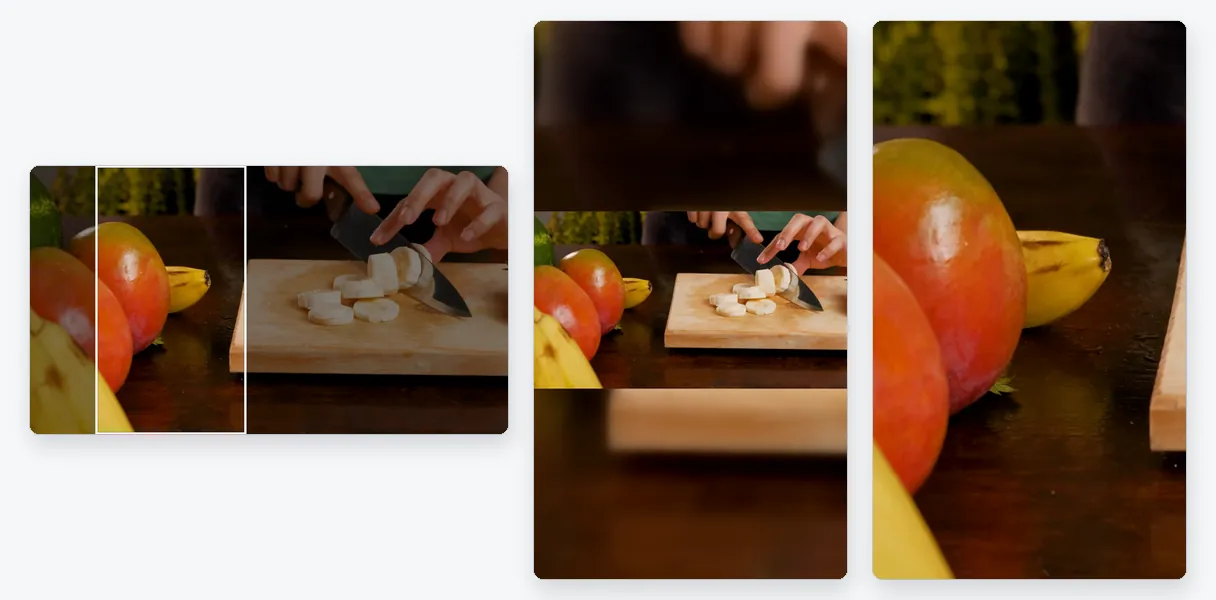
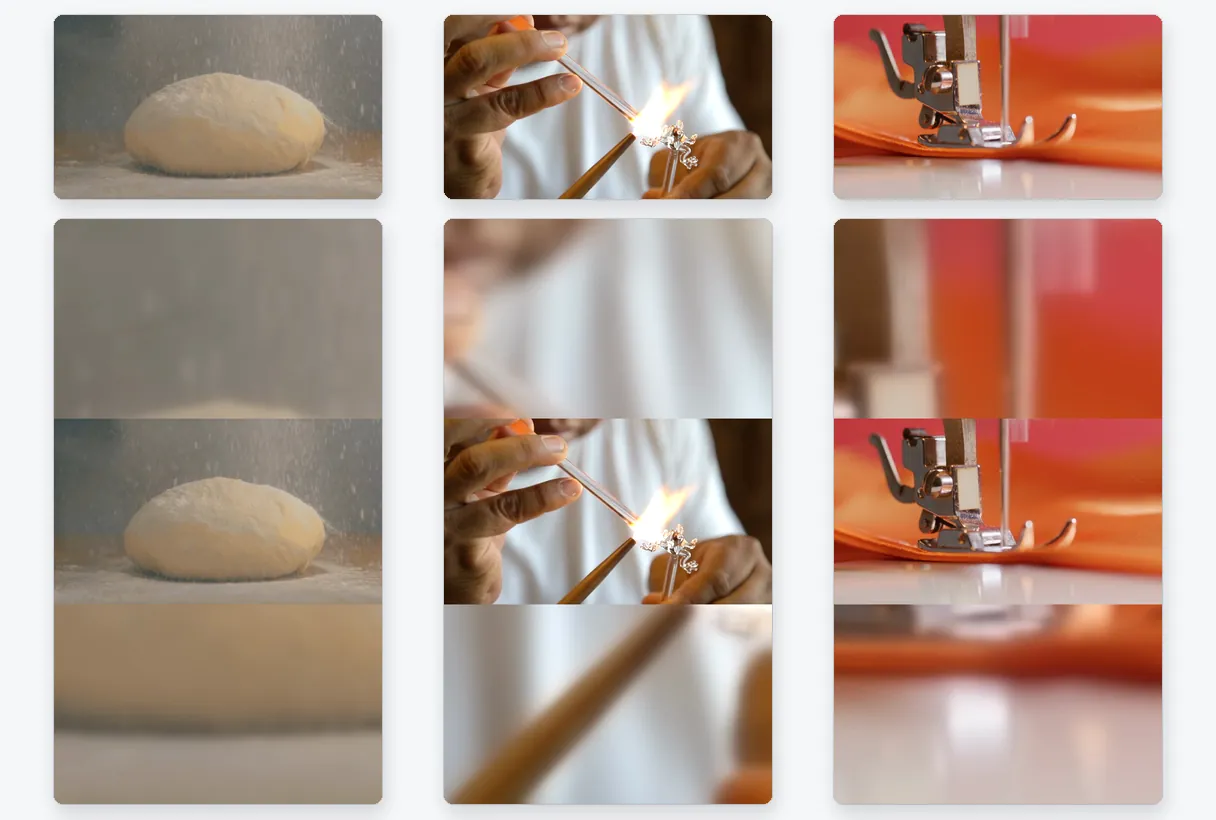
When your clip has another shape, three choices exist. Fit keeps everything and extends the picture with a blurred backdrop built from the clip, which suits a recipe or a craft step where nothing can be lost. Fill zooms until the frame is covered and follows the main subject so only the surplus is cut, which suits a product or a room. Stretch bends the proportions and is meant for repairs. The page recommends one according to the content, and you can change it.

The limits worth knowing

A resize changes shape, not length or weight. Pinterest's minimum and maximum durations still apply, so cut a clip that is too long with our video cutter. And a low-resolution source does not become sharp when its frame changes. Start from your best original.

Example result — Resize Video for Pinterest: 9:16 and 2:3 Video Pin Sizes
Proof in the result

What the tool produces

How it works

How to resize a video for Pinterest

Step 1

Upload your video

Pick the file on your computer or phone, or drag it into the page. A horizontal recipe clip, a square product shot or a tall video all work. Files can be up to 2 GB.

Step 2

Choose 9:16, or enter a 2:3 size

Keep 9:16 for a full-screen Pin, or open the custom size and type, say, 1000 by 1500 pixels for 2:3. Then pick Fit, Fill or Stretch and a resolution, and read the preview before exporting.

Step 3

Download and add it to your Pin

Save the MP4 and upload it when you create the Pin on Pinterest. Downloads are free with the Klipa logo on the video, and a Pass or a Pro plan gives you the file without it.

Why Klipa

Why prepare a video before pinning it

Benefit — Resize Video for Pinterest: 9:16 and 2:3 Video Pin Sizes

A Pin that takes its share of the feed

Pins are shown in tall columns, and a wide clip uses little of that space. Reshaping the video to 9:16 or 2:3 gives it a presence next to the images, so the person scrolling has a reason to stop and look at your Pin.

Benefit — Resize Video for Pinterest: 9:16 and 2:3 Video Pin Sizes

Two vertical shapes, one tool

Full-screen 9:16 is a button, and 2:3 is a custom size away. You do not need two programs to prepare a full-screen video and a standard-looking Pin. Both come from the same page, from the same original, in a couple of minutes.

Benefit — Resize Video for Pinterest: 9:16 and 2:3 Video Pin Sizes

Control over what the frame cuts

A tutorial with text in the corners cannot be cropped carelessly. Fit keeps every pixel of the original and fills the rest softly. For an object or a face, Fill keeps the subject in view. The preview lets you compare before you spend time on the export.

Benefit — Resize Video for Pinterest: 9:16 and 2:3 Video Pin Sizes

A plain MP4 that Pinterest accepts

Whatever you upload, from phone footage to an old AVI file, the result is an MP4, one of the file types Pinterest's help lists. There is nothing to install, no conversion step, and your original remains unchanged for another attempt.

Real cases

Videos that are worth reshaping for Pinterest

A recipe filmed from above

Food clips are often shot wide. Reshaped to 2:3 with Fit, the whole dish stays visible on a soft backdrop; with Fill, the plate fills the frame. Either makes a Pin that is clear in a busy feed.

A product shown in use

A shop that has a 16:9 product film can make a tall version for Pinterest shoppers. Fill follows the item as it moves, and the same footage then serves the website and the Pin.

A step-by-step craft or decor project

Do-it-yourself ideas are a classic of the platform. A tall version of the project video shows the hands, the material and the result at a size that can be read on a phone.

A travel or wedding moodboard clip

Landscape holiday footage becomes a vertical clip for a travel board. Fit protects the scenery, Fill gives a more immersive full-screen sequence, and you pick whichever looks better.

A blog post's video, re-used as a Pin

A video made for your site in 16:9 can lead people back to it from Pinterest. Resize it once into a tall frame instead of re-editing from the beginning.

Continue with

Related Tools

PrepareFetch the video and get the right format
EditCut, clean the sound and the silences
TransformTurn it into short clips, ready to publish
EnrichSubtitles, translation and transcription
Frequently asked

Pinterest video sizes: your questions

Which size should a Pinterest video Pin be?

Pinterest's help recommends 9:16, or 1080 by 1920 pixels, for full-screen video, and lists 1:2, 2:3, 3:4, 4:5 and 1:1 as other options (source: help.pinterest.com/en/article/review-pin-specs). Here, 9:16 is the starting format and 2:3 is available as a custom size.

How do I get 2:3, the standard Pin shape?

Open the custom size and enter a width and a height in the 2:3 proportion, for example 1000 by 1500 pixels. Pick Fit or Fill, check the preview, and download. Each side is rounded to an even number, so the final size may differ by a pixel.

Is Pinterest 9:16?

Partly. According to Pinterest's help, 9:16 is the recommended ratio for full-screen video, and the platform also lists 1:2, 2:3, 3:4, 4:5 and 1:1. So tall shapes dominate, with 9:16 the one meant to fill the screen.

Steps to make a wide clip tall enough for a Pin?

Upload the clip and keep 9:16. With Fit the full 16:9 picture sits in the middle of a blurred vertical frame; with Fill it is enlarged to full height, the sides are trimmed and the subject is followed. Look at the preview and download the MP4.

Will pinners still see everything in my clip?

Yes, choose Fit. The entire video remains visible and the unused area above and below is filled by a blurred version of the clip. This is the safest option for recipes, tutorials and anything with text near the edges. Nothing is lost.

Which file types and lengths are allowed on Pinterest?

Pinterest's help lists MP4 and M4V on the web, and also MOV on its mobile apps, with a length from 4 seconds to 5 minutes (source: help.pinterest.com/en/article/review-pin-specs). Klipa exports an MP4, and you can shorten a clip with the video cutter.

Upload refused for bulk: does a resize cure it?

Not necessarily. A different frame lightens the file only as a by-product, and it does not target a weight. If dimensions are already right and the file is just too big, the video compressor is the proper tool, because it reduces the weight at the same resolution.

Which setting protects sharpness on a Pin?

Begin with the best original you have and choose a resolution that is not above it. Resizing cannot add detail that was never recorded, and a larger frame from a small source only spreads the pixels. Automatic resolution gives the best quality your plan allows.

Is a watermark stamped on the Pin I download?

Free downloads carry the Klipa logo. For the file without it, take a Pass for that video or a Pro plan. You can run the whole process, preview included, and look at the final frame before deciding whether the clean file is worth it.

Automatic vertical conversion or manual frame for my Pin?

Video to Shorts tracks the subject automatically to make a vertical video. This page lets you decide the target shape yourself, including a custom 2:3 size, and whether to keep the whole picture or crop. Choose it when the exact proportions matter, as they do on Pinterest.

Your turn

Resize your video, then pin it

Full-screen 9:16 or a 2:3 custom size, free to try.

You have used your premium trial this month. Upgrade to Pro to keep going with every tool.

No credit card required

In closing

A tall video, ready for your board

Preparing a video for Pinterest comes down to a few choices: 9:16 for full-screen or a custom 2:3 size, whole picture or cropped, then download. If the clip is longer than Pinterest allows, shorten it with the video cutter. If the file is simply too big to upload, the video compressor reduces its weight without changing its shape. Check Pinterest's help before a big launch, since specifications move, and keep your original so you can make another version later.

All tools