

Skip to content

Turn any recording into written text

Upload an MP3, a voice memo or a recorded interview and get the words back as timestamped text.

This tool is being improved

Explore other tools

Daily limit reached

Drop your file here

Browse
or

MP4, MOV, AVI, MKV, WebM, MP3, WAV

0 / 1000

Drop your subtitle file here

Browse

SRT, VTT, ASS, SSA

AI
0 / 1000
Examples:

Platform

Duration

Audience & tone Optional
AI is writing your script…

Free account required to use this tool. Sign up in seconds!

Video duration
Minutes required
Minutes used / limit
Minutes remaining
Estimated balance after (min)
This video deserves better than a blurry copy. Much better quality is available — unlock it after your free download.

Source language
Target language

Pick two different languages to start dubbing.

Voice

The sample plays in the target language so you can compare before starting.

Keep original voice underneath

Low volume, behind the translated voice.

Duration :

Tap the person to keep in frame

Preview

Target format

Want a smaller video file?

Custom size (pixels)

× px

Framing

Person to follow

Background

More settings

Fixed frame

The camera doesn't move within a shot

Stabilize the picture

Reduces shaking — visible on the final video

Keep the black bars

By default, they are removed automatically

Stretch to fill

Nothing is cut, the picture is stretched

Split screen when two people talk

Each one gets half of the screen, top and bottom. Off: a single frame follows whoever is speaking.

Resolution

Automatic: the best quality your plan allows

Uploading background…

Transparent export (ProRes .mov with alpha). Reserved for the Pass or a Pro plan; the preview shows on a checkerboard.

Drag · resize · rotate
Placement
Text
Logo / Image
Common settings
→
optional

Length of the final edit

What you are looking for

Optional

If you write it, this takes precedence over the general criteria.

Optional

Guides passage selection. Your brief remains the priority.

Output Format

Split screen when two people talk

Each one gets half of the screen, top and bottom. Off: a single frame follows whoever is speaking.

Subtitles included

Subtitle style

Extracting the speech… the subtitle preview will be ready in a few seconds.

No speech detected in this video: there are no subtitles to preview.

Preview is currently unavailable. You can generate clips with subtitles enabled; any failure will be reported.

Subtitle preview is temporarily unavailable: its daily allowance has been reached. You can still generate clips at the usual analysis price.

Sign in to your free account to preview subtitles.

Cut intensity

What to do with silences

Transition

Also

Remove hesitations too

The “um”, “uh” and false starts

Clean up background noise

Hiss, air conditioning, street noise

Keywords (optional)

Rotate or mirror the video to enable.

Choose the output format

MP4 plays everywhere. Change it to fit your need.

Get an email the moment it's ready.

Video on its way

It will appear here as soon as it's ready.

Hashtags copied to clipboard — paste them in your post!

Was Klipa useful? Give us 30 seconds back — leave a review on Trustpilot.

Was Klipa useful? Give us 30 seconds back — leave a review on Trustpilot.


Was Klipa useful? Give us 30 seconds back — leave a review on Trustpilot.

Before After

Format Length Size Quality Saved Time removed Cuts ✓ Logo-free unlocked for this video

Subscribers get priority.

Get an email the moment it's ready.

Cancel now? The work already done will be lost and the file will have to be uploaded again.

This is your video exactly as it will be downloaded.

What is wrong with it?

Still too dark?

We start again from your original video and brighten it further. No credits used.

Want a sharper picture?

Free trial on 10 seconds of your video. You only pay if you like the result.

Was Klipa useful? Give us 30 seconds back — leave a review on Trustpilot.

Preparing your logo-free video… The download will start on its own.

Subtitles (.srt) separate file

Free Google 1-click No credit card
Understand first

From a recording to readable text, sentence by sentence

Audio to text is the fastest way to get the words out of a recording. You drop in an MP3, a voice memo, an interview, a lecture or a podcast episode, and you get written text back with the time of every sentence beside it. No typing along with the playback, no pausing every ten seconds to catch a name.

Which audio files you can use

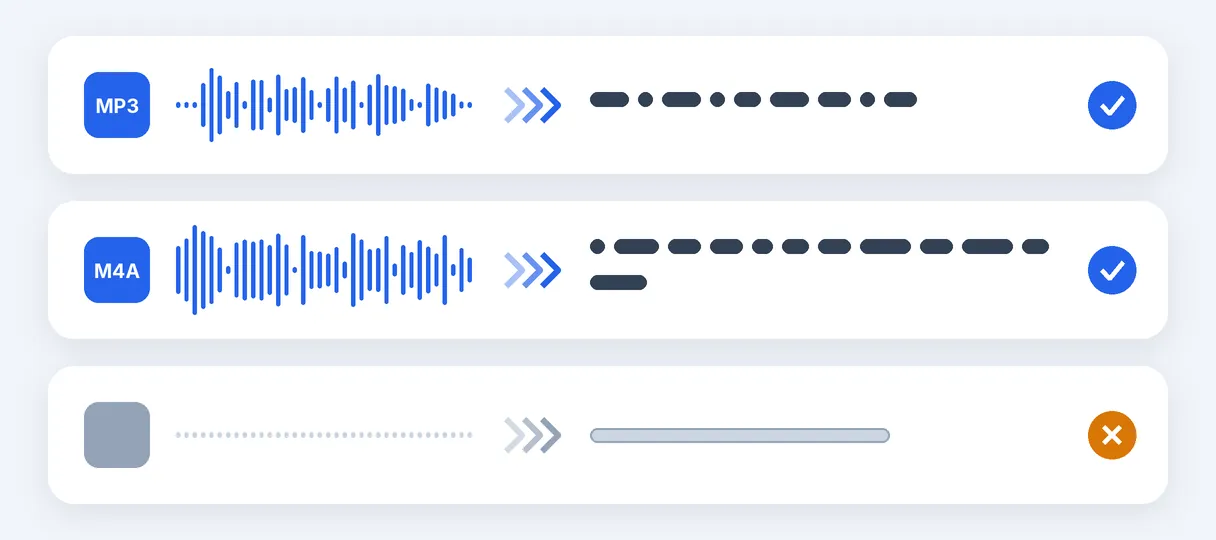
The page takes MP3, WAV, M4A, AAC, OGG and FLAC files, up to 2 GB each. M4A is the one that matters most on a phone: voice memos recorded on an iPhone are M4A files, so they go straight in. Video files work too (MP4, MOV, AVI, MKV, WebM, 3GP, FLV, WMV), which helps when the only copy of a meeting is a screen recording. One limit is worth knowing before you start: audio saved in the Opus format, which is how some messaging apps store their voice notes, is not accepted. Convert it to MP3 or M4A first.

What you get back

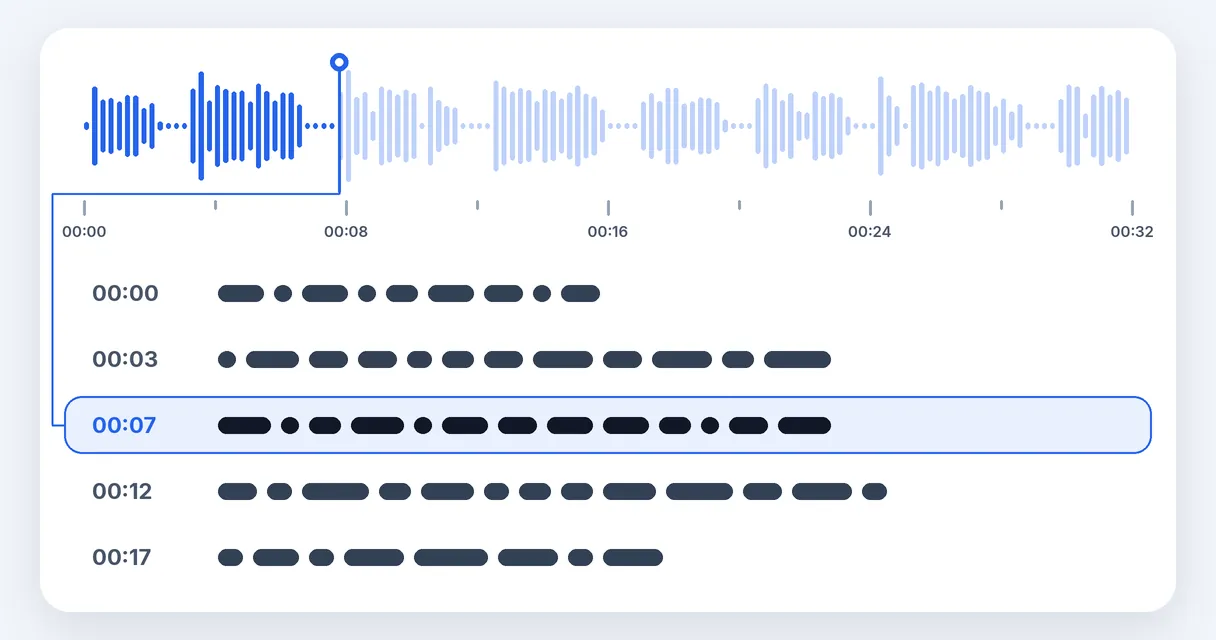
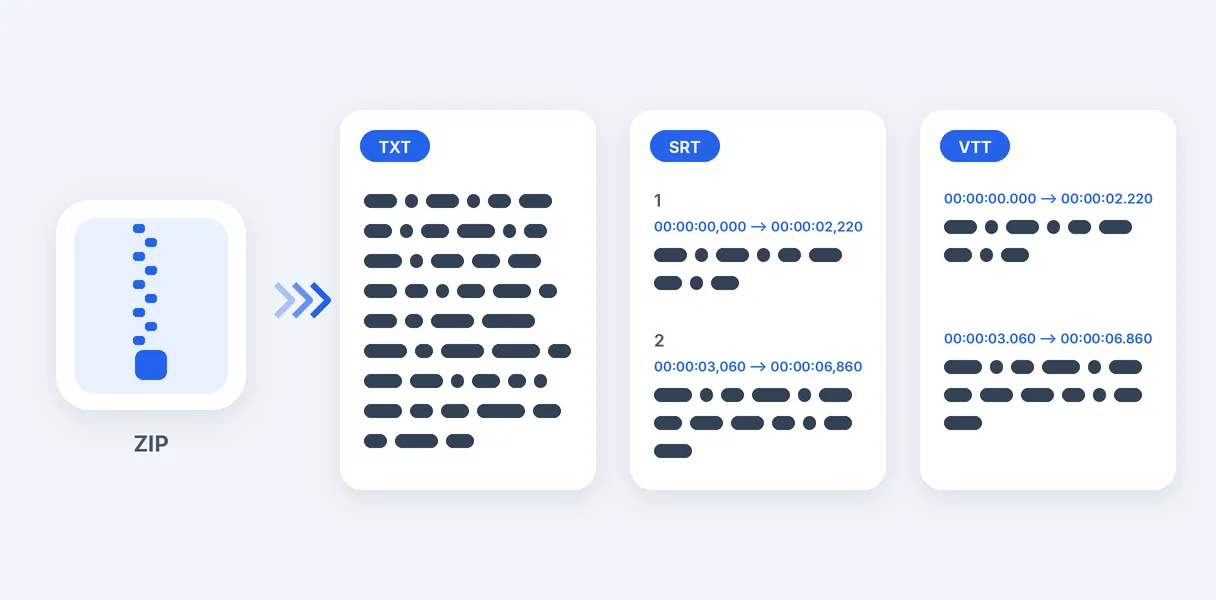
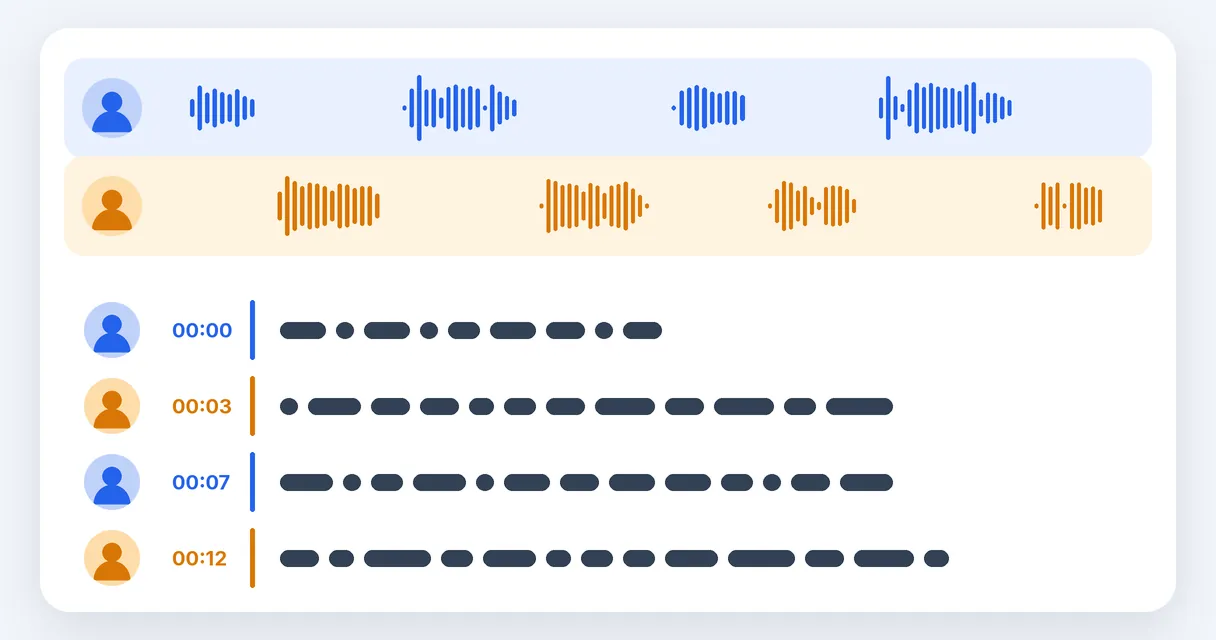
The language being spoken is recognised on its own, so there is no menu to set. The text comes out split by sentence, each one carrying its start time, which lets you reach a passage in the recording without listening to the whole thing. Everything is packed into one ZIP: a plain text file to read, quote or paste into a document, plus SRT and VTT files, the subtitle formats that video editors and players understand. When several people talk, you can switch on speaker identification and the text shows who says what. Typing in difficult names beforehand helps the recognition of rare words.

What this page does not do

It transcribes a finished file, not a live conversation: there is no microphone mode that types while someone is speaking. It does not summarise or rewrite either, so you receive the words that were actually said, and you decide what to keep. Accuracy also depends on the recording. A clear voice close to the microphone gives the cleanest text, while music, an echoing room or a phone left across the table makes it worse. If your file is noisy, clean up the sound first, then transcribe it.

Free to try

Trying it costs nothing: 20 credits are offered, the result carries no watermark, and you do not need a bank card. Longer files are handled on the Pro and Studio plans.

Example result — Audio to Text: Transcribe MP3 and Voice Memos with AI
Proof in the result

What the tool produces

How it works

How to convert audio to text in 3 steps

Step 1

Add your audio file

Drag in an MP3, WAV, M4A, AAC, OGG or FLAC recording, up to 2 GB. A video file with a soundtrack is fine too.

Step 2

Start the transcription

Nothing to choose about the language. If several people speak, turn on speaker identification, and list any unusual names so they are written correctly.

Step 3

Save the text

Download one ZIP holding the plain text, the SRT and the VTT versions. Read it, copy it into a document or reuse the timed lines as subtitles.

Why Klipa

Why use Klipa to turn audio into text

Benefit — Audio to Text: Transcribe MP3 and Voice Memos with AI

The language is found for you

You do not pick a language before you begin. The tool works out what is being spoken, including English, French, Spanish, Arabic and Mandarin, and tells you plainly when a language is not supported instead of printing nonsense. Mixed recordings stay simple to handle.

Benefit — Audio to Text: Transcribe MP3 and Voice Memos with AI

Every sentence has its time

The text is broken into sentences, each marked with its start time in the recording. That makes a two-hour interview searchable: you find the answer you need, note its time and go straight to it in the original file, with no scrubbing back and forth.

Benefit — Audio to Text: Transcribe MP3 and Voice Memos with AI

Three files in one download

A single ZIP holds the plain text for reading and quoting, plus the SRT and VTT files for subtitles. You never have to choose a format before you upload, and the files are clean, with no watermark added to them.

Benefit — Audio to Text: Transcribe MP3 and Voice Memos with AI

Who said what

For a meeting, a panel or an interview, speaker identification separates the voices and labels each one in the text. You can give the number of participants or let the tool count them, so even a long written record stays easy to read and to share.

Real cases

When audio to text is useful

An interview for an article

A journalist or student records a conversation, uploads the M4A or MP3, and gets the full text with timings. Quotes can then be checked against the recording in seconds instead of replaying everything.

A voice memo from your phone

You talk through an idea while walking, then want it as a note. The iPhone memo is an M4A file, so it uploads as it is and comes back as text you can paste into your notes or an email.

A podcast episode as show notes

Turn an episode into text to write a summary yourself, pull out quotes or publish a page for readers who prefer not to listen. The timings help you link each point back to its moment.

A lecture or online course

Record the class, transcribe it and study from the text. The timestamps let you return to the exact minute when the teacher explained a tricky idea, so revision is faster than replaying the recording.

A meeting with several voices

Record the call, run the transcription with speaker identification and share a written record. People who could not attend can read what was decided and see who raised each point.

Continue with

Related Tools

PrepareFetch the video and get the right format
EditCut, clean the sound and the silences
TransformTurn it into short clips, ready to publish
EnrichSubtitles, translation and transcription
Frequently asked

Audio to text: your questions answered

Is there a free way to turn a recording into text?

Yes, you can try it for free. 20 credits are offered to test the tool, and the files you download carry no watermark. Free use has a daily limit. Pro and Studio plans handle longer recordings.

How do I get the words out of an MP3 file?

Yes. MP3 is one of the accepted formats, alongside WAV, M4A, AAC, OGG and FLAC. Upload the file, start the transcription and download the text. Each sentence comes with its timing, and you also get SRT and VTT versions in the same ZIP file.

How do I transcribe a voice memo from my iPhone?

Voice memos recorded on an iPhone are M4A files, which this page accepts. Share the memo to your computer or save it to your files, upload it here and start the transcription. The language is recognised by itself and the text comes back within moments.

Can I transcribe a WhatsApp voice message?

Not always. Audio saved in the Opus format is not accepted, and some messaging apps store voice notes that way. If the file you hold is in another supported format, such as M4A or MP3, it works. Otherwise convert it to MP3 first, then upload it.

Does it work in other languages than English?

Yes. The spoken language is detected automatically, and a wide range is covered, including French, Spanish, Arabic and Mandarin as well as English. You select nothing. If a language is not supported, the tool tells you so rather than guessing and giving you text in the wrong language.

Can it transcribe live speech while I talk?

No. This page works on a recording you have already made: you upload the file, then receive the text. It is not a dictation tool and does not listen through the microphone. To use it for a conversation, record it first, then upload the audio afterwards.

Will it tell me who is speaking?

Yes, as an option. Switch on speaker identification and the text separates the participants and marks each turn. You can state how many people are talking or let the tool decide. It is handy for interviews, meetings and podcasts with guests.

Will the text be correct, or full of mistakes?

It is best on a clear recording where people speak one at a time near the microphone. Accents and technical vocabulary are usually handled well, but a rare name can be misspelled, so list those names before you start. Noise, music or distance lower the quality; remove the noise first.

What do I get when it is finished?

One ZIP file with three things: a plain text file, an SRT file and a VTT file. The text is split into sentences and each has its start time. Use the text to read or quote, and the SRT or VTT when you need subtitles for a video.

How long do you hold on to my uploaded audio?

Not for long. Files are deleted automatically, and Studio keeps them for up to 90 days. Until then only you can open them, and you can download your files again at any moment before they disappear. Longer recordings, up to 2 h, need Pro or Studio.

Your turn

Put your recording into words

Upload an audio file and get timestamped text, ready to read, quote or turn into subtitles.

You have used your premium trial this month. Upgrade to Pro to keep going with every tool.

No credit card required

In closing

What to do once you have the text

The text is only the first step. If the recording is noisy, use remove background noise before transcribing and the words come out more reliably. To see how the tool handles video as well as audio, read the full AI transcription page. And when you want the words on screen, the SRT file from your ZIP can be used as the base for subtitles on a video you edit elsewhere. The text also gives you timings you can check against the recording line by line.

All tools