Blog
Pricing

  1. Settings
  2. Processing
  3. Result

AI Video Montage — turn a long video into a short video

AI watches your whole video, keeps the moments that matter and edits them into one condensed video. No software to install.

MP4, MOV, AVI, MKV, WebM

or

Fast No watermark
📈

Your Hashtags Are Ready!

Hashtags copied to clipboard — paste them in your post!

Timings preserved Free to try

Conversion Complete!

Preview below. Download your file whenever you like.


Translation Complete!

Preview below. Download your file whenever you like. Timecodes are preserved.


AI
Examples:

Platform

Duration

Audience & tone Optional

Free account required to use this tool. Sign up in seconds!

Your Video Script

Video duration
Minutes required
Minutes used / limit
Minutes remaining
Estimated balance after (min)

Quota is based on full video duration. Queued and running tasks are included; the exact balance is checked before transfer.

COMPATIBLE PLATFORMS

Two optional settings here: list the proper nouns or brands in your video so the AI spells them correctly, and turn on speaker identification if several people speak. Nothing to change? Click “Next step”: we transcribe the speech, then you pick your subtitle style on a live preview.

Each shape matches a platform. AI reframes your video to the chosen format.

Pick your video's final shape, then its resolution. No black bars.

Choose your compression level

Set the start and end points for your clip.

Duration :

Choose the audio format for export.

Never any black bars: edges are blurred or cropped.

Target format

Exact size (pixels)

× px

Fit mode

Resolution

Drag the slider to set the playback speed.

0.25x1x2x4x

Set the start time and duration for your GIF.

Choose what replaces the background of your video or photo.

Uploading background…

Transparent export (ProRes .mov with alpha). Reserved for the Pass or a Pro plan; the preview shows on a checkerboard.

Drag · resize · rotate
Placement
Text
Logo / Image
Common settings

The language is detected automatically — nothing to select. Over 100 languages are recognised (Wolof is not supported yet).

optional

Helps the AI spell rare names or brands correctly.

Identify speakers

Detects who speaks when (ideal for interviews and podcasts)

Number of speakers

Next: the style workshop

20 animated styles (karaoke, MrBeast, neon…), custom fonts and colours — all on a live preview.

Choose how aggressively to cut. Balanced fits most videos.

Remove filler words

Removes "uh", "um", "ah"... for smoother speech

Clean audio

Isolates voice and removes background noise, music, echoes (longer processing)

optional

If you write it, the AI keeps the passages that answer it first, wherever they sit in the video, and drops the rest. Leave it empty and it picks the best moments on its own.

Length of the final edit

“Auto” is the recommended setting: the length adapts to your video, around a tenth of its runtime.

Maximum clip length

Number of clips

Klipa still picks how many clips to make: this video is short, cutting it further would add nothing.

Output Format

Your clips are generated without captions to keep things fast. After generation, pick the clip you like and add styled captions to it with a live preview.

Keywords (optional)

Add specific words to improve transcription accuracy.

done

About 1–3 minutes. Face tracking keeps the subject in frame.

Keep this tab open, processing continues.

The style applies to THIS clip only. Your other clips stay available on the result page — you can caption them separately, now or later from your dashboard.
LIVE PREVIEW · BURNED-IN CAPTIONS

Klipa is preparing your preview

Your best clip is being cut and auto-reframed (face tracking). This preparation happens only once — about 30 seconds.

No speech detected in this preview clip — clips that do contain speech will still be captioned.
Captions update live
Font
Size
Position
Text
Highlight
Caption text
Unsaved changes
My templates
This style is Pro-only

Upgrade to generate your clips with this style, or continue free with the Minimal style.

This file is no longer available

Preparing your logo-free video… The download will start on its own.

Format Length Size Quality Saved Time removed Cuts ✓ Logo-free unlocked for this video

Subtitles (.srt) separate file

Your original video is still available. Try another tool:

All tools
★★★★★ 4.8
Based on 500+ user reviews

Turn a long video into a short video, automatically

An hour-long talk, a recorded podcast, a two-hour livestream: the content is good, but almost nobody watches it to the end. The missing work is always the same — finding the five minutes worth watching and dropping the rest. It takes hours, and it is exactly what AI video montage does for you.

The tool listens to the entire video, spots the passages that actually carry something, then stitches them back together in order as one condensed video. You do not get a list of moments to assemble: you get a finished edit, ready to publish.

How to turn a long video into a short video in 3 steps

Step 1

Import the long video

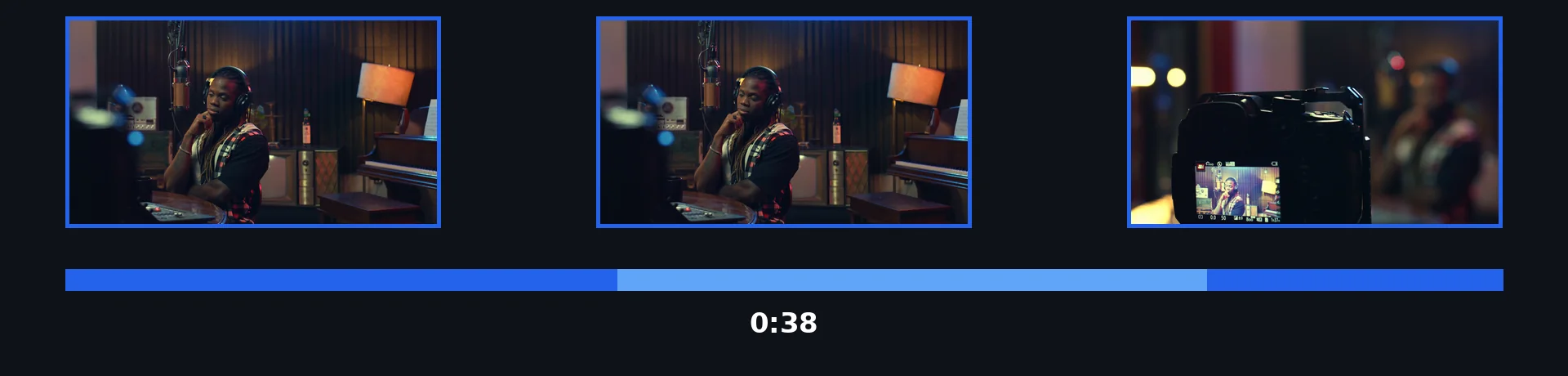
Drop your file, or paste the link of an online video. Talk, recorded podcast, livestream, webinar: the longer the source, the more the edit has to work with.

Step 2

Choose the length you want

Leave it on Auto for a length that fits your video, or aim for 1, 2 or 5 minutes depending on where it will be published.

Step 3

Get the finished edit

You get a single video, already assembled and ready to publish — and you can still reframe or caption it afterwards.

Why edit your video with AI
🎬

The cuts are decided by AI

AI follows what is being said from start to finish, spots the passages that carry information or emotion, and drops the padding, the repeats and the dead air.
🧠

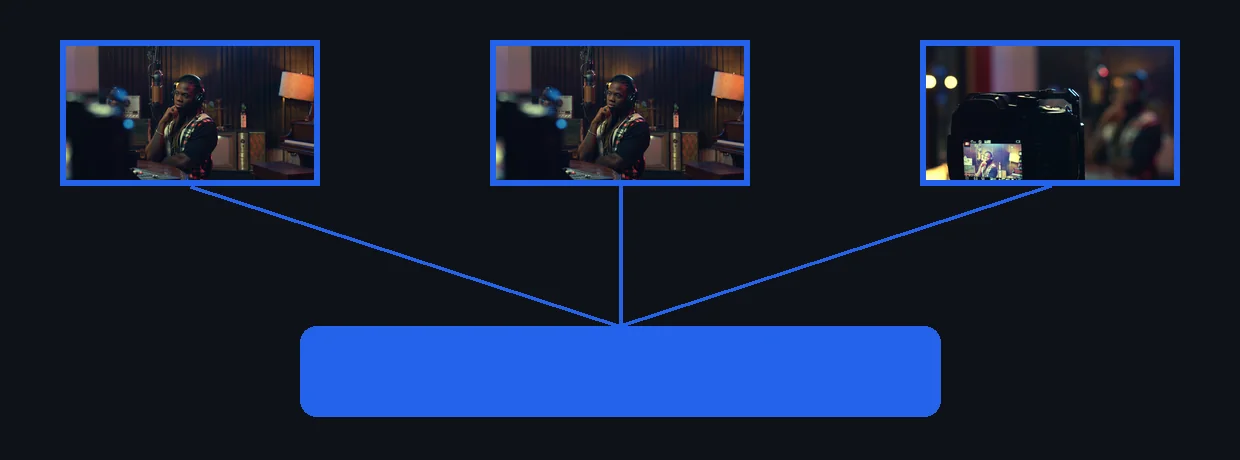
The assembly is done for you

The selected passages are stitched back together in order, with clean cuts. You get a finished video, not a list of timestamps to edit yourself.
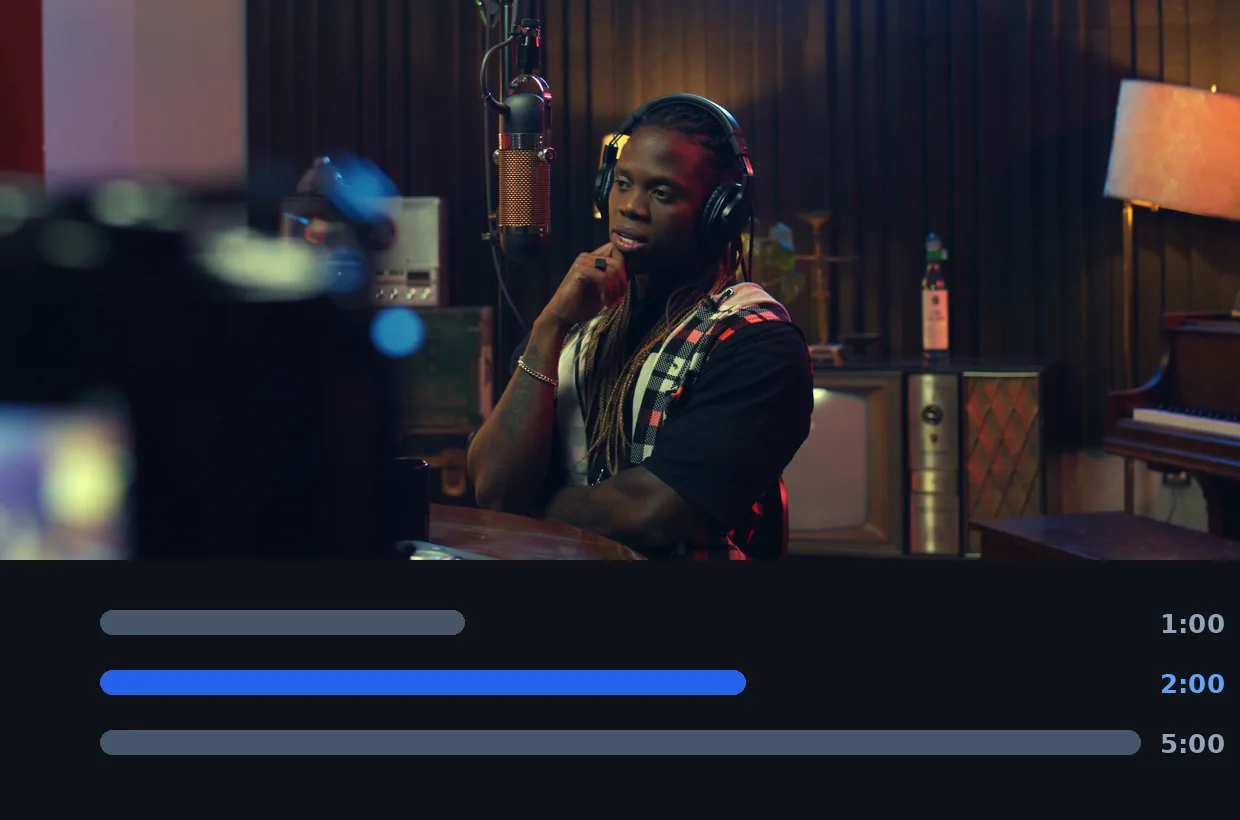
You decide the length

Auto fits your source; otherwise you set a target length and the edit stays as close to it as possible, without ever cutting mid-sentence.
Your original format is kept

The video keeps its aspect ratio and its resolution. Need a vertical or captioned version? Chain into the next tool without re-uploading the file.

When to condense a long video

A conference or webinar replay

An hour of presentation is rarely watched in full. The edit turns it into the short version that actually circulates — the one shared internally or featured on a page.

A recorded podcast or an interview

Keep the best answers and cut the follow-ups, the hesitations and the off-topic stretches. To go further, AI Clips splits the same source into several vertical excerpts.

A livestream or a gaming session

Hours of live footage become a few minutes of best-of: this is the format that brings people back to the channel between two streams.

A recorded course or tutorial

The condensed version works as a recap: the essentials without rewatching the full walkthrough. Then add animated subtitles to make it readable with the sound off.

AI video montage — frequently asked questions

Import the video, choose the length you want, then start the edit: AI selects the passages worth keeping and assembles them into one short video, with nothing to do on your side.
It analyses what is said across the whole runtime and keeps what moves the point forward: strong answers, key explanations, turning points. Silences, digressions and repeats are dropped.
On Auto, roughly a tenth of the original runtime — long enough to keep the thread, short enough to be watched to the end. You can also aim for 1, 2 or 5 minutes.
Yes. The kept excerpts stay in chronological order, so the argument still makes sense and nothing feels rearranged.
Yes. The edit comes out in your original aspect ratio; from the result screen you can send it in one click to vertical reframing or to animated subtitles, without re-uploading the file.
This tool is built for long videos — that is its raw material. If your file goes beyond your plan's limit, the screen tells you before processing starts, never after.
No, you can run an edit and see the result without an account. An account and a subscription are for downloading without the logo and for longer videos.
MP4, MOV, AVI, MKV and WebM as input. The edit is rendered as MP4, which plays everywhere.

What Creators Say

Condense your long video

AI-decided cuts, automatic assembly, one video to publish.

The long edit, without the hours of editing

Condensing a video by hand means listening to all of it, noting timestamps, then cutting and stitching in an editor. Klipa walks that path for you: import the long video, say how long you want the result, and collect the edit. What used to take half a day now fits into a coffee break.

Klipa AI
All tools