

Sound effects written in words, placed on your timeline
You have a video and a few moments that feel empty: a door closing, footsteps on gravel, a crowd cheering, a whoosh on a transition. Instead of digging through a sound bank, you describe each sound in a few words, say at which second it should play, and Klipa hands back your video with the effects in place.
How it works
Upload your video, then add your effects one by one. For each, write the sound you want, in your own language, and the moment in seconds where it should be heard. You can ask for up to 8 effects per video. Every sound is created from your description, so this is not a library of ready-made clips: nothing is picked from a catalogue, and a precise wish such as a wooden door creaking slowly in an empty hallway gets a sound made for it.
Because each effect is created when you ask, the same text can give a slightly different sound on each try. If a take is not quite right, reword the description with more detail, the surface, the distance, the mood, and try again.
Not sure what to add? Ask for ideas
A button can suggest a list of effects based on what is visible in your video. That suggestion costs nothing. Keep the list as it is, edit any line, or empty it and write your own. Nothing is created until you launch, and the screen shows the price before you do.
Your original sound stays
By default, the original audio is kept under the effects, so speech and ambience still play with the new sounds on top. You can also choose to keep only the effects. The result is an MP4 with the same duration as your video and the image intact: only the sound changes.
Is it free?
You can try it without paying: a free account receives 20 credits at sign-up, and each effect costs 1 credit. But free here means a trial. Without a subscription or a Pass, the video carries the Klipa logo, and an account is needed to download it. A Pass or a subscription is what removes the logo.

What the tool produces
How to add sound effects to a video
Upload your video
Drop in your MP4, MOV, AVI, MKV or WebM file. Nothing to prepare beforehand: the video is used as it is, and you place your sounds against its timeline in the next step.
Describe each effect
For each effect, write the sound in a few words, in any language, then enter the second where it should play. Add as many as you need, up to 8, or ask for suggested ideas first.
Launch and download
Check the price shown on screen, launch, then download an MP4 of the same length with your effects mixed in. Without a subscription or a Pass, it carries the Klipa logo.
Why add your sound effects with Klipa
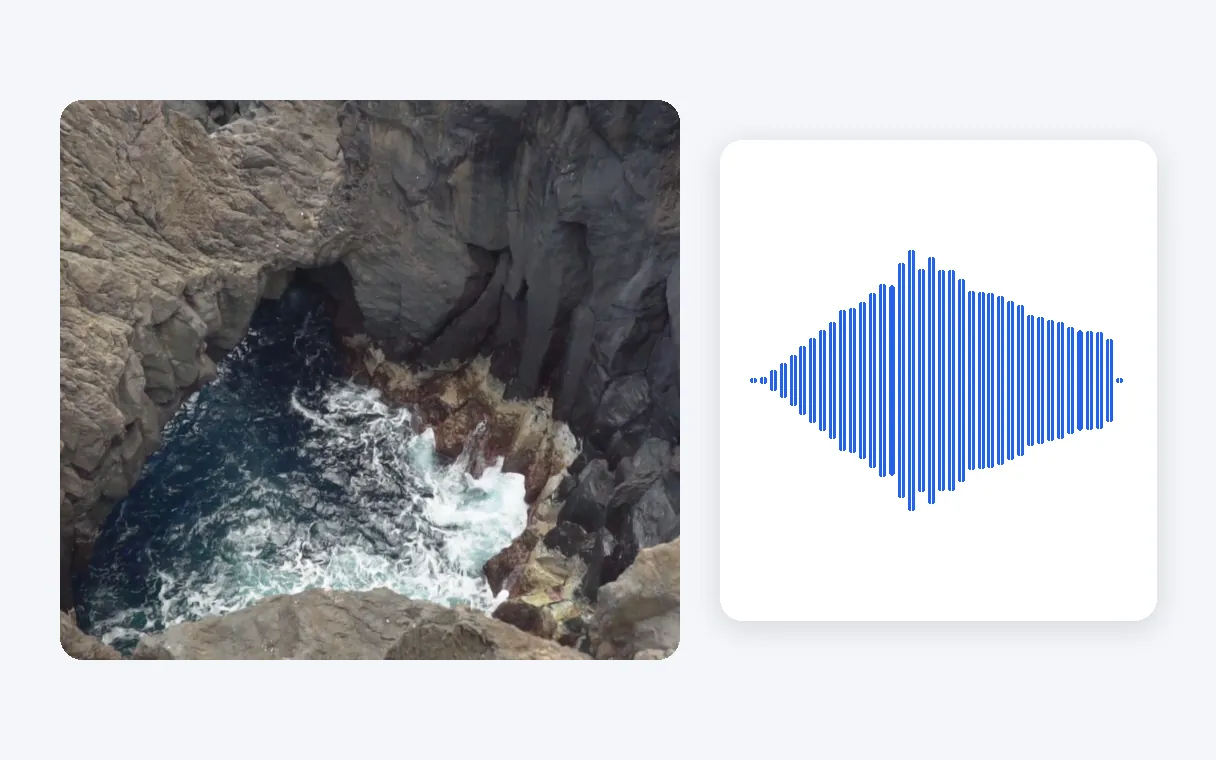
Sounds made for your scene
Each effect is created from your description rather than pulled from a catalogue. Ask for a heavy door in a stone corridor or light rain on a tent, and the sound is made for that request. The more precise your words, the closer the result usually gets to what you pictured.
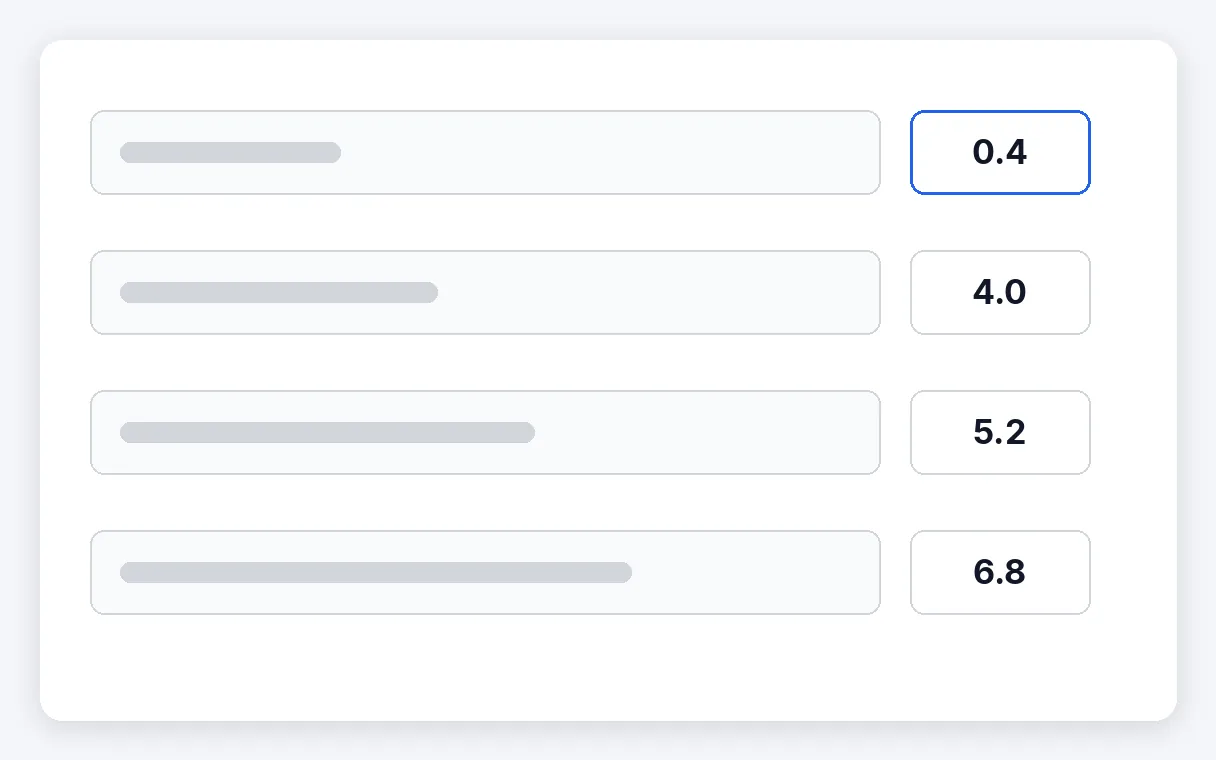
Your words, your language
There is no search box full of tags to learn and no file names to guess. You write the sound the way you would say it to a friend, in your own language, and you give the second where it should be heard. Up to 8 effects fit on one video.
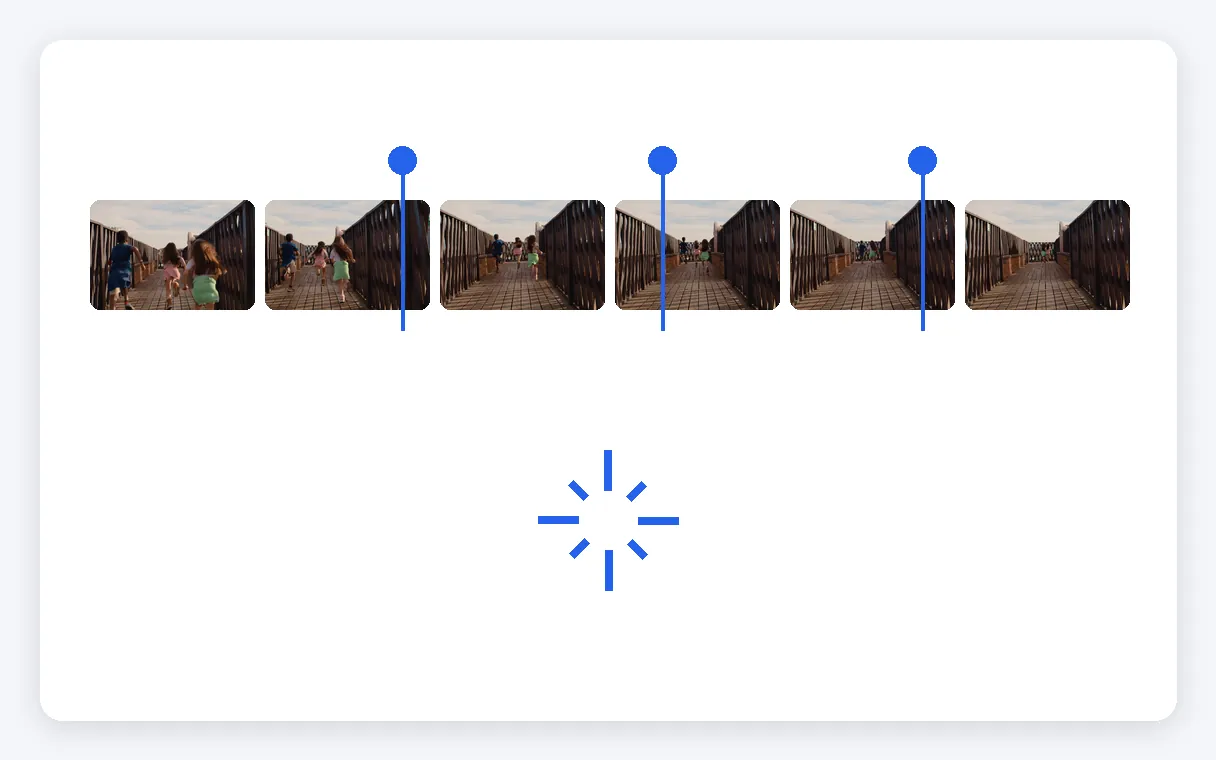
Ideas in one click
If you do not know where to start, a button proposes a list of effects based on what is visible in the video. It costs nothing. Keep the list, change a line or two, or empty it completely and write your own from scratch.
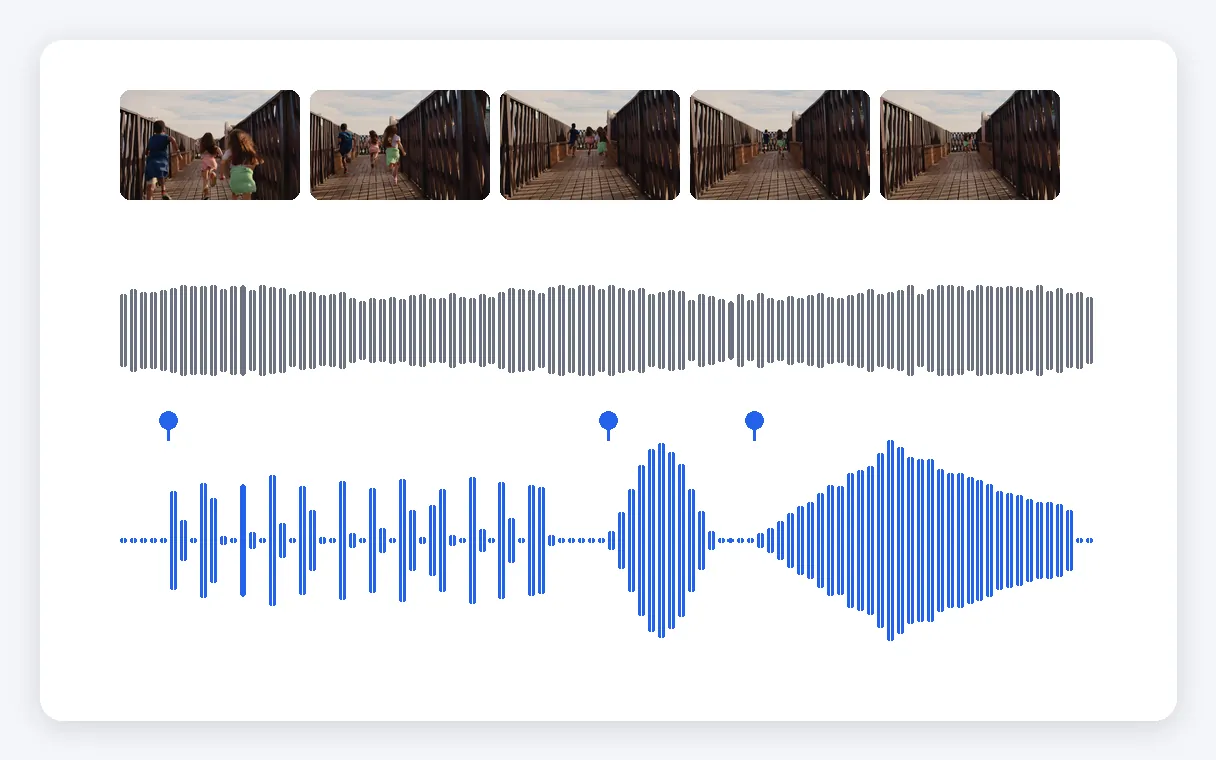
Original sound kept, image intact
Your original audio stays under the effects by default, and you can choose to keep only the effects instead. The video comes back as an MP4 of the same duration, with the image as you filmed it. Only the sound changes.
When to add sound effects to a video
Short videos for TikTok, Reels and Shorts
A swoosh on a cut, a pop on a text, a thud when the product lands: sounds timed to the second give a short clip the punch that holds a viewer who is scrolling.
Funny clips and memes
A record scratch, a creaking door, a cartoon boing placed right on the punchline. Describe the gag in a few words and set the exact second where it should land.
Transitions and intros
Whooshes, risers and impacts: put a sound where one scene hands over to the next, or under a title, without hunting through a bank of files.
Vlogs and short films
Footsteps on gravel, a crowd in the distance, rain on a window: the ambience and details missing from the original recording, placed where the image calls for them.
Tutorials and product demos
A click on a button, a notification chime, a drawer sliding shut: small sounds that make an on-screen action easier to follow in a training or demo video.
Related Tools
Adding sound effects to a video: frequently asked questions
Where do I start if I want sound effects on my clip?
Upload your video, then add an effect for each sound: write what you want to hear in a few words and the second where it should play. Check the price shown on screen, launch, and download the MP4. No timeline to edit, no sound bank to search, and up to 8 effects on one video.
Can a sound effect be generated from a text description?
Yes. Each sound is created from the words you write, in your own language, so it is made for your request rather than picked from ready-made clips. The more precise the description, with the material, the place and the intensity, the closer the sound usually gets. It remains a generated sound, not a recording of a real one.
Is there a free sound effects generator?
You can try it at no cost: a free account receives 20 credits at sign-up, and each effect costs 1 credit. But free here means a trial. Without a subscription or a Pass, the video carries the Klipa logo; a Pass or a subscription removes it. The price is shown before you launch.
Will the same description always give the same sound?
No. Effects are created on demand, so one text can give a slightly different sound on each try. If the result is not what you pictured, reword the description with more detail, such as the surface, the distance or the mood, and try again. Treat each take as a new draft, not a fixed clip.
Can it add sound effects automatically from what is in my video?
Partly. A button suggests a list of effects based on what is visible in the video, and this suggestion costs nothing. You keep the list, edit any line or empty it. Sounds are only created for the effects you choose to launch, so you stay in control of what ends up in the final video.
What happens to the audio my clip already has?
It stays. By default the original sound plays under the effects, so speech and ambience are still heard with the new sounds on top. If you prefer, you can keep only the effects and drop the original audio. Either way, the duration of the video is unchanged.
Which video formats work, and what do I get back?
MP4, MOV, AVI, MKV and WebM are accepted. The result is always an MP4 with the same duration as your video and the image left intact: only the sound changes, with your effects added at the seconds you chose.
What is the limit per clip, and what does one effect cost?
Up to 8 effects per video. Each effect costs 1 credit, and the screen announces the price before you launch, so there is no surprise. A free account receives 20 credits at sign-up, which is how you try the tool.
Must I log in to save the final MP4 to my computer?
Yes, an account is needed to download. Creating a free one is enough to try: it comes with 20 credits. Without a subscription or a Pass, the downloaded video carries the Klipa logo, which a Pass or a subscription removes.
Add sound effects to your video
Describe the sound, choose the second, download the result.
No credit card required
Sounds where your video needs them
Adding sound effects no longer means scrolling through a sound bank or building a timeline by hand. You write the sound, set the second, and your video comes back with the effects mixed in. If the clip also needs a spoken part, you can add a voice-over to your video. And if the original recording is full of hum or wind, it may help to remove the background noise first, so your effects are heard clearly.
