

A voice reads your text over your video
You have a video and a script, and you would rather not record your own voice. That is exactly what this tool is for: you upload the video, type or paste the text, pick a voice, and a synthetic voice reads your words over the picture. The result comes back as a single MP4, ready to post, with nothing to assemble in an editor.
What you control
The text can run up to 5000 characters and can be written in any of the 33 supported languages. You choose among seven voices — three women's voices, three men's voices and a neutral one — and each has a short audio preview, so you can hear it before committing anything. You also decide the moment the voice begins: right at the start, or a few seconds in, once the picture has set the scene.
Your original sound is handled while the voice speaks. By default it is lowered and then comes back to its normal level when the voice stops. You can also keep it exactly as it is, or switch it off entirely. If the voice turns out longer than the video, the last frame stays on screen until the voice has finished; the picture is never altered in any other way.
Free to try, logo-free with a plan
A free account receives 20 credits at sign-up, which lets you try the tool. Without a subscription or a Pass, the video carries the Klipa logo, and an account is needed to download; the video without the logo comes with a subscription or a Pass. The price is 5 credits per minute of voice, with a minimum of 1, worked out from the length of your text rather than the duration of the video. The screen announces the price before you launch.

What the tool produces
How to add a voice over to a video in 3 steps
Upload your video
Drop in an MP4, MOV, AVI, MKV or WebM file. The voice will be placed over this video, and the picture stays as you filmed it, apart from a possible held last frame.
Write the text and pick a voice
Type or paste your text, choose one of the seven voices after listening to its preview, then set when the voice starts and what happens to the original sound: lowered, kept or muted.
Launch and download the MP4
The screen shows the price before you start. Once the voice is added, download your MP4. An account is needed to download, and without a subscription or Pass the video carries the Klipa logo.
Why add a voice over with Klipa
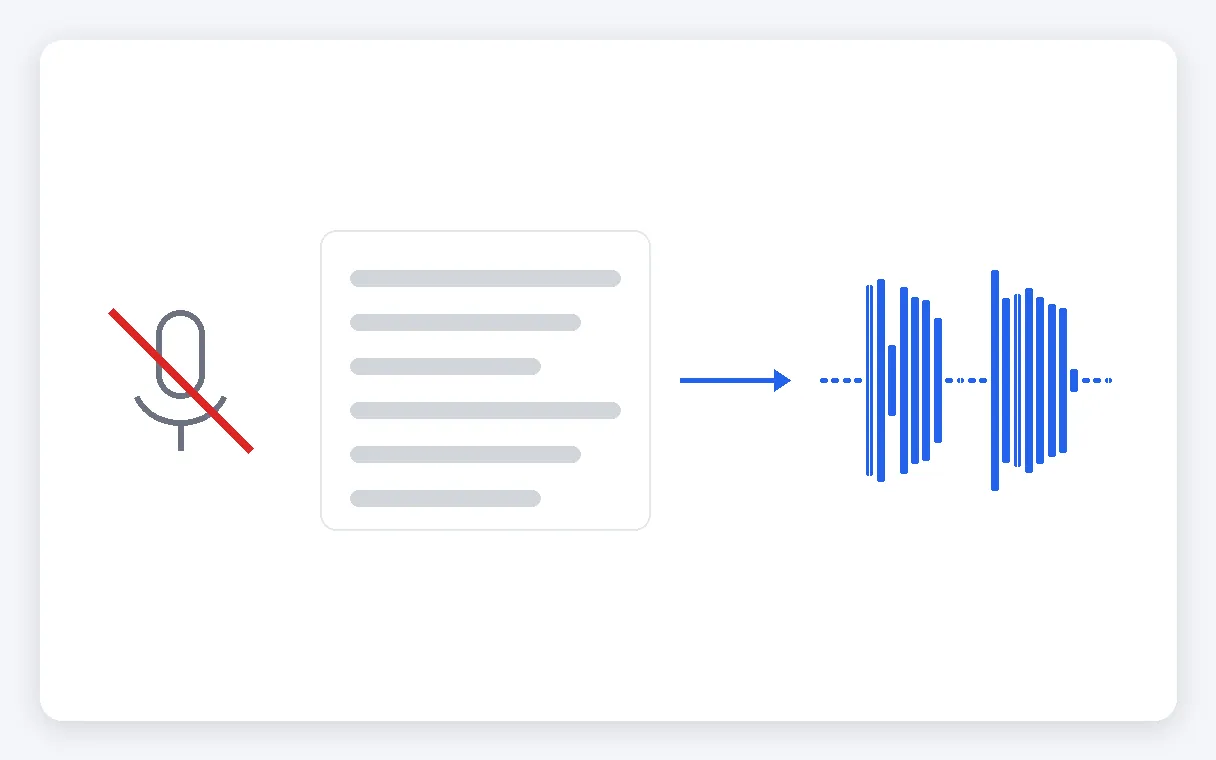
No recording, no microphone
You do not need a quiet room, a microphone or a take you are happy with. Write the text and let a voice read it. If a sentence needs changing, you edit the text instead of recording again. Nothing to learn, and no audio timeline to open.
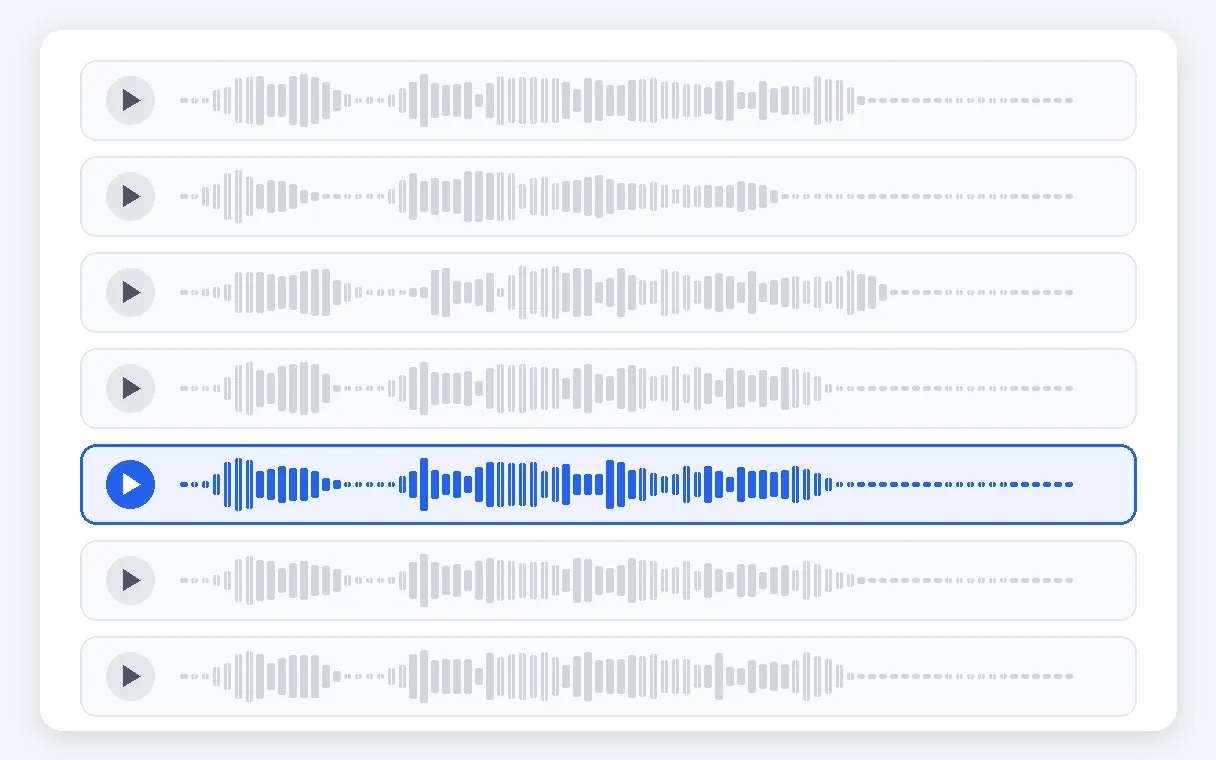
Seven voices, each with a preview
Three women's voices, three men's voices and a neutral one are on offer. Each plays a short sample beforehand, so you pick by ear rather than by name. The text can be written in any of the 33 supported languages.
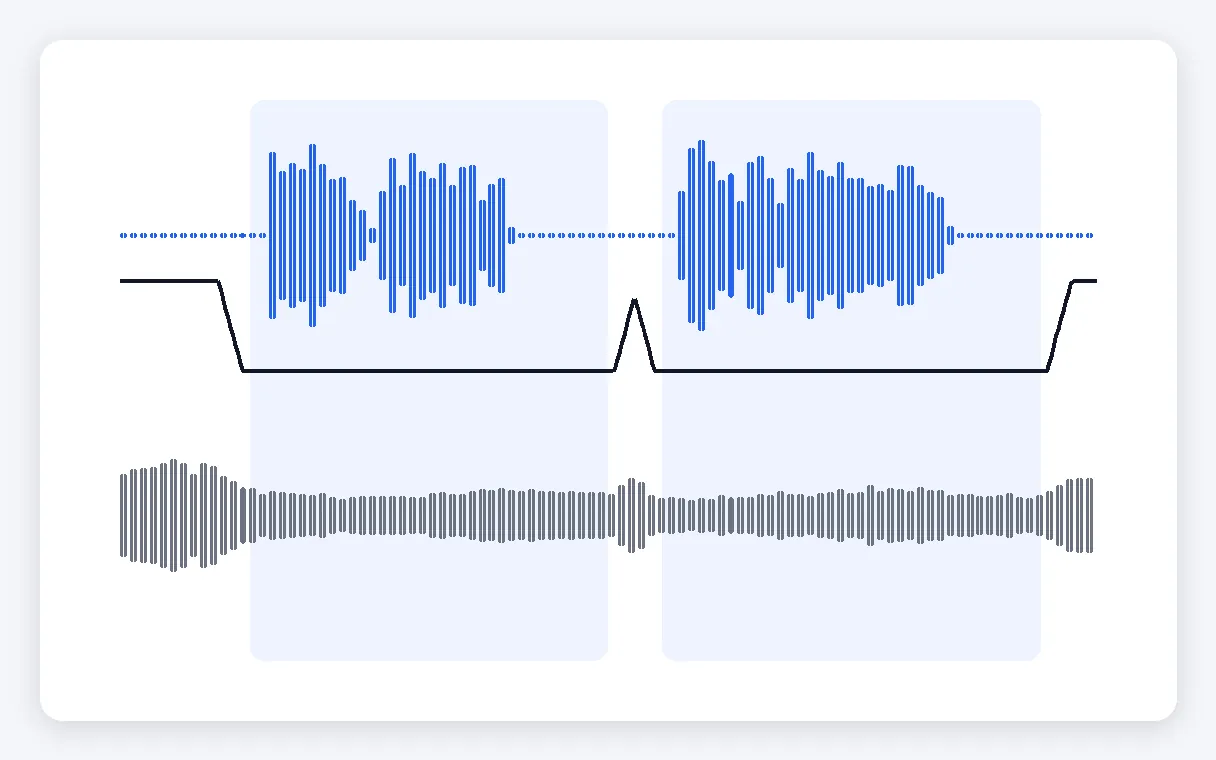
Your original sound under control
While the voice speaks, the sound of your video is lowered and returns to its level afterwards — that is the default. You can also keep it untouched or cut it. You decide, too, the exact moment the voice comes in. Music or ambient sound stays underneath, or disappears.
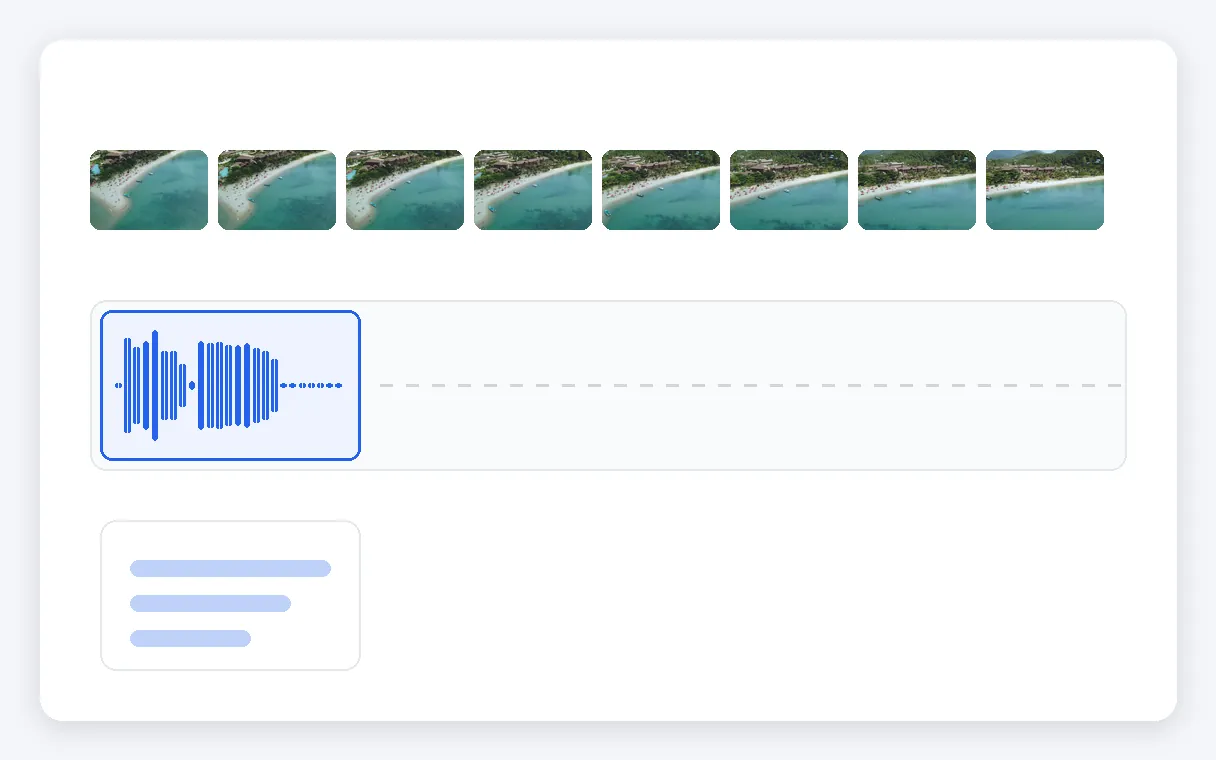
Priced on the text, not the video
The cost is 5 credits per minute of voice, with a minimum of 1, worked out from the length of your text. A long video with a short text does not cost more because it is long. The price appears on screen before you launch.
When a voice over helps
A tutorial or screen recording
You filmed the steps but not the commentary. Write the explanation, have the voice start with the first click, and the video is ready to share without a take of your own voice.
A product demo for social media
A short clip of your product, a few sentences of text, and a narrator reads them on top. Handy for posts on Instagram or TikTok when you would rather not speak on camera.
A slideshow or presentation video
A video exported from a presentation stays silent. Paste your speaking notes as text and a voice reads them over the slides, with the last slide held until the voice has finished.
Travel or holiday footage
Clips from a trip become a short story once someone narrates them. Write the commentary, start the voice after the opening shot, and keep the ambient sound lowered underneath.
A channel where you never show your voice
The images are yours, the narration is written, and the voice is one of the seven on offer. You never have to hear your own recording, whatever the topic of the video.
Related Tools
Adding a voice over to a video — frequently asked questions
Where do I start if I want a voice reading my script over my footage?
Upload your video, type or paste the text you want read, and choose one of the seven voices, listening to the preview of each. Set the moment the voice starts and what happens to the original sound, check the price on screen, then launch. When it finishes, you download your video as an MP4.
Can I add an AI voice over for free, without a watermark?
You can try it: a free account receives 20 credits at sign-up, which lets you run a first voice over. Without a subscription or a Pass, though, the video carries the Klipa logo, and an account is needed to download. The version without the logo comes with a subscription or a Pass.
Can a synthetic voice read a text over my footage?
Yes: write or paste your text, up to 5000 characters, in any of the 33 supported languages, and place it over a video you already have. The voice reads it from the instant you choose.
Will my footage's own audio still be audible under the narration?
By default it is lowered while the voice speaks, then returns to its normal level. You can also keep it exactly as recorded, or cut it entirely. The three choices are on screen before you launch, so you can pick whichever suits your footage best.
Will a long script get cut off before it finishes?
The last frame stays on screen until the voice has finished, so no word is cut off. Apart from that held frame, the picture is never modified. If you would rather the video not be extended, shorten your text or start the voice earlier.
What is billed: the length of my text or of my video?
The price is 5 credits per minute of voice, with a minimum of 1. It is worked out from the length of your text, not from the duration of the video, and the screen announces the price before you launch. A free account receives 20 credits at sign-up.
Will my MKV or WebM clip work, and what format comes out?
You can upload MP4, MOV, AVI, MKV or WebM. What comes back is always an MP4 video: your footage with the voice added, the original sound handled as you chose and, when needed, the last frame held until the voice ends.
Can I hold the narrator back until a later moment?
Yes. You set the instant where the voice begins, so it can come in immediately or after a few seconds of picture. The original sound is lowered only while the voice speaks, then returns to its level. Start it later if your opening shot needs room.
Add a voice over to your video
Your text, a voice of your choice, one MP4.
No credit card required
Your words, read over your footage
A voice over no longer needs a microphone, a quiet room or a second take. You bring a video and a text, choose among seven voices, decide when the voice begins, and download an MP4 in which your original sound has been lowered, kept or cut as you asked. Once the narration is in place, you may want to add sound effects to the video, or put the same words on screen with animated subtitles. The Klipa logo stays on the video unless you have a subscription or a Pass.
