

Translate Video to English and Keep Subtitles in Sync
To translate video to English without disrupting its timing, keep the original audio and add translated subtitles unless you have a clear reason to dub the voices…
You have a video in one language and viewers who speak another. The quickest way to reach them is to translate the video subtitles and show them right on the picture. Upload your video, choose the language you want on screen, and Klipa hands it back with the translated subtitles burned in, styled the way you like.
You start by choosing the subtitle language in a list of more than 30 languages. The language spoken in your video is recognised automatically, so there is nothing to select on that side. Klipa transcribes the speech, then translates it sentence by sentence. Each translated sentence follows the timing of the original speech, so the subtitle appears and disappears exactly when the person talks. On screen, the translation takes the place of the original sentence.
Translated subtitles do not have to look like plain white text. The editor offers eleven animated looks, where the spoken word lights up, pops or fills in as it is said. You also set the font, the size, the position, the text colour and the highlight colour. A live preview on your own video shows exactly what will be burned in, so you can adjust before you commit. Switch style as often as you like until the result feels right.
A good translation starts from an accurate transcript. The built-in editor lists every sentence it heard: fix a misheard word, retime a line or delete it, and the corrected sentence is translated again. When you are happy, launch the burn. The subtitles are baked into the pixels of the video, so they display the same way on TikTok, Instagram, YouTube or LinkedIn, with no separate file for the viewer to switch on.
Without a subscription, the first 5 minutes of your video are translated for free. To translate the full video, use Klipa Pro, or make a one-time payment offered on the result. The free download carries the Klipa logo, and a Pass or a Pro/Studio plan delivers the video without it. Nothing to install: everything runs in your browser.
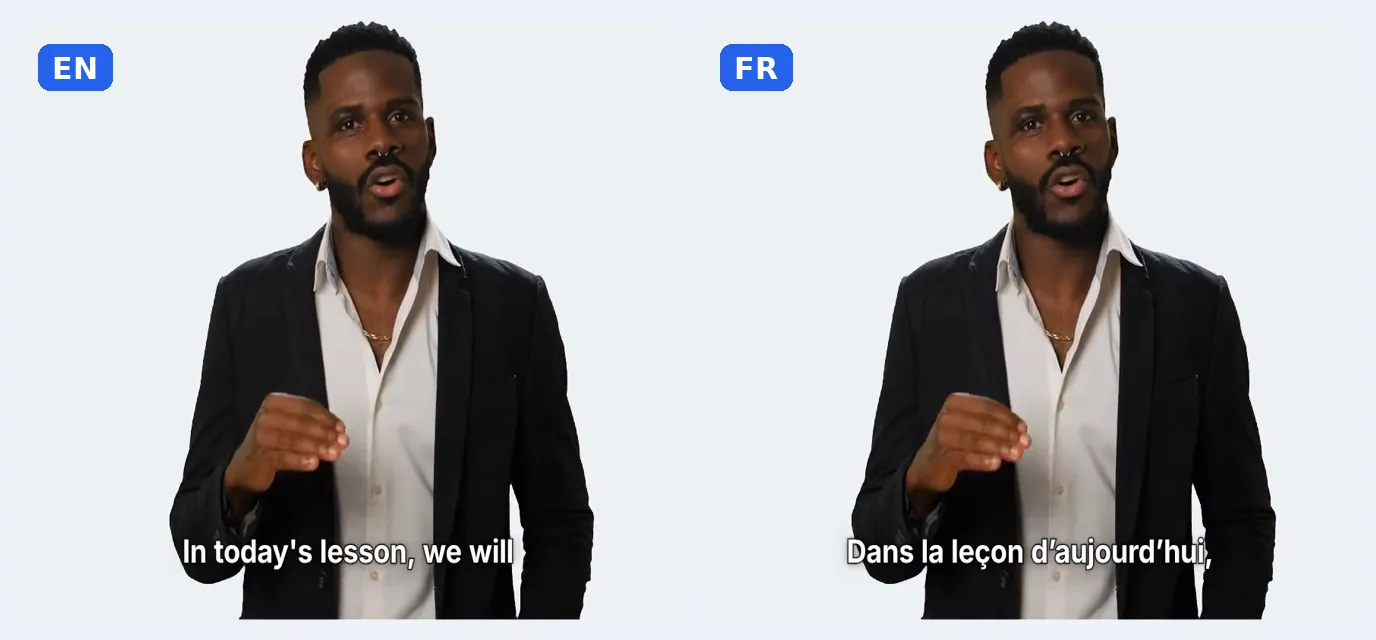
Drop in your video file, then choose the language you want for the subtitles from the list of more than 30. The spoken language is recognised on its own, so you type nothing.
Klipa transcribes the speech and translates each sentence. In the editor, try the 11 animated styles on your video and fix any misheard word: the corrected sentence is translated again.
Launch the burn: the translated subtitles are baked into the picture, ready to publish on any platform. Download the video and post it for viewers who speak the language you chose.
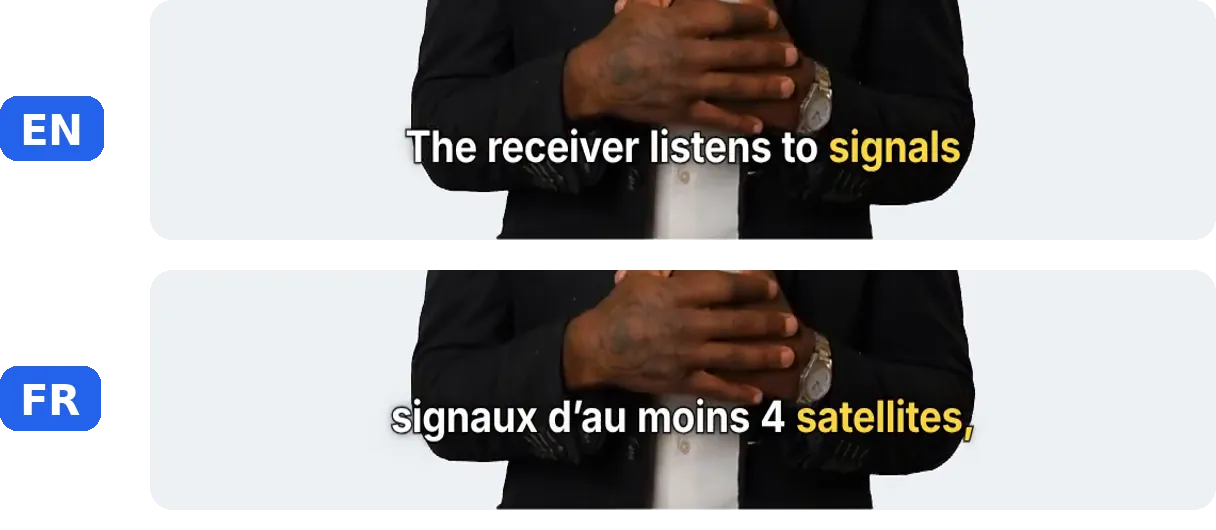
Choose the language your viewers read from a list of more than 30, then switch it for the next version. Your video can keep its original voice while the screen speaks to a new audience, whether you publish in one language or several versions, and without re-recording anything.
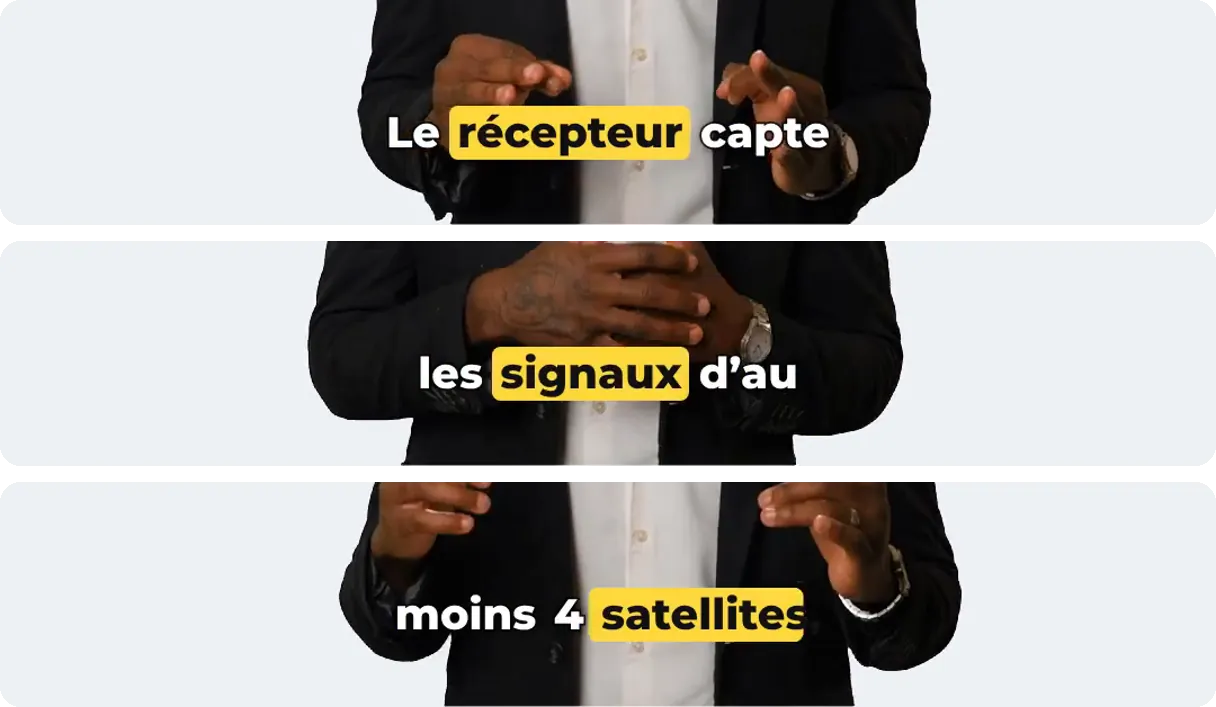
The spoken language is detected automatically, the speech is transcribed, and every sentence is translated while keeping its place on the timeline. The subtitle shows up when the person starts talking and leaves when they stop, so reading stays natural.
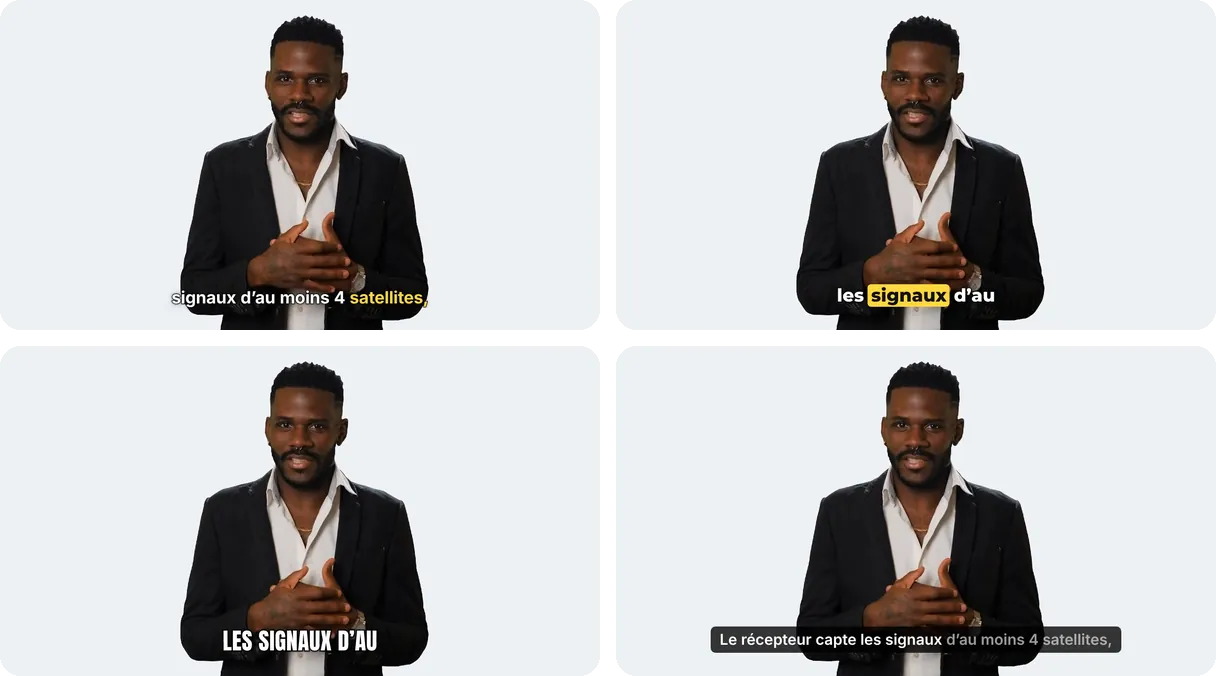
Eleven animated styles are ready to try on your own clip, from lively to understated. Set the typeface, the scale, the placement and both colours so the subtitles carry your own identity and match your channel, whatever the language on screen.
In the editor, you fix a misheard word, move a line's timing or remove it, and the corrected sentence is translated again before the burn. The result is part of the image itself, so it displays everywhere with no separate file to manage and nothing to set up on the viewer's side.
Publish the same TikTok, Reel or Short for several audiences. Burn translated subtitles in one language per version and let viewers who scroll with the sound off follow every sentence.
Online courses, tutorials and webinars reach more learners when the screen is in their language. Choose a clean style, check the translation in the editor, and share one version per language.
Turn a recorded interview or conference talk into something a foreign-language audience can follow. The translation tracks each speaker's sentences, and a highlighted style keeps long clips easy to read.
Show a product demo or an unboxing to customers in another country. Burned-in subtitles in their language travel with the video to every shop page, ad and social post, with nothing to switch on.
Share a video with relatives who speak another language. Pick their language, keep the original voices and the atmosphere, and let the translated subtitles tell them what is being said.
Upload your video, choose the subtitle language in the list, then let Klipa transcribe the speech and translate each sentence. Pick a style in the editor, check the preview, and launch the burn. The translated subtitles are baked into the video, ready to download and publish.
More than 30 languages are offered in the list you see before launching. By default, the list starts on the language of the page you are reading, and you can switch it to any other. Your video keeps its original voice, and only the subtitles change language, so you can make one version per audience.
By listening to it: the spoken language is recognised automatically, so your only choice is the language of the subtitles. Klipa transcribes the speech, translates each sentence and keeps it aligned with the moment the person talks, with no technical setting to touch.
Yes, a free trial is built in. Without a subscription, the first 5 minutes of your video are translated at no cost, into English or any other language of the list. You see the result with its preview before deciding whether to translate the whole video.
Use Klipa Pro to translate the full video, or make a one-time payment offered right on the result screen, once you have seen the translated minutes. Either way, the whole video comes back with its translated subtitles burned in, in the same style you chose.
Yes. You pick from 11 animated looks and see each one running on your own clip before anything is final. Typeface, scale, placement and both colours stay in your hands, so the translation matches the rest of your content.
Yes. Every sentence it heard is listed in the editor: fix a misheard word, move a line in time or drop it, and the corrected sentence is translated again. When the preview looks right, start the burn: it shows what the final video will contain.
Yes. They become part of the picture itself, so they appear on every platform, including TikTok, Instagram, YouTube and LinkedIn. You manage no extra file, and your viewers press nothing to see them, which makes the video easy to share anywhere.
Yes, those languages are written from right to left on screen, and the text direction is respected, as are the other languages of the list. Pick the language you want, check the preview in the editor, and burn the subtitles in once they look right.
The free download carries the Klipa logo. A Pass or a Pro/Studio plan delivers the video without the Klipa logo. Once your translated video is ready, download it and publish it wherever your viewers are, on social networks, on your own site or in a course.
The complete guide to this tool — Animated subtitles: add subtitles to a video

To translate video to English without disrupting its timing, keep the original audio and add translated subtitles unless you have a clear reason to dub the voices…

Imagine opening a clip recorded in Portuguese, watching it with clean English subtitles, and uploading the same video to TikTok without a single ‘file too large’…

Translating a video used to mean hours of manual timestamping, language checks, and re-rendering. A five-minute clip could easily eat an afternoon. Today, the right…
Pick a language, choose an animated style, and download your video with the translated subtitles burned in.
No credit card required
Translating the subtitles of a video needs neither editing software nor hours of typing. With automatic transcription, sentence-by-sentence translation, 11 animated styles and an editor to polish every line, Klipa turns one video into as many versions as you have audiences. Already have a subtitle text to translate? Try the subtitle translator. Want to explore every style first? Open the animated subtitles tool and see them on your own video. Whichever route you take, your subtitles end up where the viewer already looks: on the picture, in the language they read.
