

Animated Subtitles DaVinci Resolve: Skip Fusion, Finish Fast
By the time you finish this guide, you’ll have a finished vertical clip with animated subtitles timed to each word, exported and ready for TikTok or YouTube Shorts…
Good to know before subtitling your video
Verified July 29, 2026Studies: XR Global Ad Accessibility Report 2026 · YouGov 2023 · World Health Organization, March 2026.
Subtitles are no longer just text at the bottom of the screen: they decide whether someone watches your video or scrolls past it. With Klipa you can add subtitles to a video online, try it for free, without installing any software: the transcription is automatic, the subtitles are synced word by word, and you choose their style before burning them in.
Most social videos are watched with the sound off — without subtitles, your message simply never lands. Readable subtitles hold the viewer in the first seconds, make your video accessible to deaf and hard-of-hearing people, and help platforms understand what your content is about. Adding subtitles is a matter of reach, accessibility and visibility all at once.
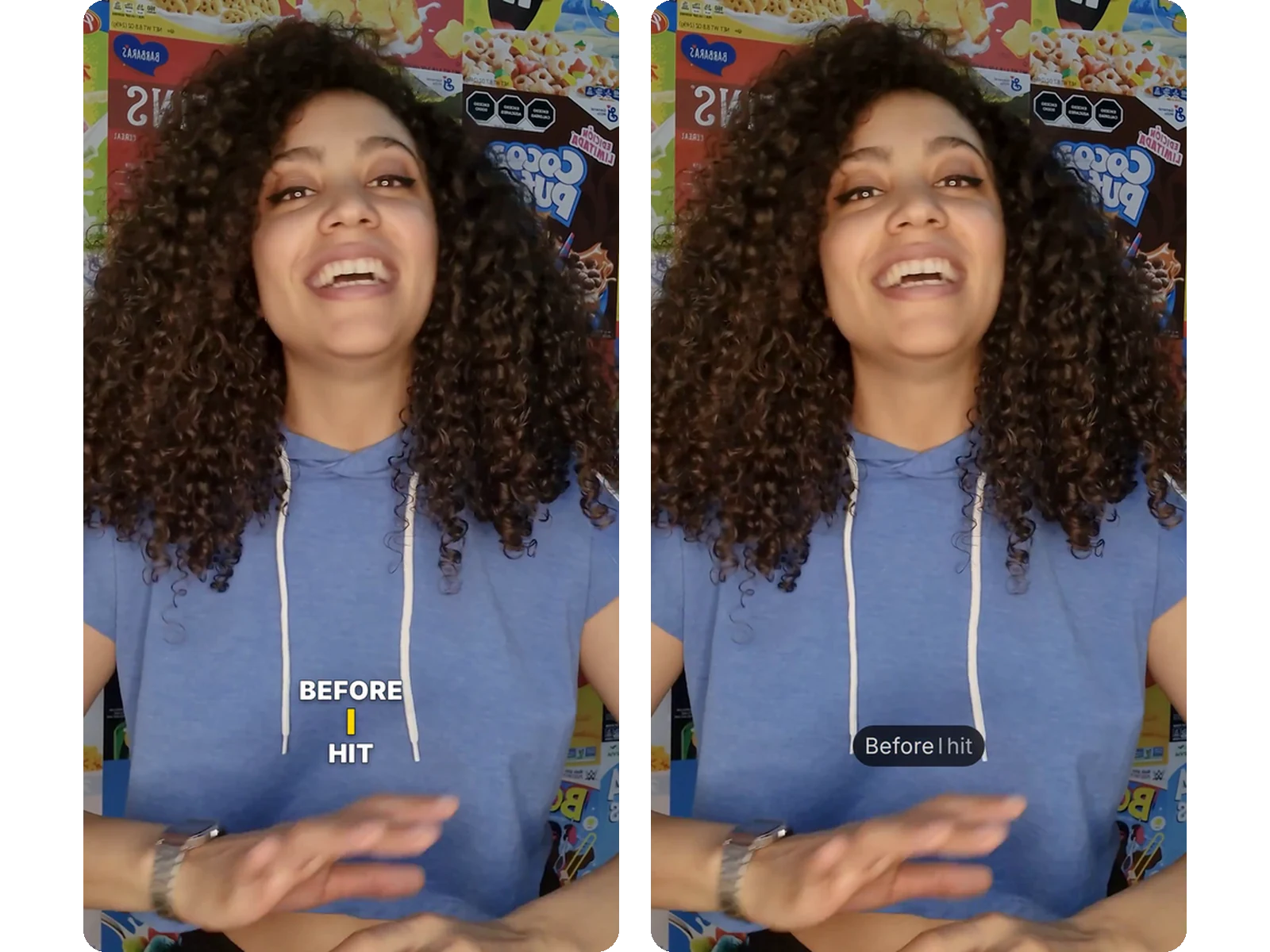
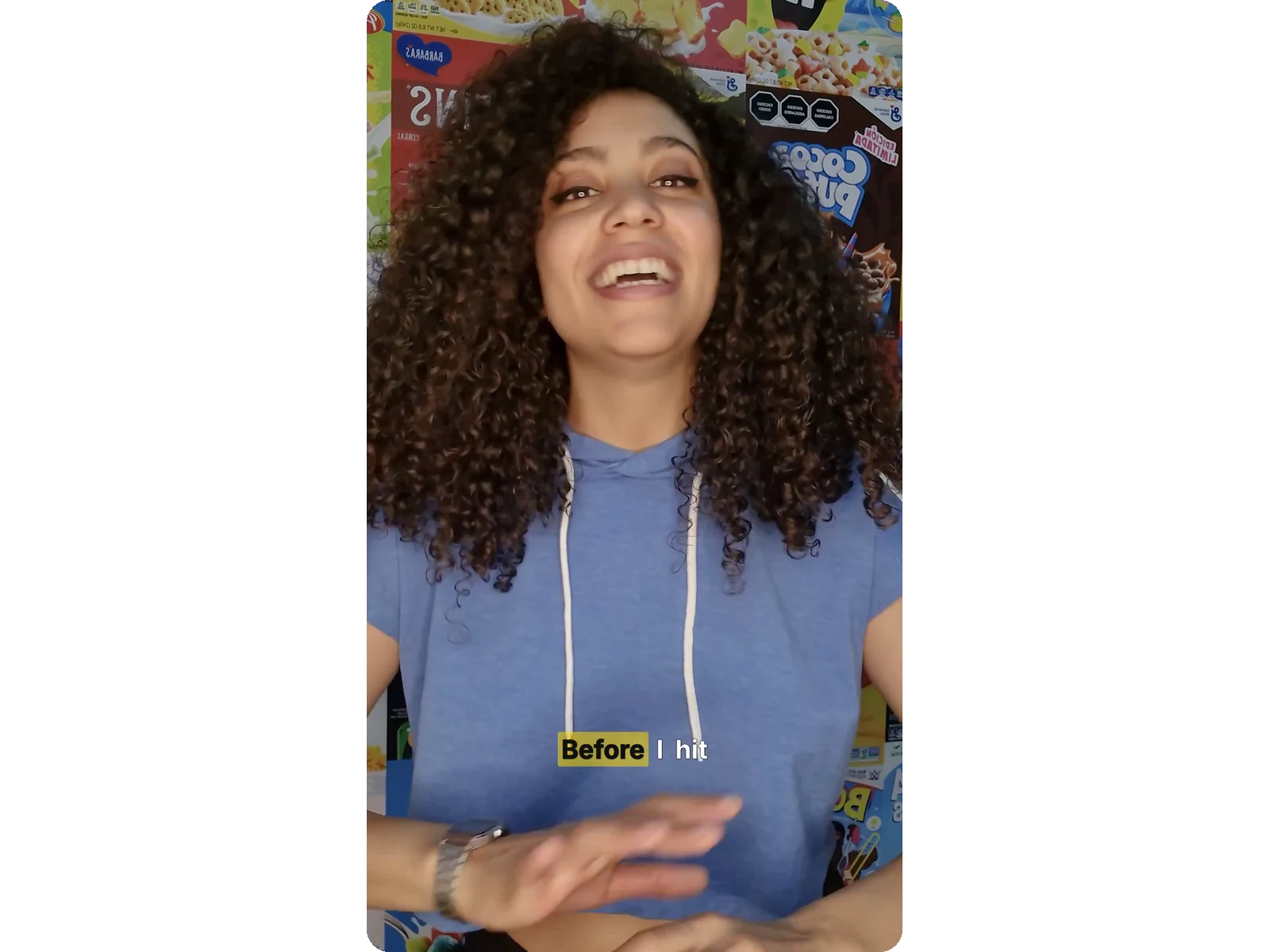
Animated subtitles — the spoken word lighting up, changing colour or popping — have become the signature of short videos that break through. Klipa offers 11 animated subtitle styles, from word-by-word karaoke to Highlighter, Fill or Clean captions. Every subtitle style previews live on your own video: what you see is exactly what gets burned in.
There are two ways to add subtitles to a video. A subtitle file (SRT or VTT) stays separate: viewers can switch the subtitles on or off, which is ideal for YouTube. Burned-in subtitles are baked into the pixels of the image: they show up everywhere, on every platform, with no setting to touch. Klipa does both — it burns animated subtitles into the video, and still hands you the SRT or VTT file if you need it.
Once the transcription is done, the subtitle workshop lets you set everything: the font among twelve popular typefaces, the size and position of the subtitles, the text colour and the highlight colour of the spoken word. You can also fix the subtitle text line by line — a misheard name, a sentence to shorten — and adjust the timing before burning the subtitles in for good.

Drop your MP4, MOV, WebM or MKV file. Automatic transcription detects the spoken language among 100+ languages and generates the subtitles — you type nothing.
Browse the 11 animated subtitle styles and watch them render live on your video. Adjust the font, size, position and colours of your subtitles until the result feels right.
The subtitles are burned into the video, ready to publish. You can also download your subtitles as SRT or VTT to reuse them elsewhere.
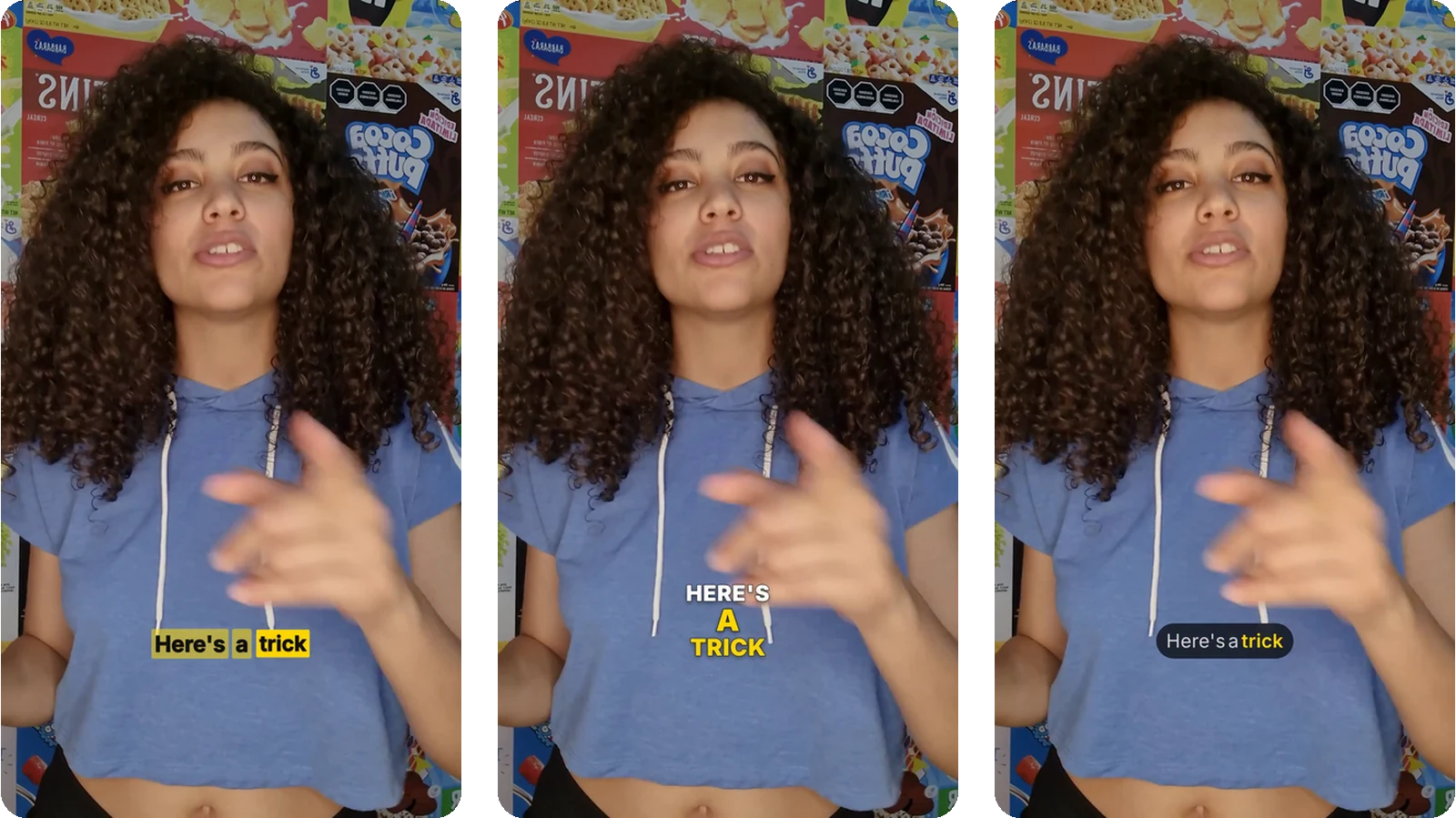
Word-by-word karaoke, Highlighter, Fill, Clean: every subtitle style can be tried on your video before you burn it in.
Pick the font, size, position, text colour and highlight colour: your subtitles carry your brand, not a generic template.
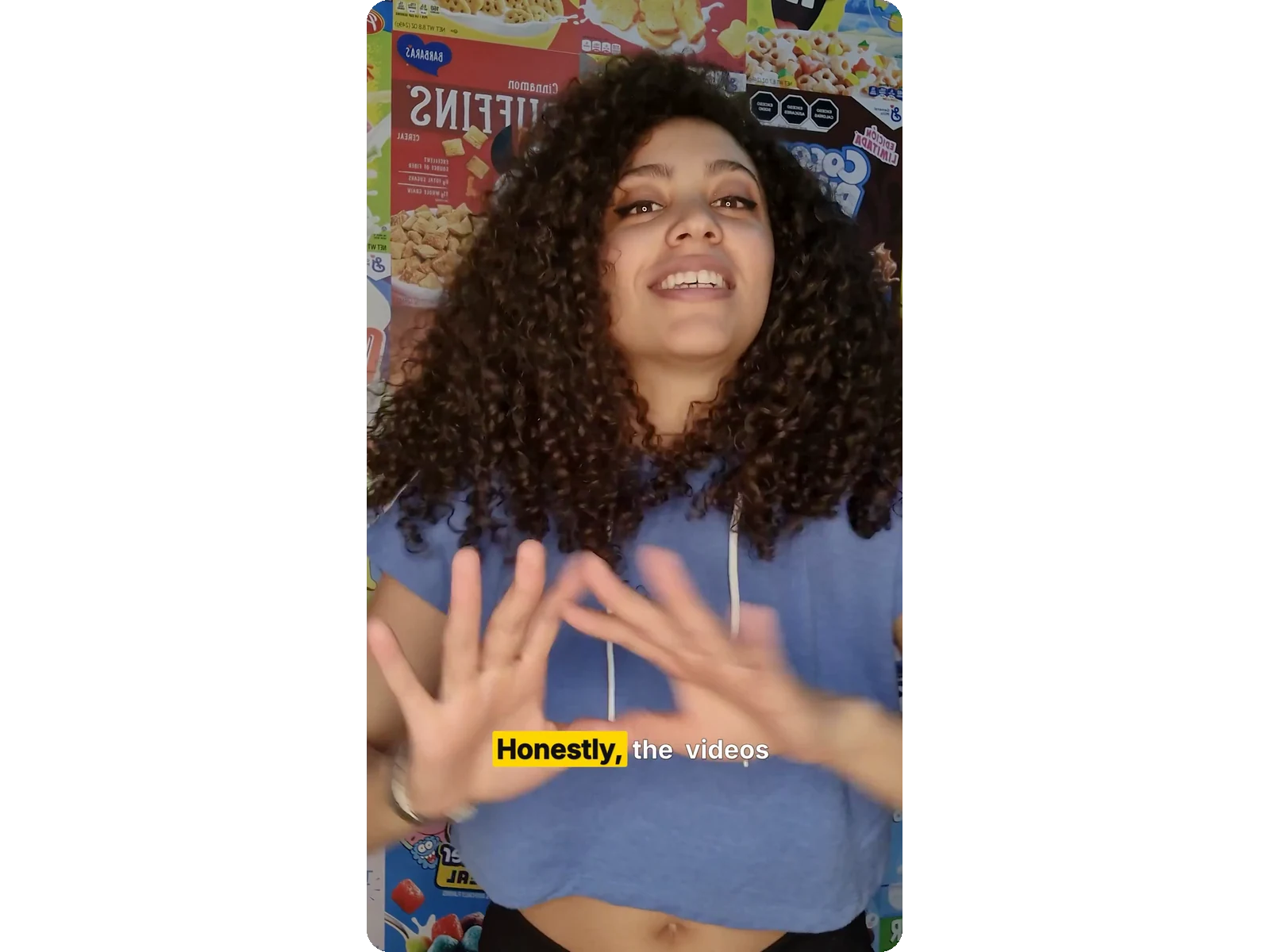
Subtitles are baked into the image for good: they display on TikTok, Instagram, YouTube or LinkedIn with no separate file to manage.
The built-in editor lets you fix the subtitle text, retime a line or delete it before the final burn.
On short-form video, animated subtitles grab attention within three seconds. An energetic subtitle style — Highlighter, karaoke, Fill — holds a viewer who is scrolling with the sound off.
Online courses, tutorials, webinars: clear subtitles make your content understandable in noisy places and accessible to hard-of-hearing viewers. A clean subtitle style is enough here.
Transcription recognises 100+ languages: you can add subtitles to a video in English, Arabic, Spanish… then export the SRT file to have your subtitles translated.
Upload your video, let automatic transcription generate the subtitles, pick a style, then burn them in. A Pass or a Pro/Studio plan delivers the video without the Klipa logo.
11 subtitle styles: word-by-word karaoke, Highlighter, Fill, Clean, Subtitle and more. Every subtitle style can be previewed on your video before burning.
Yes. You choose the font among twelve (Montserrat, Poppins, Bangers, Impact…), the size and position of the subtitles, the text colour and the highlight colour of the spoken word.
Yes: the subtitles are baked into the pixels. They show on every platform, with no separate file and nothing for the viewer to switch on.
Yes. The built-in editor shows every subtitle line: fix a misheard word, adjust the timing, delete or add a line, then burn.
Transcription takes a few dozen seconds. Burning the subtitles in takes about 2–4 minutes for a 5-minute video, depending on the style.
Yes. Subtitles display correctly in Arabic, Hebrew and Persian. Automatic transcription recognises 100+ languages.
An SRT file stays separate from the video: viewers can turn the subtitles on or off. Burned-in subtitles are baked into the image and always show. Klipa produces both.
Yes. Once transcription is done, your subtitles download as SRT or VTT alongside the subtitled video — handy for YouTube, or to have your subtitles translated later.

By the time you finish this guide, you’ll have a finished vertical clip with animated subtitles timed to each word, exported and ready for TikTok or YouTube Shorts…

Manually transcribing and timing subtitles for every video is tedious and time-consuming. You’ve probably spent hours trying to sync text with speech, only to find…

You’ve just nailed the perfect TikTok. The dance is on point, the punchline lands, the transitions are slick. You upload it — and crickets. Why? Because over 80% of…
Automatic transcription, 11 animated subtitle styles, one-click burn-in.
No credit card required
