

What happens to a clip filmed on an iPhone
A clip filmed on an iPhone comes with a soundtrack nobody chose: the street, a ventilation unit, a crowd, the faint hiss of a small microphone. This page is made for that kind of file. You open it in the browser of your iPhone or of your computer, drop in the video, and the noise sitting behind the voice is lowered. There is no application to install and nothing to export beforehand.
The file keeps its picture
Phone videos are rarely plain files. They are often .MOV, recorded in HEVC, sometimes in HDR, and frequently held upright in portrait. Only the sound track is processed. The picture is copied across instead of being recompressed, so its resolution, its frame rate, its colour settings and its portrait orientation come back the way they went in. We checked this on test files shaped like an iPhone recording: a 4K 60 images-per-second HEVC clip flagged as portrait, a Full HD H.264 clip, and a clip whose frames are unevenly spaced. In every case the video stream was identical before and after.
Two things do change. The result is an .mp4 file, even when you uploaded a .MOV. And with Auto or Voice, the cleaned sound came back as a single mono track on our stereo test files, whereas Music and Everything came back in two channels.
What can be lowered, and what cannot
Steady sound is the easy case: traffic, ventilation, wind, hiss, the wash of a busy room. The voice is kept and the rest is dropped. Harder cases are a second person speaking at the same moment and music with singing, because the tool keeps "a voice", not one chosen speaker. A voice that is barely audible under loud noise has little left to recover.
Auto, Voice, Music or Everything
The screen asks what to keep, and it opens on Auto. On a clip with someone talking, Auto and Voice gave the very same result in our tests. On a clip with music and nobody talking, Auto left the sound almost untouched while Voice muted nearly all of it. So for a concert, a party or an ambient shot with no speech, leave Auto on or pick Music or Everything, and keep Voice for clips where a person is speaking.

What the tool produces
From the iPhone to a cleaner clip
Choose your iPhone video
Open the page in your iPhone's browser or on a computer and pick the clip. A .MOV file is accepted as it is, with nothing to convert or export first.
Check what to keep
Leave Auto on for a clip with speech, or choose Voice when only the speaker matters. Pick Music or Everything when nobody is talking in the clip.
Download and listen back
Save the MP4 that comes back, then play it from the start with headphones. The quiet moments between two sentences are where leftover noise shows first.
What you get from an iPhone clip
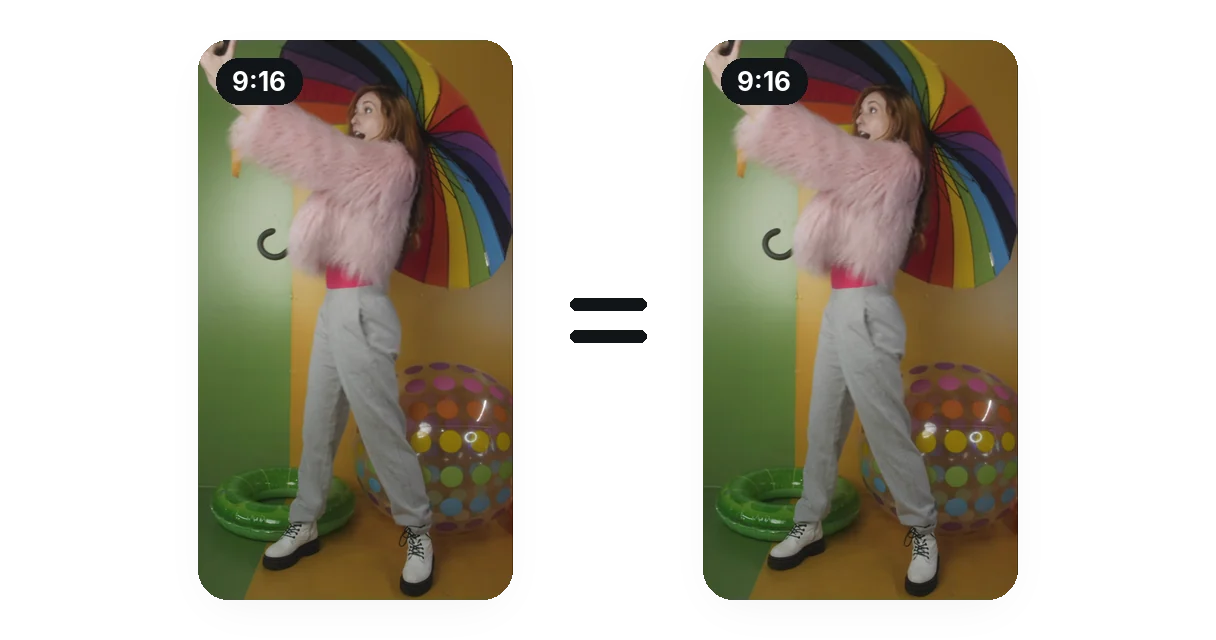
The picture stays as filmed
Only the sound track is processed. The picture is copied across without recompression, so a portrait clip stays portrait and the frame you see after is the very frame you shot. We compared a frame of the source and of the result: they are identical.
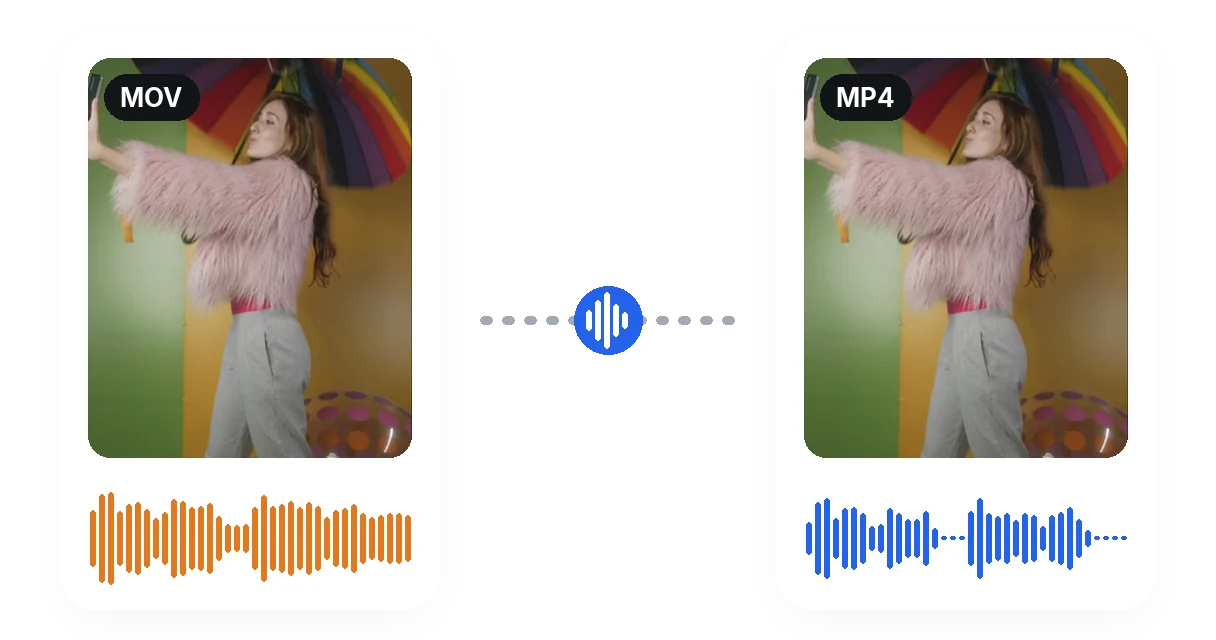
One file in, one file out
Drop the .MOV exactly as the phone saved it. There is no step where you pull the sound out, clean it somewhere else and put it back by hand: the cleaned track is returned already attached to the picture, in an .mp4.
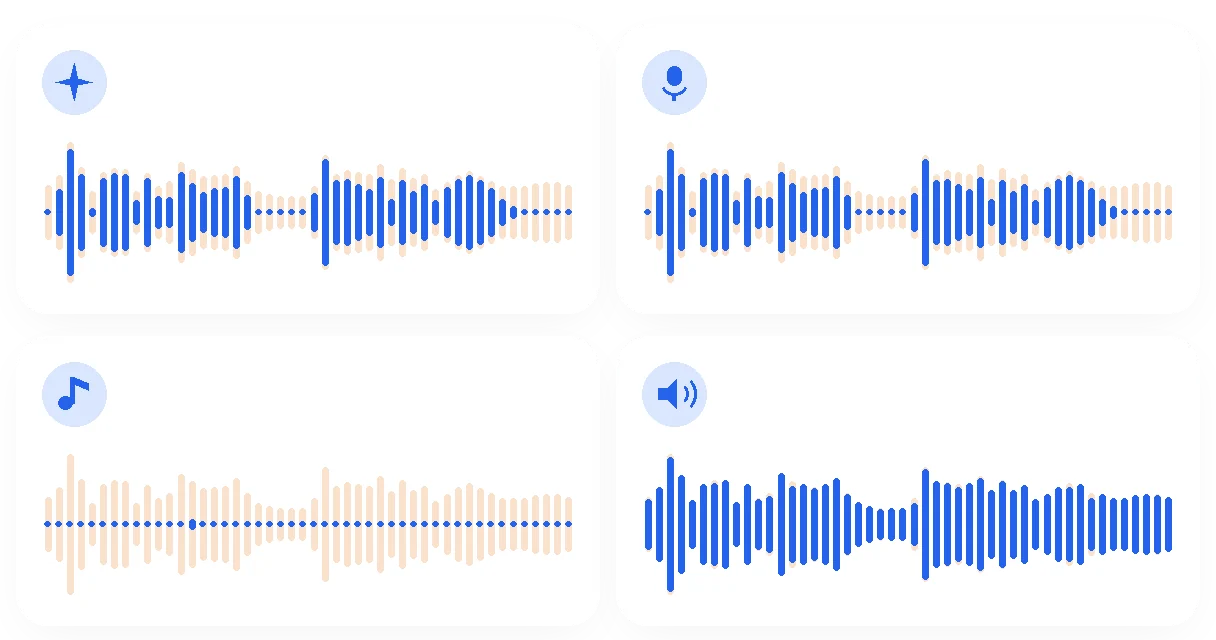
A choice for clips without speech
The screen offers Auto, Voice, Music and Everything. Auto is the default and matched Voice on our clips with speech, Voice keeps only speech and singing, Music keeps the instruments, Everything removes only background hiss. The picture shows the real result of each choice on one clip.
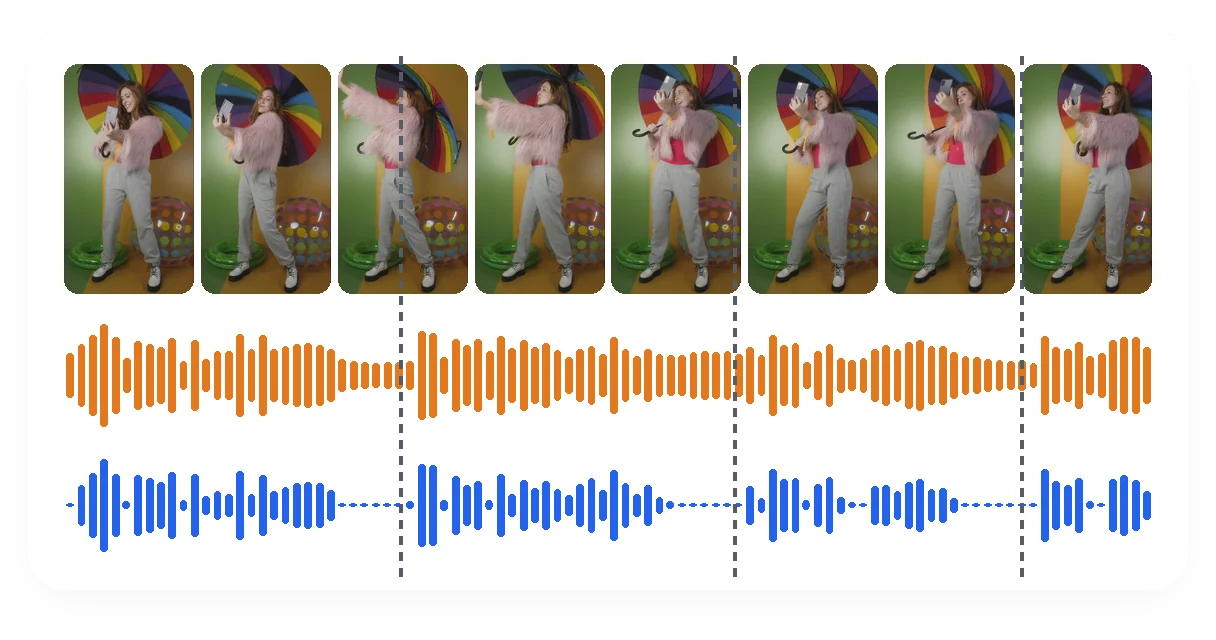
The sound stays in step with the picture
The cleaned voice goes back onto the same footage, not onto a re-cut one. In the image, each sentence starts at the same moment in the original sound and in the cleaned one, so the words still line up with the lips.
Typical iPhone clips
A message filmed on a busy street
Traffic and passers-by sit behind the voice. Lowering them brings the spoken message forward, without touching the vertical picture you filmed, so the clip is ready to post as it is.
A family moment with a crowd around
A toast, a first step, a birthday: the voices you care about are kept and the room's general noise is lowered. Overlapping speakers stay harder, so listen back before sharing.
A clip for social media with wind or hiss
Light wind rumble and microphone hiss under a talking-to-camera clip fade once the voice is kept. For strong gusts, the wind noise page is the closer fit.
A recorded call or interview
A fan, an air conditioner or a hum from the room clears from the recording. Echo from the room itself is stamped on the voice, so it fades less than a separate steady noise.
A concert or an ambient shot
Nobody is speaking, so Voice is the wrong choice here: it removes nearly everything. Leave Auto on, or pick Music or Everything to keep what you recorded.
Related Tools
Questions about cleaning an iPhone video's sound
Can the noise in my iPhone footage actually be reduced?
Yes, it can be lowered. Open this page in your iPhone's browser, drop in the clip and keep the voice: the noise behind it goes down and the picture stays as filmed. How far it drops depends on how clearly the voice was recorded.
Is there anything to install before I can clean a clip from my phone?
No application is needed here. The page works in a browser, on your iPhone or on a computer: you pick the clip as the phone saved it, with nothing to export or convert first.
Does it work with a .MOV file straight from the iPhone?
Yes, MOV is among the accepted formats and nothing needs converting first. The result comes back as an .mp4, not a .MOV. In our tests on files shaped like an iPhone recording, the picture stream inside was identical before and after, byte for byte.
Will my portrait video stay vertical?
Yes. The orientation of the picture is carried across with the picture itself. A 4K test clip flagged as portrait came back with the same portrait flag and the same resolution, so a video you held upright still plays upright after the cleanup.
Does a 4K HDR clip keep its original settings?
The picture is copied across instead of being recompressed, so the frames are left as filmed. On a 10-bit HEVC test clip carrying HDR colour tags, the tags and the bit depth were unchanged in the result. Other HDR variants were not tested.
Do I keep the stereo sound?
Not with Auto or Voice. On our stereo test files, both returned a single mono track, so on headphones the voice sits in the middle. Music and Everything returned two channels: if you want to keep a stereo atmosphere, Everything removes only the background hiss and leaves the rest.
What if my clip has no voice, only music or ambience?
Do not choose Voice: on a test clip with music only, it muted nearly all the sound. Auto left that clip almost untouched, and Music or Everything are the right choices when you want to keep what was recorded.
What happens if my iPhone video has no sound?
If the file has no audio track, or if the track is completely silent, there is no noise to remove. The tool then stops with a message saying so, instead of handing you back a file that sounds exactly like the one you sent.
Which files can I upload from my phone?
MP4, MOV, MKV, WebM and AVI cover most video files, and MP3, WAV, M4A and AAC cover audio-only recordings such as a voice memo. Uploads up to 2 GB are accepted, so a long 4K clip can be heavy: check its size first.
Can it separate two people talking at the same time?
Not reliably. The tool keeps "a voice" rather than one chosen speaker, so overlapping speech can blend with the voice that is kept. It performs best on steady, non-vocal noise such as traffic, ventilation or hiss, and much less well on a second person talking.
Give your iPhone clip a cleaner voice
Drop in the clip, check what to keep, and listen back.
No credit card required
Before you share the clip
A cleaned soundtrack is easier to follow, but it is worth one listen from start to finish before you post the video. If the noise on your clip is mostly gusts, the wind noise page is closer to the problem. Once the sound is cleaner, the silence remover trims the dead air between sentences, and it is a good moment to check that the voice, the picture and the length all match what you meant to publish. A short test clip first is a cheap way to find the right choice.
