

Facebook Video Downloader Browser That Actually Works
You found the perfect Facebook clip to save, repost, or keep for reference, and the first download link you clicked spawned three tabs, a fake virus warning, and…
Paste the link of a Twitch clip and save it as an MP4 with sound, or as an MP3 — free, nothing to install, no watermark.

Save videos from any platform, no watermark.
A Twitch clip is a short moment cut out of a live stream with the Clip button: a perfect play, a joke that landed, a reaction worth replaying. This page saves one of those clips on your device. You paste its link, choose whether you want the video or only the sound, and you get a file on your device, ready to watch offline, share in a chat or edit.
Open the clip on Twitch and copy its address. Links like twitch.tv/channel/clip/name work, and so do clips.twitch.tv links and the links you copy from the Twitch page on your phone. Paste it in the field above, pick Video MP4 to keep the picture and the sound, or Audio MP3 if you only want the voice and the game audio, and press the button. A clip is short, so the file is ready almost at once. It all happens in your browser, on a computer as well as on an iPhone or an Android phone, so there is no application and no browser extension to add.
The free download gives you the best quality the free offer can serve, and the exact resolution of your file is shown when you download it. The original quality of the clip, up to Full HD (1080p) at 60 frames per second, is unlocked video by video. No Twitch subscription is needed for a public clip, and you can download up to 300 minutes per 7 days without an account. The file carries no watermark added by us.
Many people who save a Twitch clip want to post it somewhere else, and a Twitch clip is horizontal while TikTok, Instagram Reels and YouTube Shorts are watched in a vertical 9:16 frame. Once your clip is downloaded, the result screen lets you carry on with the same file, without uploading it again: reframe it into a vertical video, add animated subtitles, turn it into a GIF, transcribe it, trim the start or the end, or cut the silences. A clip that took one click to download can be a finished vertical post a few minutes later.
Clips can be deleted from Twitch by their author or by the channel. A saved file stays on your device whatever happens to the original, which makes it a simple way to keep your best moments.
On Twitch, open the clip you want and copy the address from your browser bar, or use the share button of the clip. A link from twitch.tv, clips.twitch.tv or the mobile version of Twitch is accepted.
Paste the link in the field at the top of the page, then choose Video MP4 for the picture and the sound, or Audio MP3 for the sound alone. Press the download button and wait a few seconds.
Save the file on your computer or your phone. Or stay on the result screen and carry on with the same clip: make it a vertical video, add subtitles, turn it into a GIF or trim it.
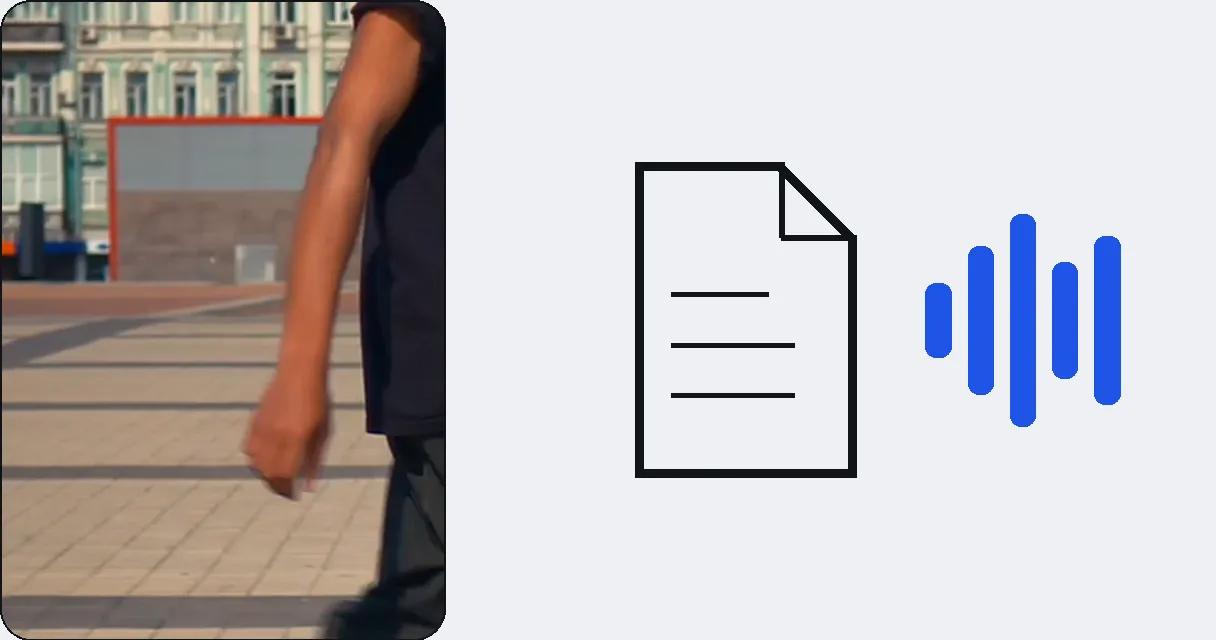
Choose what you take away before you start. Video MP4 keeps the picture and the sound of the clip, ideal for sharing or editing. Audio MP3 keeps only the sound, handy for a podcast extract, a sound effect or a voice you want to listen to on the move.
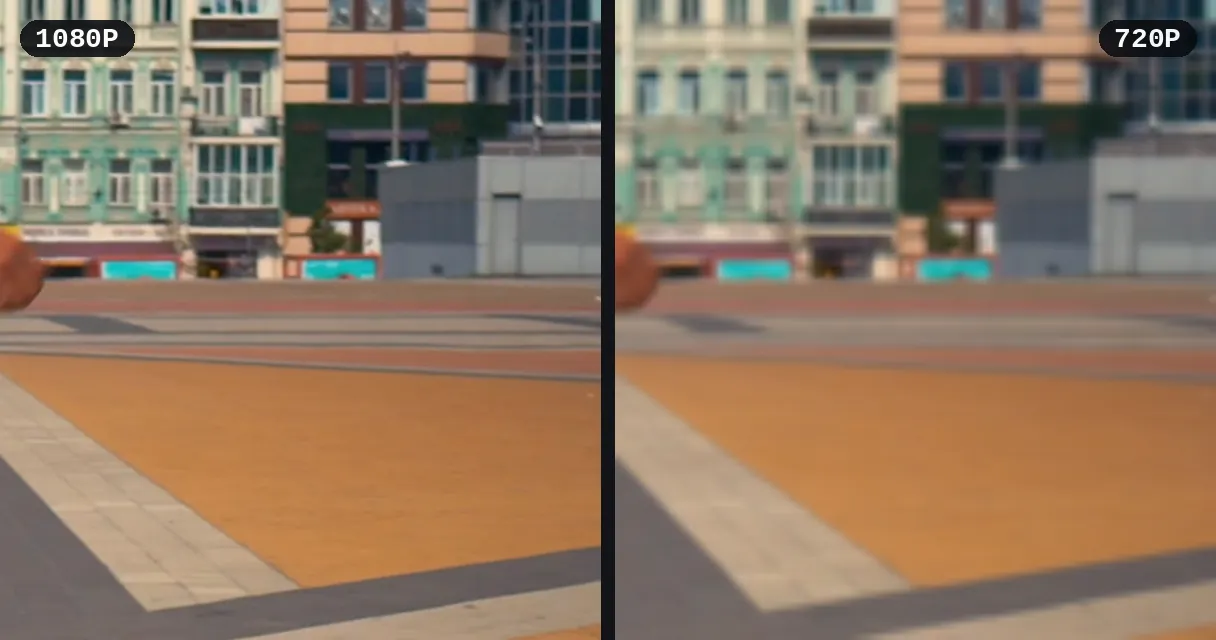
Free download, no signup needed: you get the best quality the free offer can serve, and the resolution of your file is displayed at download time. The original quality of the clip, up to Full HD (1080p) at 60 frames per second, is unlocked video by video when you want it.
Everything runs in the browser. On an iPhone, on an Android phone or on a computer, you paste the link and the clip comes down to your device. There is nothing to install, no application to find in a store and no extension to trust with your browser.
No Twitch subscription is needed for a public clip. Without creating an account, you can download up to 300 minutes per 7 days. The file is clean, with no watermark, and you can go on to edit it straight away.
A Twitch clip is horizontal, a TikTok is vertical. Download the clip, then reframe it into a 9:16 video so it fills the phone screen, and add subtitles so it plays well with the sound off.
Streamers save the clips their viewers made of them: a win, a funny reaction, a milestone. A downloaded file goes into your archive, to a friend or to reuse in a longer video.
Pick Audio MP3 to keep only the sound of a clip: a quote, a reaction, a piece of commentary. It is a quick way to build a sound for a montage or to listen to a moment without the picture.
A link to a clip asks the other person to open Twitch. An MP4 file can be sent in a message, a Discord server or an email, and it plays on any phone straight away.
Take the best two seconds of a clip and make a GIF for a chat, or trim the start and the end to keep only the punchline. The editing tools are one click away on the result screen.
Open the clip on Twitch, copy its link, paste it in the field at the top of this page, choose Video MP4 or Audio MP3 and press the download button. A clip is short, so the file is usually ready in a few seconds.
Yes. Pick Video MP4 under the field and you get the clip as an MP4 file with its sound, which plays on a computer, an iPhone, an Android phone and in most editing software. Nothing is added over the picture, so the file is ready to share or to edit.
Yes. Choose Audio MP3 under the field before you start, and the page gives you the sound of the clip alone. It suits quotes, reactions and sounds for a montage, and the file is an ordinary MP3 that plays everywhere.
Yes. Copy the clip link from the Twitch page or app, open this page in your phone browser, paste the link and press the button. Everything happens in the browser, so there is no application and no extension to install, whichever phone you use.
The free download gives you the best quality the free offer can serve, and the exact resolution is shown when you download. The original quality of the clip, up to Full HD (1080p) at 60 frames per second, is unlocked video by video.
The usual clip link, twitch.tv/channel/clip/name, the same link from m.twitch.tv that you copy on a phone, and the short clips.twitch.tv/name link. Copy it from the address bar or from the share button of the clip, and paste it as it is.
After the download, the result screen offers to reframe the clip for TikTok and Reels. The horizontal clip becomes a 9:16 vertical video from the same file, with no need to upload it again, and you can then add subtitles.
Yes. Downloading a clip is free: no Twitch subscription is needed for a public clip, and you can download up to 300 minutes per 7 days without an account. The video has no watermark added by us, and the original quality of the clip is unlocked video by video when you want it.
Yes. The result screen lets you carry on with the same file: trim the start or the end, add animated subtitles, make a GIF, transcribe the speech to text or cut the silences, all without sending the file again. Each of these is one click away.
A clip can be deleted from Twitch, and then the link leads nowhere. A downloaded file stays on your device. A clip belongs to its creator, so download your own clips or those you are allowed to reuse, and keep the credit with the creator.

You found the perfect Facebook clip to save, repost, or keep for reference, and the first download link you clicked spawned three tabs, a fake virus warning, and…

You are about to hold a clean Instagram video: no watermark stuck in the corner, no oversized file that bounces back from email, no format hiccup when you post it…

Need to know how to extract audio from video on Android? The fastest route is to run the clip through a free browser-based extractor, which strips the audio in…
Paste the link, pick MP4 or MP3, and the clip is saved. Try it free.
No credit card required
You now have the clip as a file on your device, and that is the starting point rather than the end. To post it on TikTok, Reels or YouTube Shorts, turn it into a vertical video in the same flow, then add subtitles and a clean cut. If you want an entire past broadcast rather than a clip, download the Twitch replay with the general Twitch page. Clips can disappear from Twitch, a saved copy does not. Whatever you choose next, the file you downloaded is the same one, so you never have to paste the link a second time.
