

Slow Motion Video on iPhone: Shoot, Edit, Compress
You can shoot slow motion video on iPhone using the built-in Camera app at 120 or 240 fps, trim the slow-motion range in the Photos editor, and then compress the…
A Live Photo is the little moving picture your iPhone records around every shot: you press and hold, and it comes alive. Here you build one from a video you already have. Upload the clip, slide to the second where the action starts, and Klipa hands you a single Live Photo file set that your iPhone recognises as the real thing, not two loose files you have to assemble yourself. People search for this under many names, such as video to Live Photo, MP4 to Live Photo or turning a clip into a Live Photo on iPhone; they all describe the same wish, which is to keep a moving moment where your pictures already live.
The still picture is the first frame of the 3-second passage you chose. Open it in Photos, press and hold, and the passage plays, with the sound of your video if it had any. It carries the LIVE badge like every Live Photo you shoot, so you can browse it, share it and use it in the same places. The picture is only as good as the instant you choose, so take a moment to scrub the slider and look at the first frame before you download.
Your download is a .zip that holds the picture (HEIC) and the movie (MOV) bound together in the format Apple uses for its own Live Photos. On the iPhone, Safari downloads it, the Files app unpacks it with one tap into a single Live Photo, and you save it into Photos. A step-by-step guide called "How to add it to Photos on iPhone" opens from the result screen whenever you need it.
No iPhone at hand while you edit? Download the zip on your computer, send it to your phone by AirDrop, iCloud Drive or e-mail, and follow the same steps in Files. Nothing to install on either side: Safari, Files and Photos are already on every iPhone. Your video's shooting location and device details are not copied into the Live Photo, so you share only the moment itself, with no logo and no watermark on it. Short, lively clips work best: a gesture, a reaction, a view that changes, anything where the first frame already looks good as a photo.

Drag in an MP4, MOV, AVI, MKV or WebM file from your computer or phone. If the moment you love sits deep inside a long recording, simply slide to it in the next step.
Move the slider to the instant your Live Photo should begin. The picture you will see in your gallery is that first frame, and the movement that follows plays for 3 seconds when you press it. Check the preview first.
Download the zip. On an iPhone, open it in Files with one tap, open the Live Photo it contains, and save it to Photos, where it shows the LIVE badge. From a computer, send the zip to your phone first.
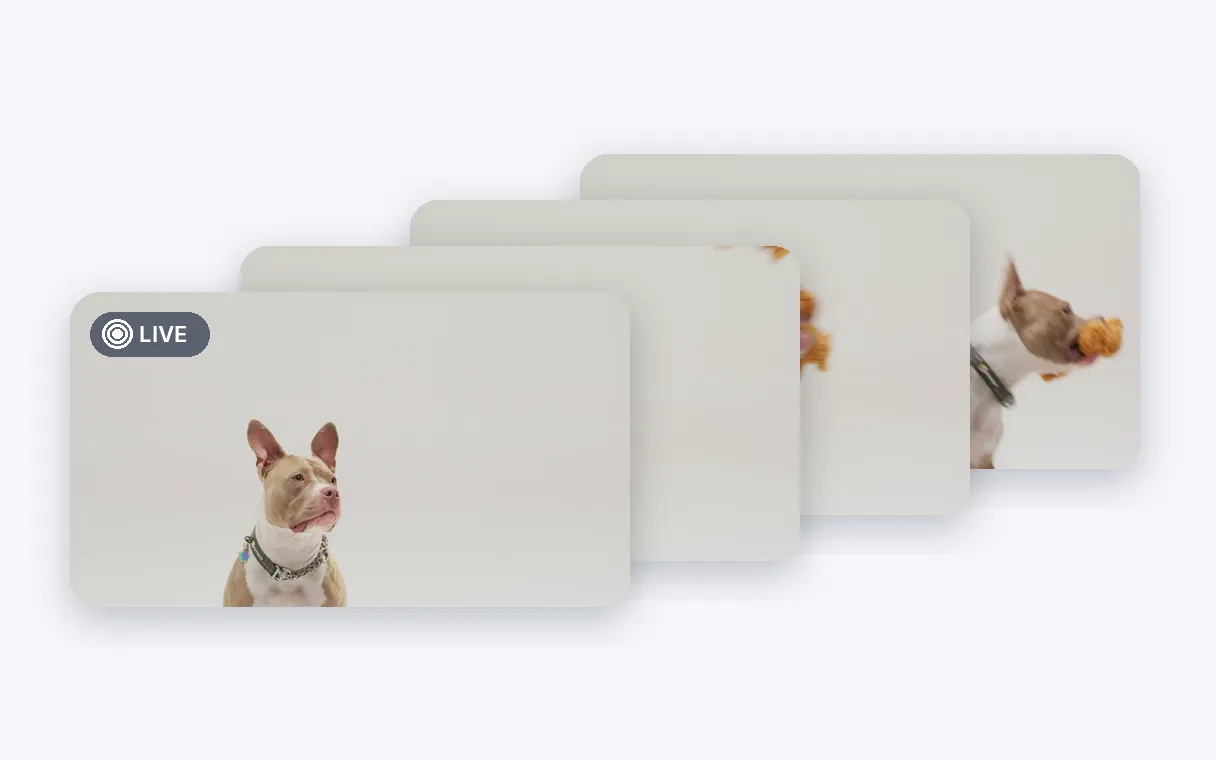
You receive a single Live Photo, not a picture and a movie to stitch together. Once saved in Photos it behaves like those from your iPhone camera: press it and it plays, with its LIVE badge displayed in the corner.
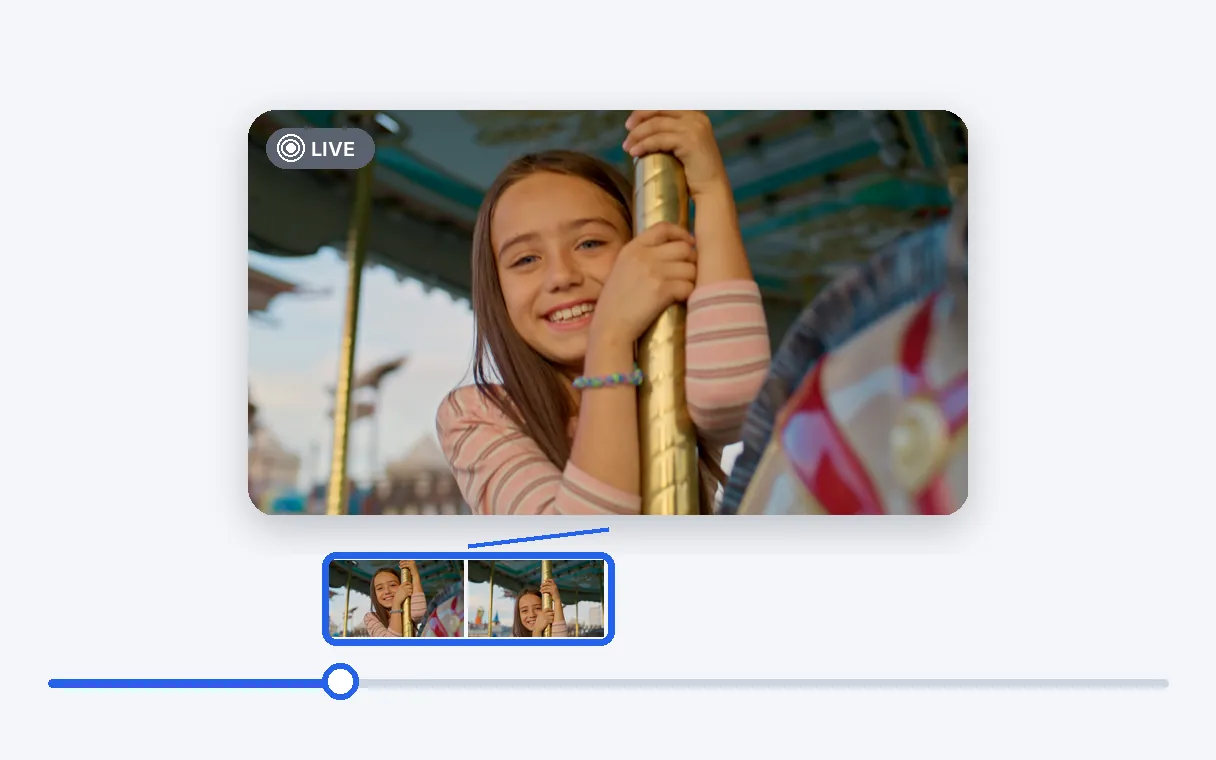
A slider lets you decide exactly where the 3-second passage begins. The still image is the first frame of that passage, so the picture you see in your gallery is the opening of the movement you picked, and you can adjust it until it feels right.
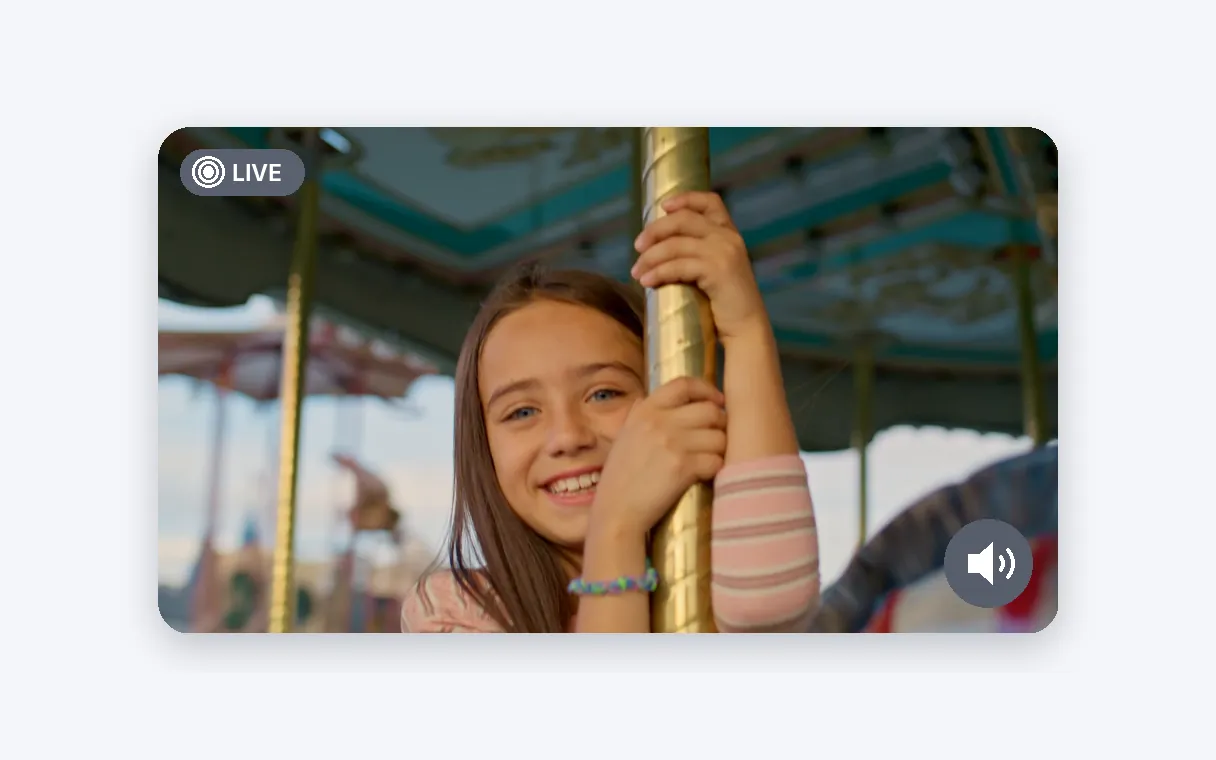
When your video has audio, it travels with the passage and plays as you press the Live Photo. A laugh, a wave, a splash or a song fragment keeps its voice instead of turning into a silent loop, just as it does in the original video.
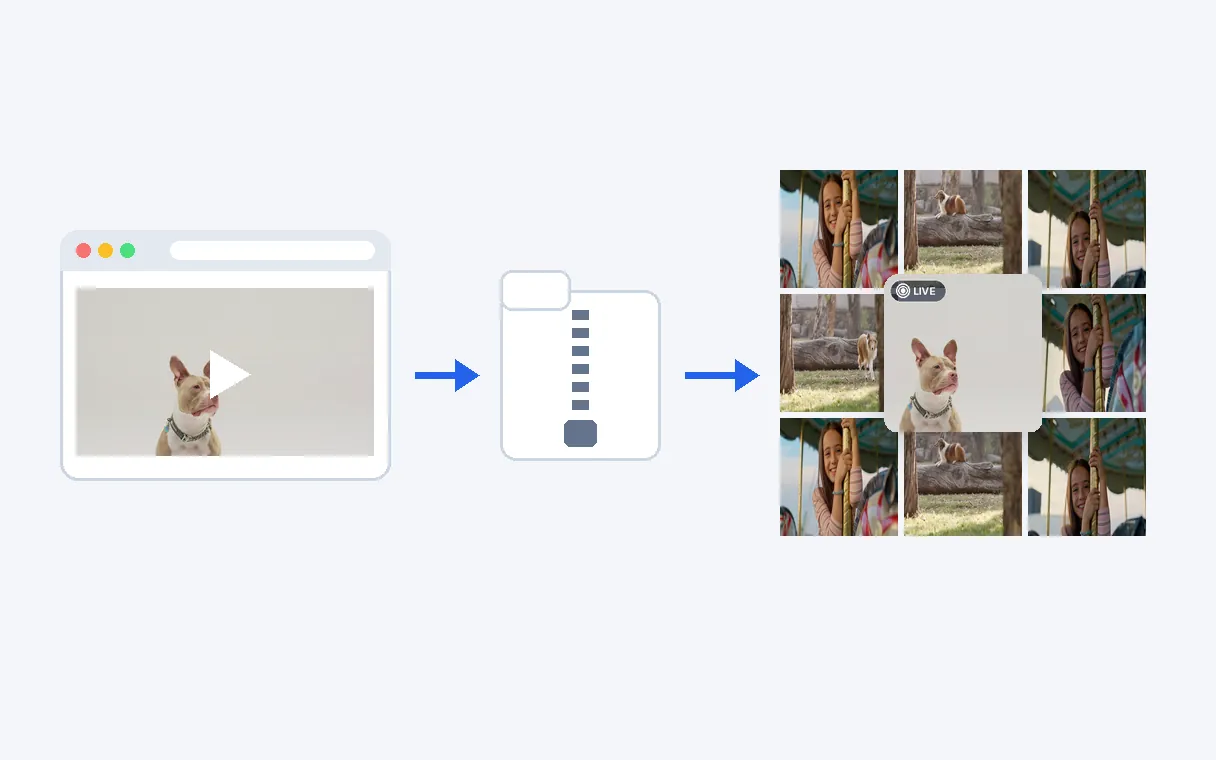
Safari downloads the file, Files unzips it and Photos stores it: three apps Apple already put on your iPhone. No watermark is added, and the place and device information of the source video stay out of the file, so what you keep is only the moment.
A toddler's first steps, a blown-out candle, a dog shaking off water: pick the best second from a long recording and keep it among your photos, where it plays whenever you press it.
Waves rolling in, a street at night, a train pulling out. A few seconds of movement makes a better souvenir in your Photos library than a still frame, and you scroll past it as you would any Live Photo.
Edited a short scene on a laptop or received a clip from a friend? Convert it, send the zip to your phone through AirDrop or iCloud Drive, and it joins your album as a proper Live Photo.
Send a Live Photo in a conversation or an album and the other person presses it to see your moment. It is a lighter, more personal gesture than forwarding a whole video file.
If one detail of a video matters most, like a smile, a goal or a cheer, give it its own place in Photos. Choose the start point, and the rest of the video stays out of your way.
Yes. Upload your video, slide to the moment you want, and Klipa builds a real Live Photo from it: the first frame becomes the picture and the 3-second passage plays when you press it in Photos, with the video's sound if it has one.
Open this page in Safari, upload your video and choose your moment. Download the zip, then tap it in the Files app, in the Downloads folder. It unpacks into one Live Photo that you open and save to Photos, where it displays the LIVE badge.
Yes, nothing needs installing. The conversion happens here, and on your iPhone you only use Safari, Files and Photos, which Apple provides already. A guide opens from the result screen to walk you through saving it, so even a first attempt goes smoothly.
After the download, open the zip in Files with a single tap. A Live Photo appears; open it and choose the save option. It then sits in Photos with the LIVE badge. The button "How to add it to Photos on iPhone" on the result screen shows each step.
Yes. Upload and convert on your computer, download the zip, then send it to your iPhone using AirDrop, iCloud Drive or e-mail. Open it in Files on the phone and save the Live Photo to Photos the same way. The conversion itself needs no phone, only the final step of saving does.
You decide. A slider sets the instant where your passage starts, and the Live Photo then plays 3 seconds from that point. The still image you see in your gallery is the first frame of that passage. Slide again and download a new one whenever you want a different opening.
Yes. If the video you upload has a soundtrack, the sound of your chosen passage comes with it and plays when you press the Live Photo in the Photos app. A laugh, a voice or music from the clip stays attached to the moving picture.
The first try is free, with no sign-up. The Live Photo itself carries no logo and no watermark: what you save in Photos is only your moment, clean and ready to share with whoever you like.
MP4, MOV, AVI, MKV and WebM files are accepted. The result is a picture in HEIC and a movie in MOV, the same formats your iPhone uses for the Live Photos it shoots itself, so Photos handles the result like any of its own.
The shooting place and the device details of the source video are left out of the Live Photo. You share the moment itself, and nothing about where or with what it was filmed, which keeps your sharing simple and private, whether you post the Live Photo, send it to a friend or keep it for yourself.

You can shoot slow motion video on iPhone using the built-in Camera app at 120 or 240 fps, trim the slow-motion range in the Photos editor, and then compress the…

You’ve captured a fleeting moment in video, but your iPhone wallpaper demands a Live Photo. You search ‘convert video to live photo without app’ and find endless…

Want to turn a long, boring clip into a fast-paced timelapse or create a hilarious hyperlapse for TikTok? The good news: you don’t need any fancy apps. Your…
Upload a video, pick the moment, and save it in Photos.
No credit card required
With one video and a few seconds of your time, you get a Live Photo that your iPhone treats as its own: the picture first, the movement when you press, the sound if your clip had one. Trim a long recording beforehand with the video cutter to reach your moment faster, or turn the same passage into a looping animation for messaging with the video to GIF tool. When you are done, Photos holds your Live Photo next to everything else you shot, with no extra app on your phone.
