

Remove a watermark without damaging the rest of the picture
An old logo in a corner, the date a camcorder burned into the picture, a caption added at the wrong moment, a stranger walking through your shot: on Klipa you point at what should disappear by drawing a box on the preview, and the area is filled with what should be there. No blur laid on top, no coloured rectangle: the rest of the picture stays exactly as it was.
Two ways to point at what's in the way
Pick “Fixed area” for anything that stays in the same place throughout the video: a logo, a watermark, burned-in text, a camera date stamp, hard-coded subtitles. One box per element is enough, and you can draw up to four, for instance when a watermark jumps from one corner to another. Pick “Moving object” for a person, a vehicle or an object that moves: place the box at the moment it is clearly visible, and the tool follows it frame by frame through the whole video. Its shadow gets a second box. Let the box run slightly past the element: covering the whole logo, outline included, gives a cleaner blend than a box drawn too tight.
An area rebuilt, not covered up
When something moves, the scenery it was hiding shows up elsewhere in the video, a few frames earlier or later. That is where it is taken from, then aligned to the current frame, even when the camera itself is moving. Whatever is never visible is completed from its surroundings. For a fixed logo, each frame is completed from what lies around the area. Your video keeps its resolution, frame rate and sound: only the area you marked changes.
See the result first, nothing to install
Everything happens in your browser, on a computer or a phone, with no software to install. You watch the result on the first 8 seconds of your own video, with the Klipa logo, before deciding anything. The Pass then processes the whole video and delivers it without the logo; a Pro plan does it from your very first upload. Once the area is clean, you can place your new logo there with the logo overlay tool.

What the tool produces
How to remove a logo or an object from a video
Upload the video to clean up
Drag your MP4, MOV, WebM, AVI or MKV file onto the page from a computer or a phone. The preview appears straight away, ready for your boxes.
Mark what should disappear
Choose “Fixed area” for a logo, a date or some text, or “Moving object” for a person or an object. Draw a box around it at a moment when it is clearly visible.
Check it, then get your video
Watch the result on the first seconds of your video. The Pass or a Pro plan then erases the whole video and delivers it without the logo, in the same format.
Why erase with Klipa
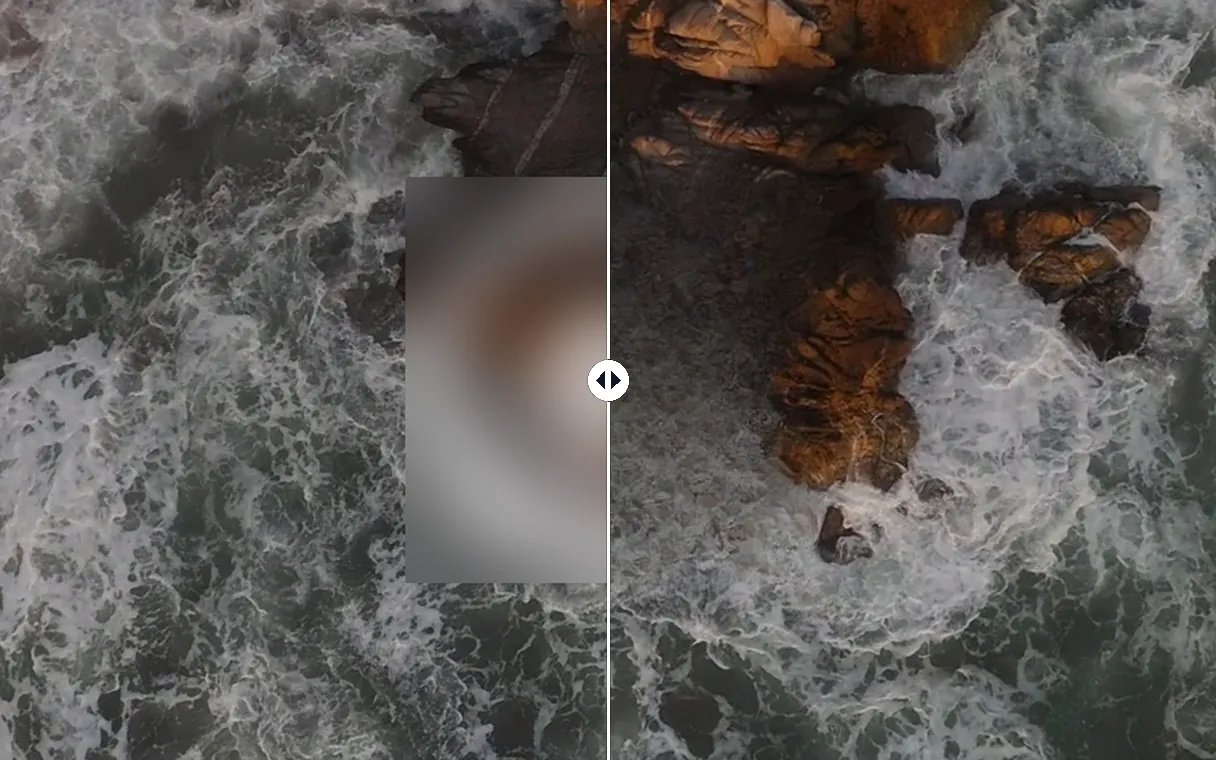
Filled in, never blurred
Where a blur or a solid patch draws the eye straight to the spot, the area here is filled with the texture around it: sky, wall, road, fabric. Viewers glide over the place where the logo used to be instead of staring at it, and the shot keeps its natural look.
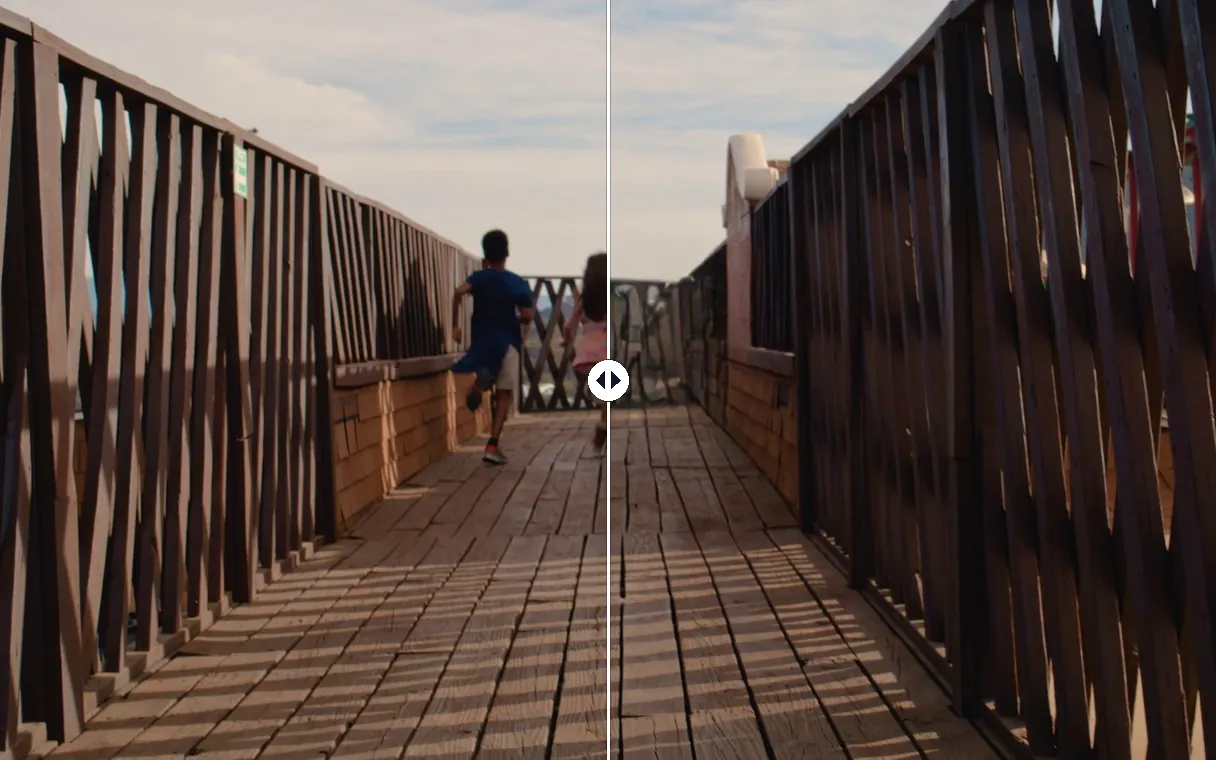
Moving things are tracked for you
One box at the right moment is all it takes: the person or object is followed frame by frame, forwards and backwards, and the scenery it hid is recovered from other frames of the video. You never draw anything frame by frame.
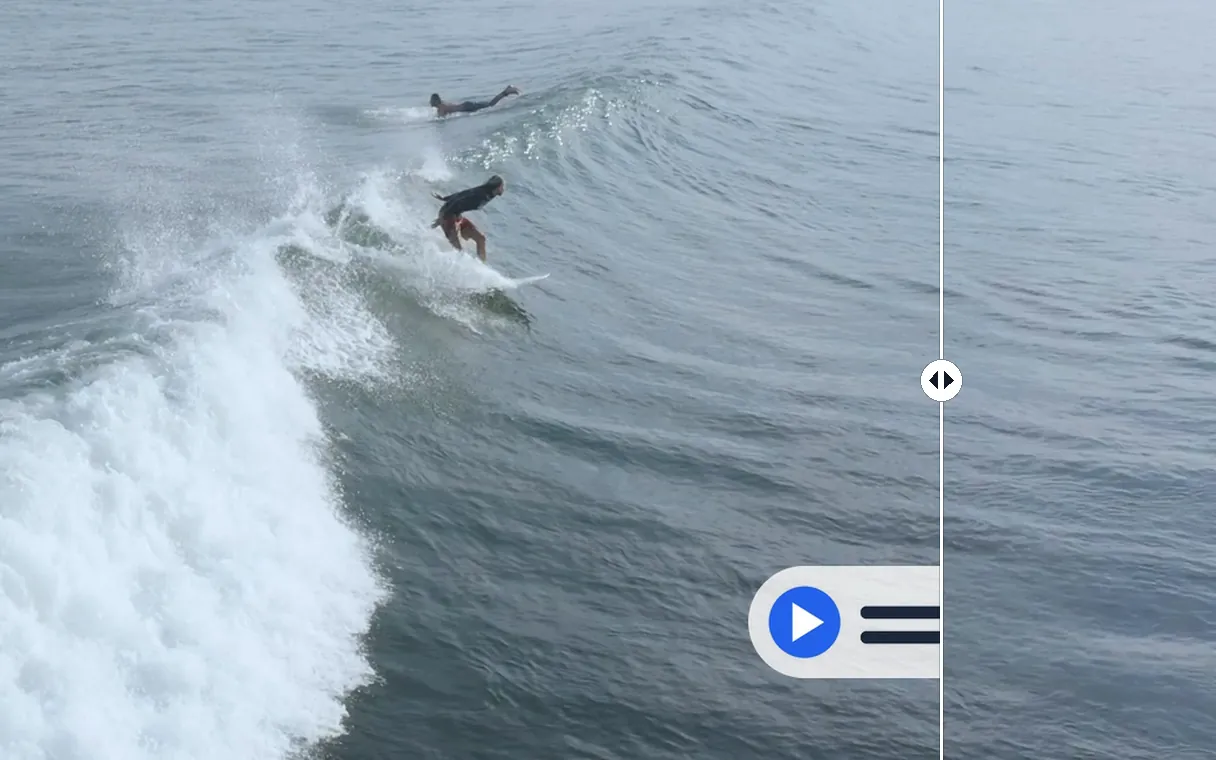
The rest of your video stays untouched
Only the area you marked is edited. Resolution, frame rate and soundtrack are those of your original file, and the video downloads as an MP4, ready to edit, publish or send.
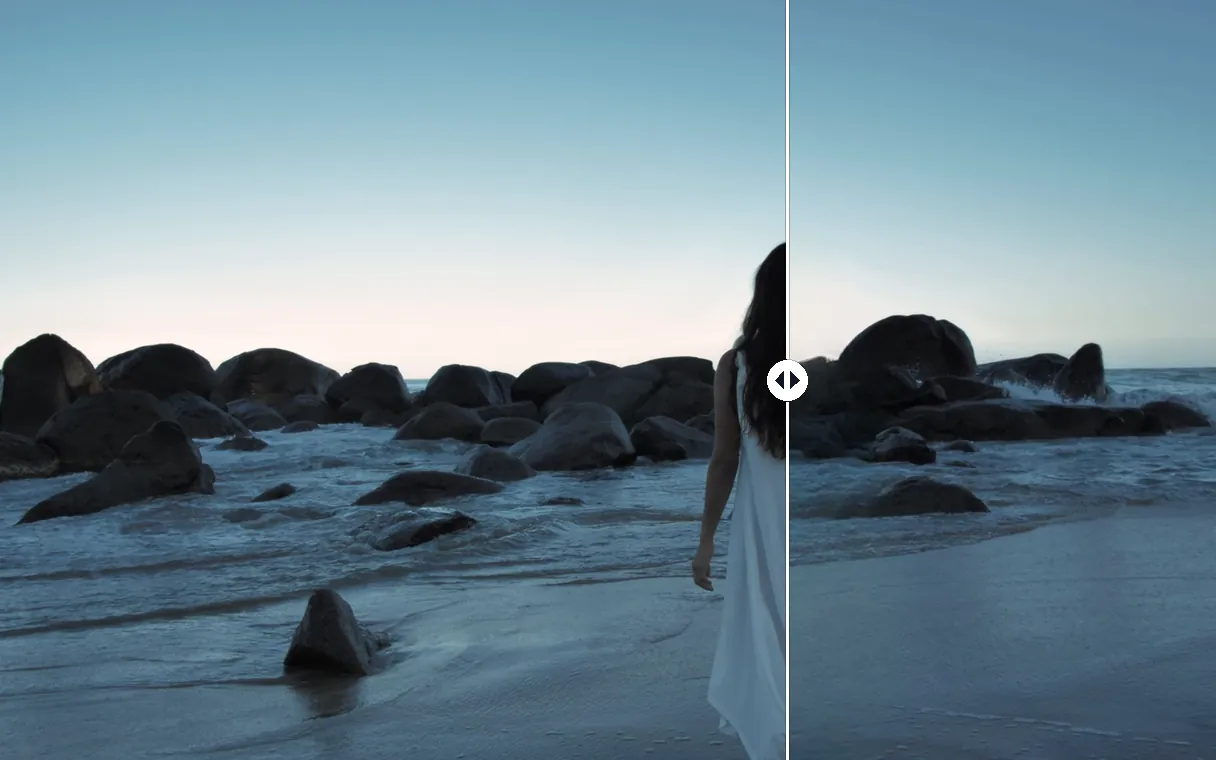
Even a figure in the foreground
Someone filling the whole foreground can be erased too: one box placed on them, and the sand, water and rocks they were hiding are completed from their surroundings, frame after frame, for the whole length of the video. The shot gets back the scenery you saw when filming.
What people erase
An old channel or brand logo
Your branding changed but your older videos still carry the previous logo. Erase it, then place the new one in the same spot and republish without re-editing everything.
A camera date stamp
Camcorders and some cameras burn the date and time into a corner of the picture. Remove it from your family footage before sharing or editing it.
Text or subtitles burned in by mistake
A misspelt title, subtitles in the wrong language, an outdated phone number: erase the burned-in text from your video and write it again properly.
A passer-by crossing your shot
Someone walks into your take at the wrong moment. Box them while they are clearly visible: they are tracked and removed, and the street behind them comes back.
Something in the way on set
A cable on the floor, a microphone poking into frame, a sign or a brand visible in the background: erase it from your own footage instead of reshooting the scene.
Related Tools
Video watermark removal: common questions
How can I remove a watermark from a video for free?
Upload your video, draw a box around the watermark and start: you watch the result for free on the first 8 seconds, with the Klipa logo. If you like it, the Pass erases the whole video and delivers it without the logo; a Pro plan does it from your very first upload.
Can I remove a logo from a video without blur?
Yes. The area is neither blurred nor covered with a patch: it is filled from its surroundings, frame by frame. For a moving object, the scenery it hid is even taken from other frames of the video where it is visible.
How do I erase a person or a moving object?
Choose “Moving object”, pause the video when the person or object is clearly visible, then draw a box around it. The tool follows it through the whole video and fills the spot it occupied. Give its shadow a second box to erase that too.
Do I need to install software or an app?
No. Everything runs in the browser on a computer, tablet or phone: you upload the video, draw the box with your finger or mouse, and download the MP4 file once the erasing is done.
Can I erase several things at once?
Yes. Draw one box per item, up to four: a logo in one corner, a date in another, a caption at the bottom of the picture. Every area is erased in the same run, across the whole length of the video.
How do I remove the date from old camcorder footage?
Choose “Fixed area” and draw a box around the date and time, slightly wider than the digits. If the camera burned in other information, add one box per item: up to four areas are erased in a single run.
Will the quality of my video change?
Only the area you marked is edited. The video keeps its original resolution, frame rate and sound, and you get it back as an MP4, ready to edit or publish.
My watermark jumps between corners: can I still erase it?
Draw a box at each place where it appears, up to four: every area is erased across the whole video. That is the way to handle a watermark that jumps from one corner of the picture to another.
Which video formats can I upload?
The usual formats from phones, cameras and editing software: MP4, MOV, WebM, AVI and MKV, plus 3GP, FLV and WMV. The cleaned-up video comes back as an MP4.
Can I replace the erased logo with my own?
Yes. Once the area is clean, open the logo overlay tool with the video you just got, place your new logo wherever you like and adjust its size and opacity.
Erase what's in the way in your video
One box drawn on the preview, an area filled in without blur, and the result in front of you before you pay.
No credit card required
A clean video without starting over
Fixing a video no longer means reshooting the scene or hiding a corner of the picture. A box drawn on the preview is enough to erase a logo, a date stamp, burned-in text or a passer-by, and the area gets its scenery back without blur. Afterwards you can replace the whole background behind your subject with the background remover, or bring a dull picture back to life with the video enhancer. Each tool starts from the video you just got.
